
MetaServer > Help > Validate > Validate CSV
040-010 MetaServer Validate – Validate CSV
With MetaServer’s Validate CSV rule, you can let an Operator validate a field containing multiple lines separated by comma's or semicolons.
If you have a table with different line items, you can use the Extract Text (Azure Form Recognizer) to extract all the line items in the table and use a Format CSV rule to format and merge them all together in a compatible CSV. Each column can then be defined as a Text, Number, Database or Date field with all the usual format checks.
As our example, we use the below table to extract and validate the CSV content:
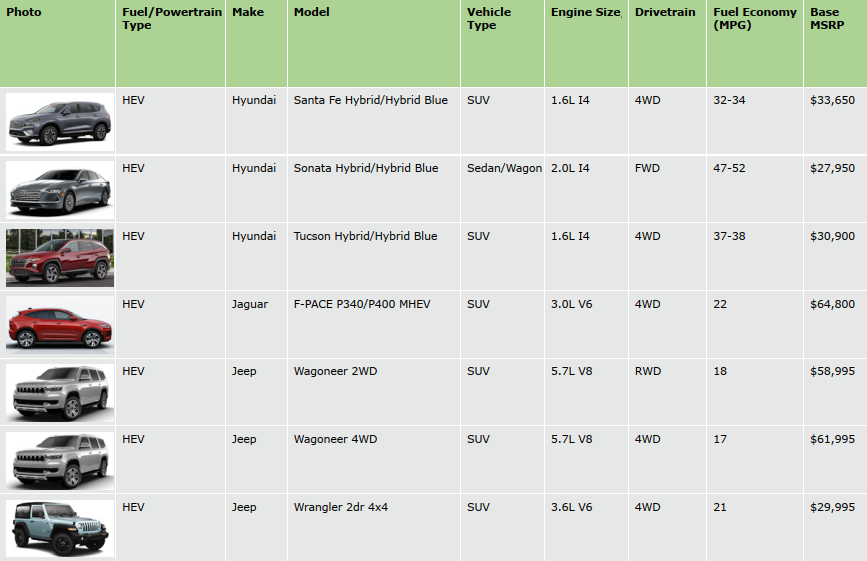
For more details on how to extract and format this CSV using the Extract Text (Azure Form Recognizer) rule and the Format CSV rule, please refer to the Format CSV online help page.
Extracting the data from such a table with MetaServer would result in a field with data looking like this:
“Hyundai”,”Santa Fe Hybrid/Hybrid Blue”,”SUV”,”1.6L I4″,”4WD”,”32-34″,”$33,650″
“Hyundai”,”Sonata Hybrid/Hybrid Blue”,”Sedan/Wagon”,”2.0L I4″,”FWD”,”47-52″,”$27,950″
“Hyundai”,”Tucson Hybrid/Hybrid Blue”,”SUV”,”1.6L I4″,”4WD”,”37-38″,”$30,900″
“Jaguar”,”F-PACE P340/P400 MHEV”,”SUV”,”3.0L V6″,”4WD”,”22″,”$64,800″
“Jeep”,”Wagoneer 4WD”,”SUV”,”5.7L V8″,”4WD”,”17″,”$61,995″
“Jeep”,”Wrangler 4dr 4×4″,”SUV”,”3.6L V6″,”4WD”,”21″,”$34,045″
Etc.
The Validate CSV rule will convert the CSV to a table. More details about this later.
Validate CSV rules are defined as part of a MetaServer Validate action.
If you are not familiar with adding a Validate Action to your workflow, please refer to our Validate action help guide.
After adding a Validate action to your workflow or opening the setup of an existing one, you can add a Validate CSV rule. In the Validate action, press the Add button and select "CSV".
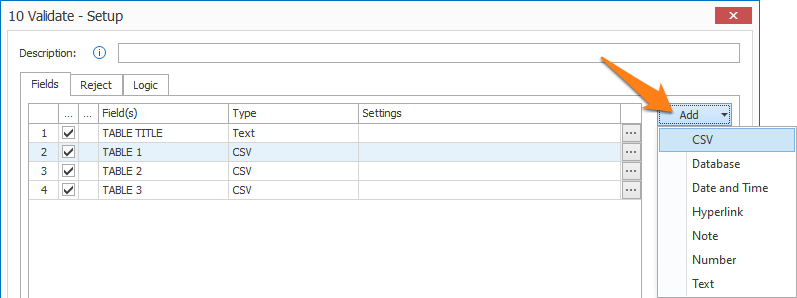
TIP: The thumbnail on the right will follow you, so you can easily refer to the Setup window. Click on the thumbnail to zoom in.
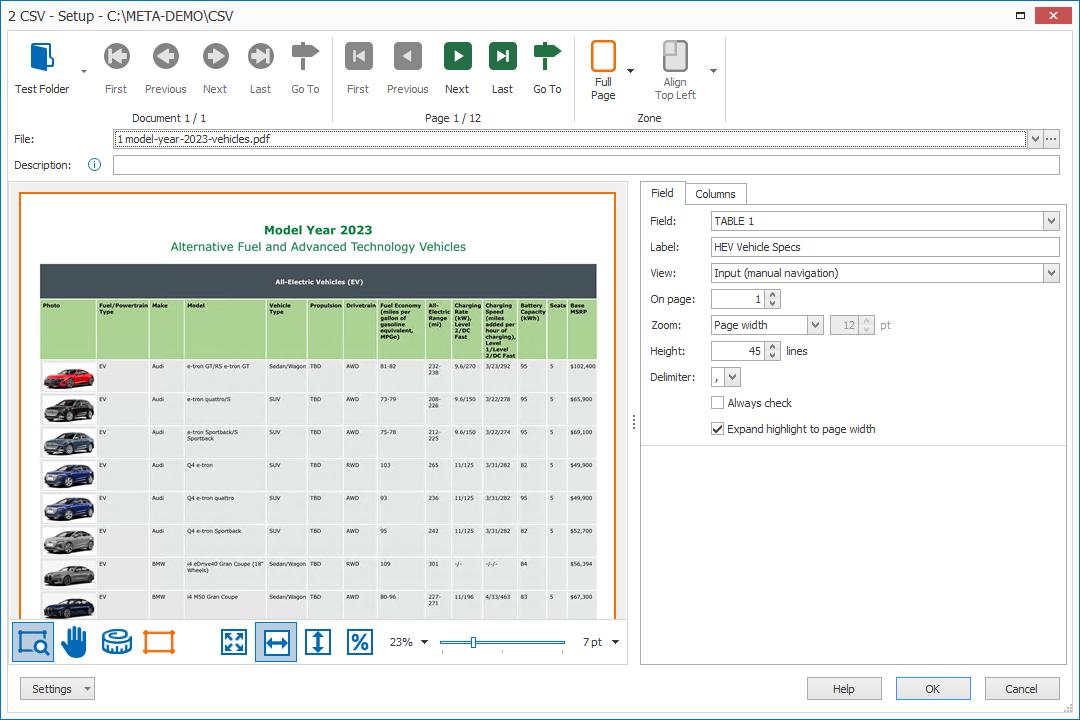
First, add a description to your rule. Then, select the field containing your CSV value. In this case, we select the field “TABLE 1”.
01 - Zone: in the Validate Text setup window’s toolbar, you will find two Zone tools to specify a highlighted zone on the page where your table is typically located.
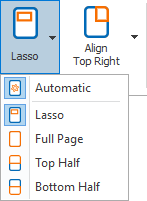
The purpose is to draw the attention to the correct part of the page to assist the operator to find the data on the page:
1) Automatic: this automatically jumps to the page where the data that was found by your previous Extract rules, frames it with a pink border and and highlights the column's zone (1 cm / 0.5 inch around the pink frame).
As long as there are invalid cells or cells that need to be checked, the cell's value and/or highlighted row will be shown as red.
This helps to draw the Operator’s attention to the exact location on the page.
Only if the Extract rules failed to extract the data, the defined highlight zone will be used (Lasso, Full Page, Top Half or Bottom Half). By default, the “Automatic” highlighting is enabled.

In this table, the column with the automatically extracted cellls that were found on page 1 and shows their exact location.
2) Lasso / Full Page / Top Half / Bottom Half: you can choose what part should be highlighted on the page when the operator navigates in the validation field if the data was not automatically extracted.
You can highlight the full page, the top or bottom half of the page or you can specify a custom zone with the Lasso option. You can do this by drawing a zone with the select tool which will be framed with an orange border.
The area around that highlighted zone will be dimmed in the validation viewer.
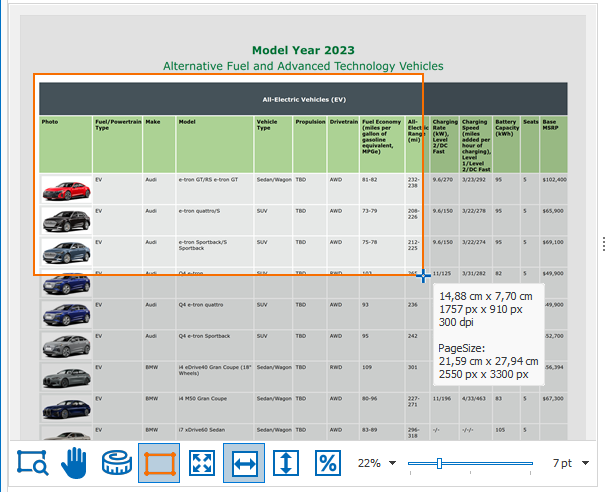
TIP: while drawing, you can see the zone’s dimensions in cm/inches (depending on your regional settings) and in pixels. You’ll also find the page’s resolution in DPI and the page size in cm/inches and pixels.
We recommend you scan your documents with a resolution of 300 DPI for the best OCR result and compact file size.
02 - Align: when your documents vary in size or have mixed orientations (portrait and landscape mixed together), you can align your highlight zone in relation to any of the 4 corners of the image: the top left or right corner or the bottom left or right corner.
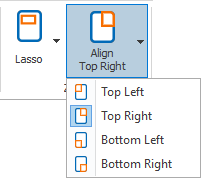
That way, the zone will be positioned correctly on all sizes and orientations.
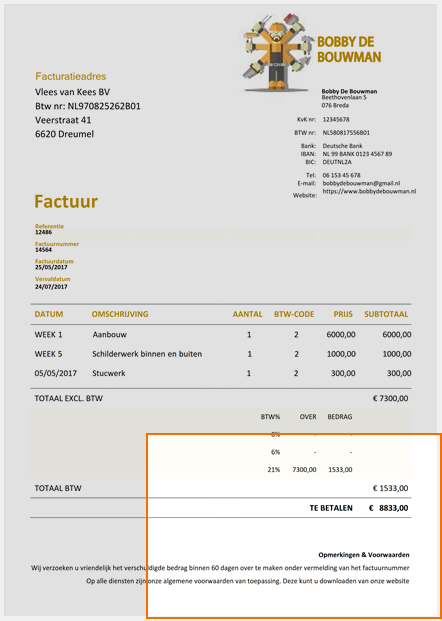
Bottom right alignment of a zone on a portrait-oriented image
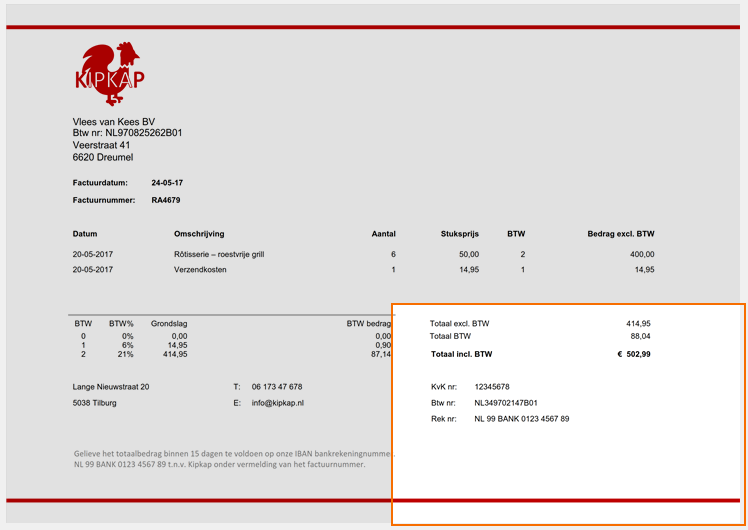
Bottom right alignment of a zone on a landscape-oriented image
03 - Label: the label displayed during validation above your current field’s input box. The default label is the same name as your field, but you can change this to a custom label. For example, the full field name, name with hints, abbreviations, etc.
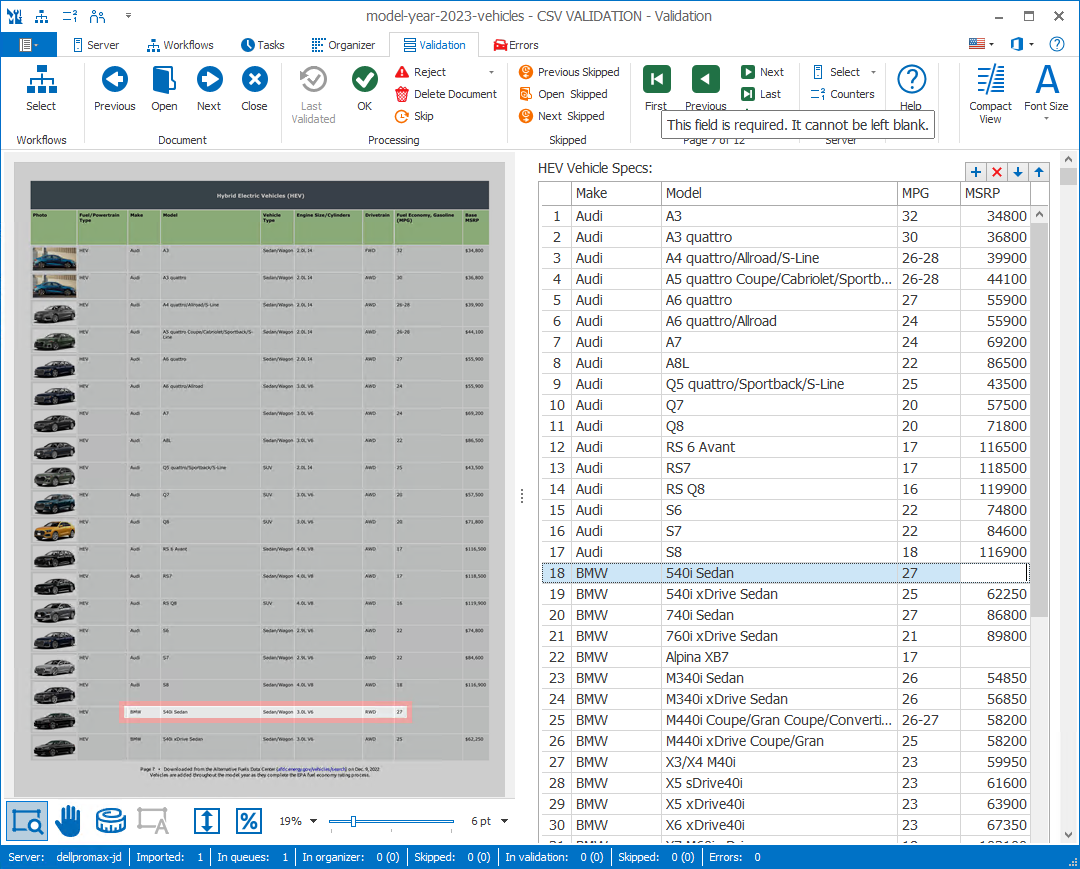
In our example we have set the label to the table name “HEV Vehicle Specs".
NOTE: The colon (:) following the label is automatically added.

04 - View: select the view mode of the field when the user navigates in the field:
2) Input (manual navigation): disables highlighting and automatic page loading when there is no automatically extracted data.
The operator will need to navigate to the correct position manually during validation. Only when a cell of the columns was extracted automatically, the page will be automatically loaded and the column will be highlighted. This is often used when the cells needs to be manually entered and the columns are never in the same position (e.g. invoices from different companies with varying layouts).
3) Read-Only: this grays out the field value. This only allows the operator to view the extracted field values. The operator cannot change the values of the cells.
It still highlights and automatically loads the page where the data was found. If the read-only field does not hold any data, the viewer will stay in its current position.
05 - On page: set the page number to where the data is most likely located. This page will be loaded when the value was not extracted automatically. Otherwise, the page where the value was extracted from will be loaded.
The default is page 1.
For example:
– Enter 1 for the 1st page
– Enter -1 for the last page
– Enter -2 for the page before the last page
– Etc.
If a document does not contain the specified page, it will load the last page. For example, validating page 3 on a 2-page document will show page 2.
06 - Zoom: set the Zoom to the preferred level when the operator navigates in the field.
You can choose between:
1) Whole page: shows the whole page in the validation viewer. This can be useful if you want to show the location of the field value in context of the whole page.
2) Page width: fits the page horizontally in the validation viewer and focuses automatically onto the part where the extracted value is located.
This option is most often used on smaller displays. It gives you a good overview of the page while still being very readable.
3) Page height: fits the page vertically. This can be useful when validating landscape-oriented page.
4) 100%: shows the page without scaling. This option is most commonly used on a large HD monitor with the same resolution as the scanned pages (typically 300 DPI).
5) Font size: zooms the page to a size so that normal text on the page is shown in the specified font size.
6) Zone: the viewer will automatically zoom in on the result. That means that if the result is only a short text like the report number, the viewer will be completely zoomed in on the number and show it very large in the viewer.
07 - Height: by default, the “height” of a CSV field is 5 columns. This value can be increased or decreased by entering a new value or by using the spinner control.
Please make sure you set this value to the maximum number of columns that can appear in your documents. If there are tables with less than the maximum number of columns, the remaining columns will just appear as blank columns in your validation.
08 - Delimiter: here you specify if your CSV uses a comma (",") or semi colon (";") as a delimiter.
If you select the incorrect delimiter, your table's columns will not be shown properly during validation.
09 - Always Check: enable this option to force the operator to check the field value for each document.
This option is useful when working with critical values like amounts, names that can’t be looked up in a database, etc. It’s also essential to double-check when the document is of very poor quality, or, like in our example case, during a demo.
10 - Expand highlight to page width: this option is enabled by default. It automatically hightlights the entire column, fit to the page width. When disabled, it only highlights the zone around the extracted cells.
"Expand highlight to page width" enabled
"Expand highlight to page width" disabled
In the Columns tab, you define each column field for your table.
Your CSV field value consists of lines with different values separated by a comma (",") or semicolon (";").
For example:
"Page 7 of 12","Audi","A3","Sedan/Wagon","2.0L I4","FWD","32","34800"
"Page 7 of 12","Audi","A3 quattro","Sedan/Wagon","2.0L I4","AWD","30","36800"
"Page 7 of 12","Audi","A4 quattro/Allroad/S-Line","Sedan/Wagon","2.0L I4","FWD","26-28","39900"
"Page 7 of 12","Audi","A5 quattro Coupe/Cabriolet/Sportback/S-","Sedan/Wagon","2.0L I4","AWD","26-28","44100"
...
From the first line in the above CSV value, we derive the following fields, in order:
Page: Page 7 of 12
Make: Audi
Model: A3
Type: Sedan/Wagon
Engine Size: 2.0L I4
Drivetrain: FWD
MPG: 32
MSRP: 34800
For each of these fields, you need to add the appropriate column.
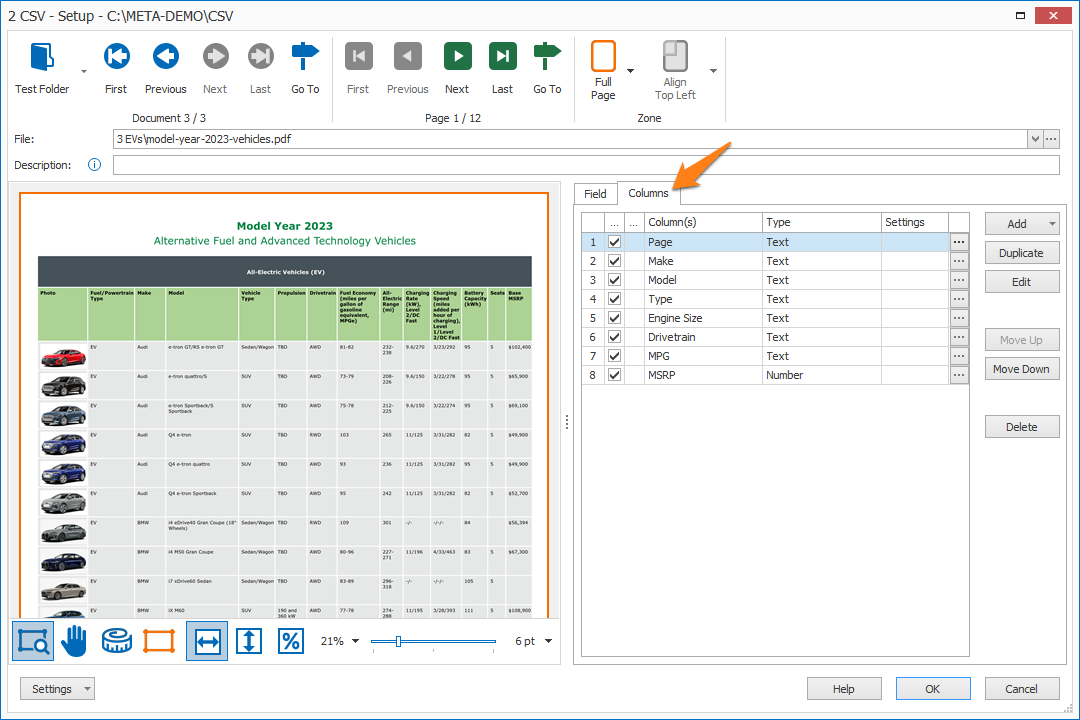
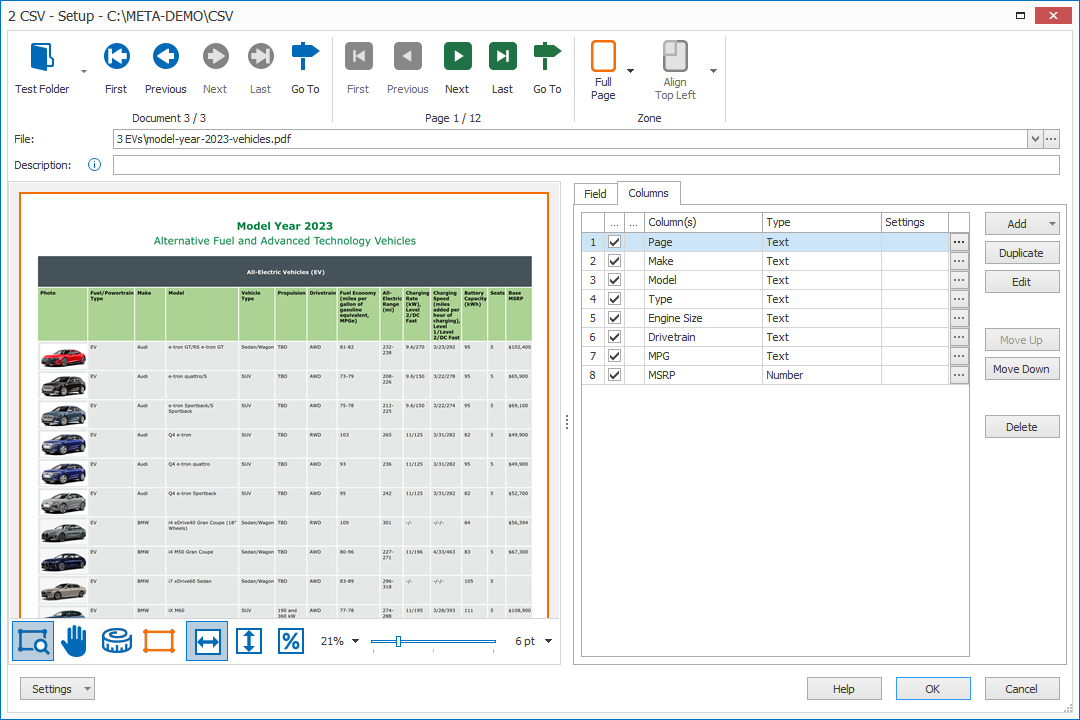
01 – Database: double-click the Database validation field or press the "Edit" button to open the setup window.
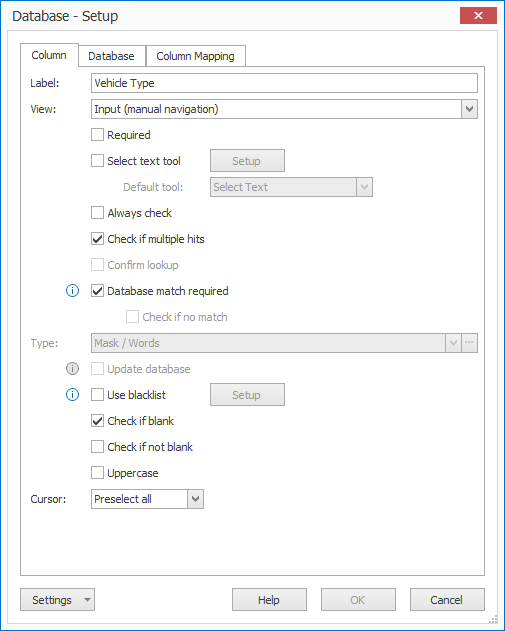
The setup is almost identical to that of a regular Validate Database field. But, instead of mapping other fields, you map other columns.
For more detailed instructions on how to set up a Database validation field, please refer to the Validate Database help page.
- Database match required - Check if no match: When you disable the "Database match required" option, you have an additional option to let the operator check the cell if there is no database match.
Since there is no database match required, the document will stop in validation if a cell's value is not available in the database. The operator is then forced to verify the value, BUT they can still accept it, even though it doesn't exist in the database.
02 – Date and Time: double-click the Date and Time validation field or press the "Edit" button to open the setup window.
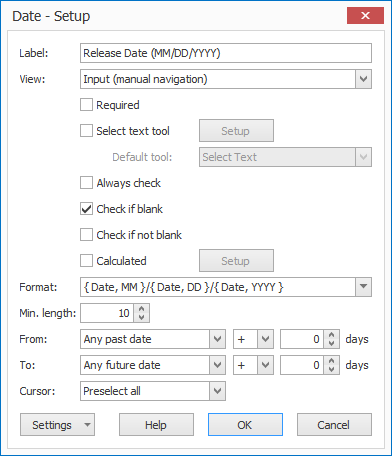
For more detailed instructions on how to set up a Date And Time validation field, please refer to the Validate Date and Time help page.
03 – Number: double-click the Number validation field or press the "Edit" button to open the setup window.
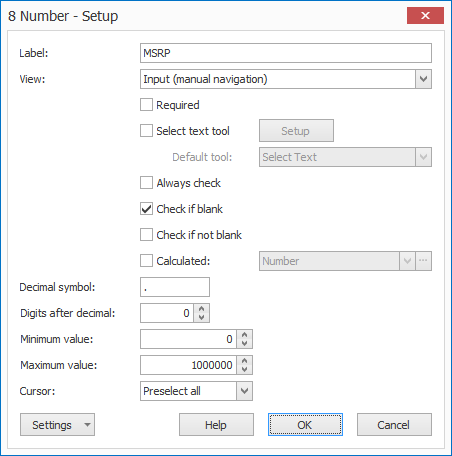
For more detailed instructions on how to set up a Number validation field, please refer to the Validate Number help page.
04 – Text: double-click the Text validation field or press the "Edit" button to open the setup window.
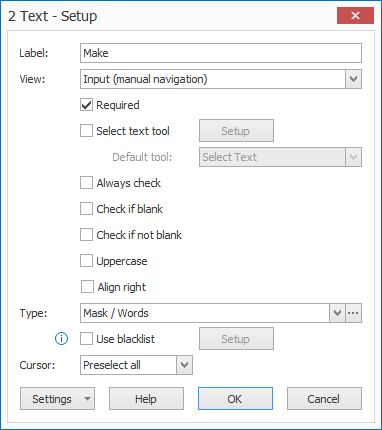
1) Align right: enable this option if you want to align the text value to the right side of your column. By default, this option is disabled and the text value is aligned to the left side of the column.
| Example Text | Example Text |
For more detailed instructions on how to set up a Text validation field, please refer to the Validate Text help page.
TIP 1: When you want to format bank card numbers or other long id numbers when you open the CSV in Excel, add an equal sign (=) in front of the value before validation. MetaServer will automaticallly hide the equal sign during validation.
For more details on how to set this up, please refer to the guide on the Set Field Value online help page.
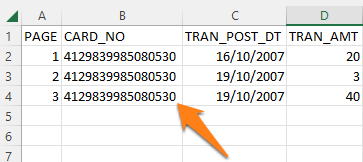
Correctly formatted result with a "=" in front of the value
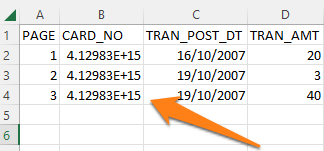
Formatted result without a "=" in front of the value
TIP 2: When a value in one or more columns contains an inches symbol (“) like, for example:
“Jeep Wrangler 18″ Wheels”
Then you need to double the quote character (“) for the CSV formatting to be valid.
For more details on how to set this up, please refer to the guide on the Set Field Value online help page.
TIP 3: If you want to create a hyperlink to the corresponding document of your record in the CSV file, you need to add it in advance to the CSV field value.
This will then be shown in Excel as a blue “Open PDF” hyperlink and will open the document in the default viewer.
For more details on how to set this up, please refer to the guide on the Set Field Value online help page.
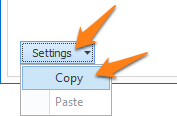
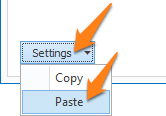
TIP: you can copy the current settings and paste it in another setup window of the same type. Do this by pressing the Settings button in the bottom left of the Setup window and selecting Copy. Then, open another setup window of the same type and select Paste.

In the validation viewer, if you select a line in the table, the viewer automatically jumps to the correct page and highlights the line where the data was extracted.
You can easily check blank cells or cells with invalid data by just hitting the Enter key, which will jump from invalid cell to invalid cell. Then, you just enter or adjust the value.
NOTE: as long as there are invalid cells or cells to be checked, the cell's value and/or row will be red.
Table Controls: You can use the buttons in the right-top corner of your table to:
- Add a row
- Delete a row
- Move a row up
- Move a row down
When your document passed validation, MetaServer updates the CSV based on the adjustments that were applied during validation, ready for export to a system of choice.