MetaServer > Help > Redact
140-050 MetaServer Edit – Redact
With MetaServer’s Redact action, you can automatically redact / black out sensitive, extracted information.
The selected text will be covered in solid black, and all underlying text layers will be permanently removed to ensure absolute redaction.
NOTE: This action is included with the "Digital Imprinter" license.
Original

After redacting the extracted, sensitive information

To output your redacted PDF:
Step 1: Add the Redact action just before the Export action(s) used to output your Processed PDF.
Step 2: In your Export action(s), select “Processed PDF” as the File source. More about that later.
To add the Redact action, select the action after which you want to insert the Redact action and press Add -> Edit -> Redact. The Setup window will automatically open.

You can also open the setup window of an existing Redact action by double clicking it or pressing the “…” button on the right side of the action, as shown below.

The Redact action uses the coordinates of your extracted text to automatically redact / black out those values. So, in order to do this, you will first need to have a field containing fields that need to be redacted.
You can do this by:
1) Use Extract rules to locate the target values. This will generate a field containing the list of words to be redacted.
2) Use Validate rules to let an operator select the target text on the page(s). Based on this, you can generate a field containing the list of words to be redacted.
3) A combination of both, by merging fields that were auto-extracted + selected through validation together in 1 field.
Example 1: The field shown below holds a list of extracted "BSN" numbers (= Dutch Social Security numbers). All their locations are shown in the preview using pink rectangles. After validation and final formatting (to remove any empty lines), this field can be used to redact all these numbers.

Example 2: The validation field shown below can be used to select text from the pages of this document. After validation and final formatting (to remove any empty lines), this field can be used to redact all the selected values.

TIP: The thumbnail on the right will follow you, so you can easily refer to the Setup window. Click on the thumbnail to make the image larger.

Don't forget to add a description to your action.
01 - Redact data in field: select the field containing the data you want to redact from your document.
02 - Margins: you can make the coverage of your black / redaction boxes bigger by adjust the margins.
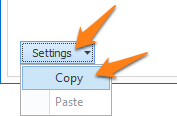
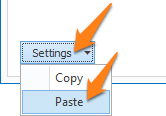
TIP: you can copy the current settings and paste it in another setup window of the same type. Do this by pressing the Settings button in the bottom left of the Setup window and by selecting Copy. Then open another setup window of the same type and select Paste.

To export your redacted documents, expand the File Source(s) list in your export action(s) and select “Processed PDF”.
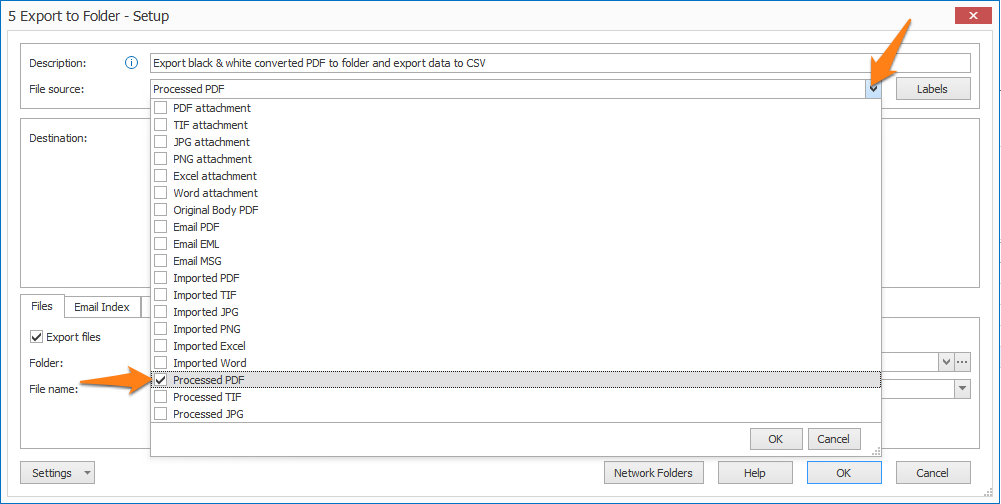
File source selection in Export to Folder
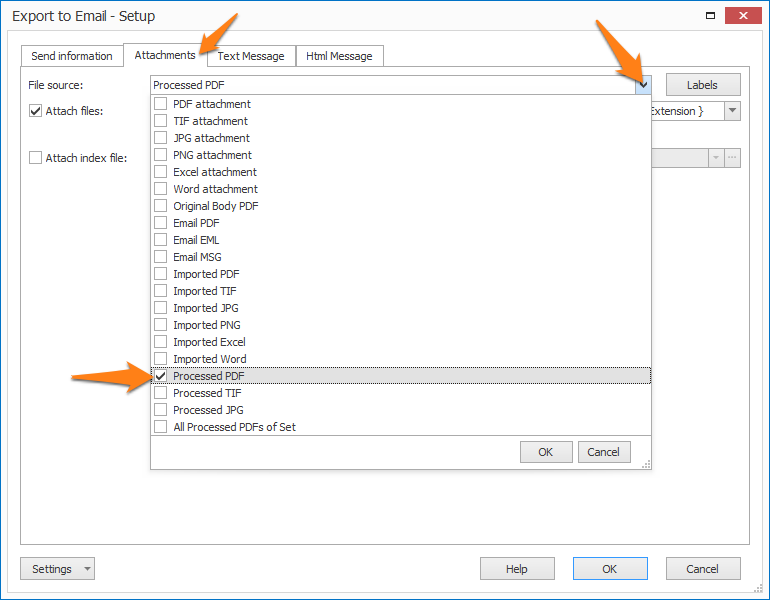
File source selection in Export to Email, if you want to attach the redacted document to the email