
MetaServer > Help > How to adjust the access expiration time for actions using OAuth login
How to adjust the access expiration time for actions using OAuth login
If you use OAuth 2.0 (= Office 365) as a login method for the following MetaServer / Kofax Express 3.3 / Tungsten TotalAgility / Kofax Capture connectors and functions, the default expiration time of the access token is set to 3 days (= 72 hours):
| Base Software | Connector |
| Kofax Express 3.3 | Export to SharePoint |
| Kofax Express 3.3 | Export to Email |
| Tungsten TotalAgility / Kofax Capture | Export to Email |
| MetaServer | Import Email |
| MetaServer | Export to SharePoint |
| MetaServer | Export to Email |
| MetaServer | Email Alert |
This means that, if the action or connector is not actively used during that time, the access token expires and you'll need to log in again for that connector.
In case a system is only used sporadically, you may want to increase this expiration time.
You can adjust this expiration time in your organization's Entra ID admin center using the below guide:
With an admin-level Azure account:
Step 1: Browse to the Microsoft Entra Admin Center.
Step 2: Select or search for "Conditional Access".
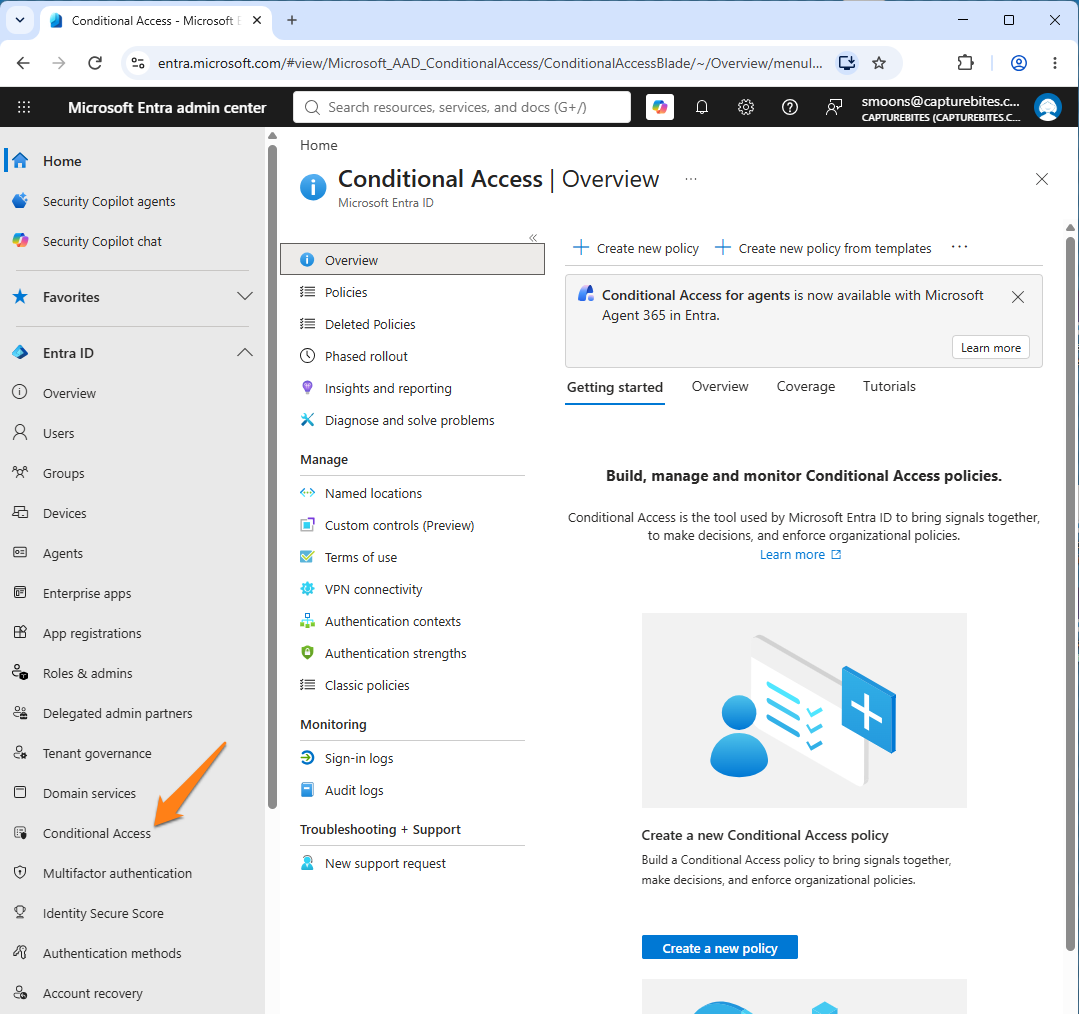
Step 3: Select "Policies" and create a "New policy".
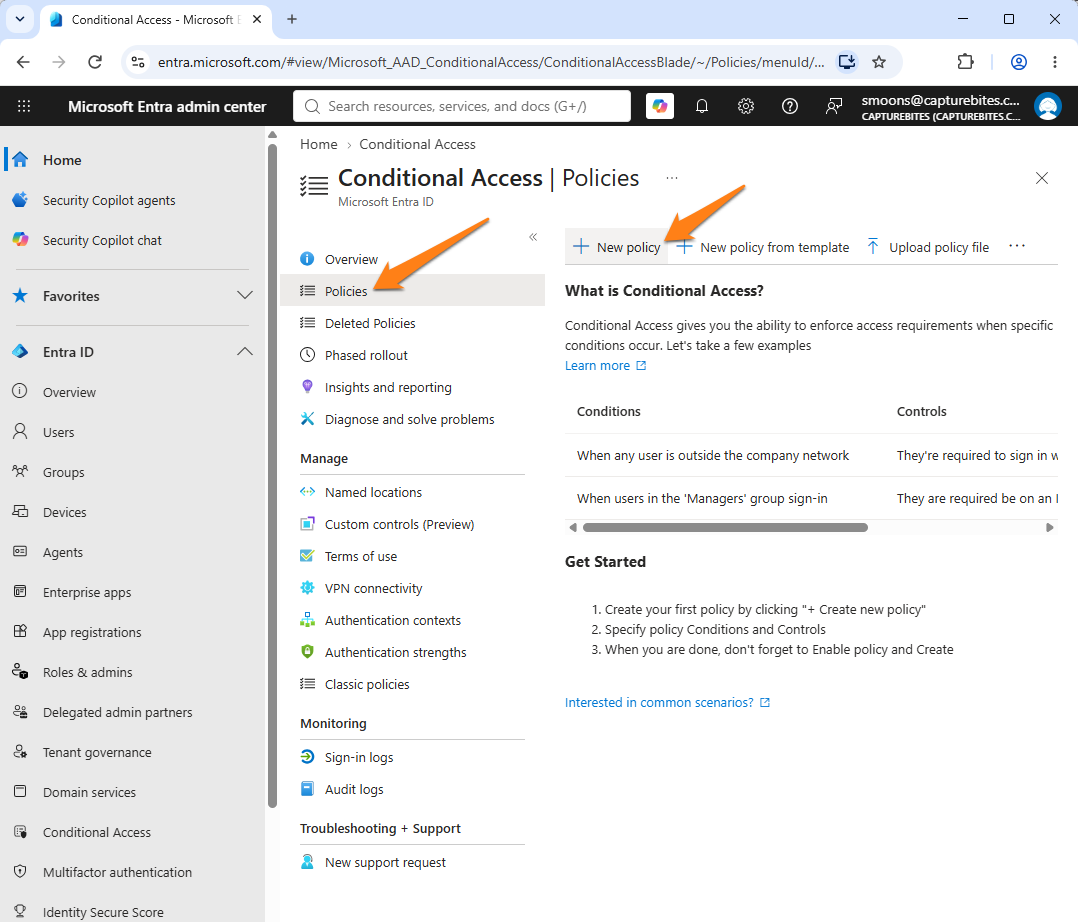
Step 4: Name your condition.
In our example case, you would like to change the expiration time for the Export to SharePoint connector to 5 days instead of the default 3 days.
A good condition name would then be "CB Export to SharePoint (5 days exp. time)".
In case of an Export to Email connector, a good condition name would be "CB Export to Email (5 days exp. time)".
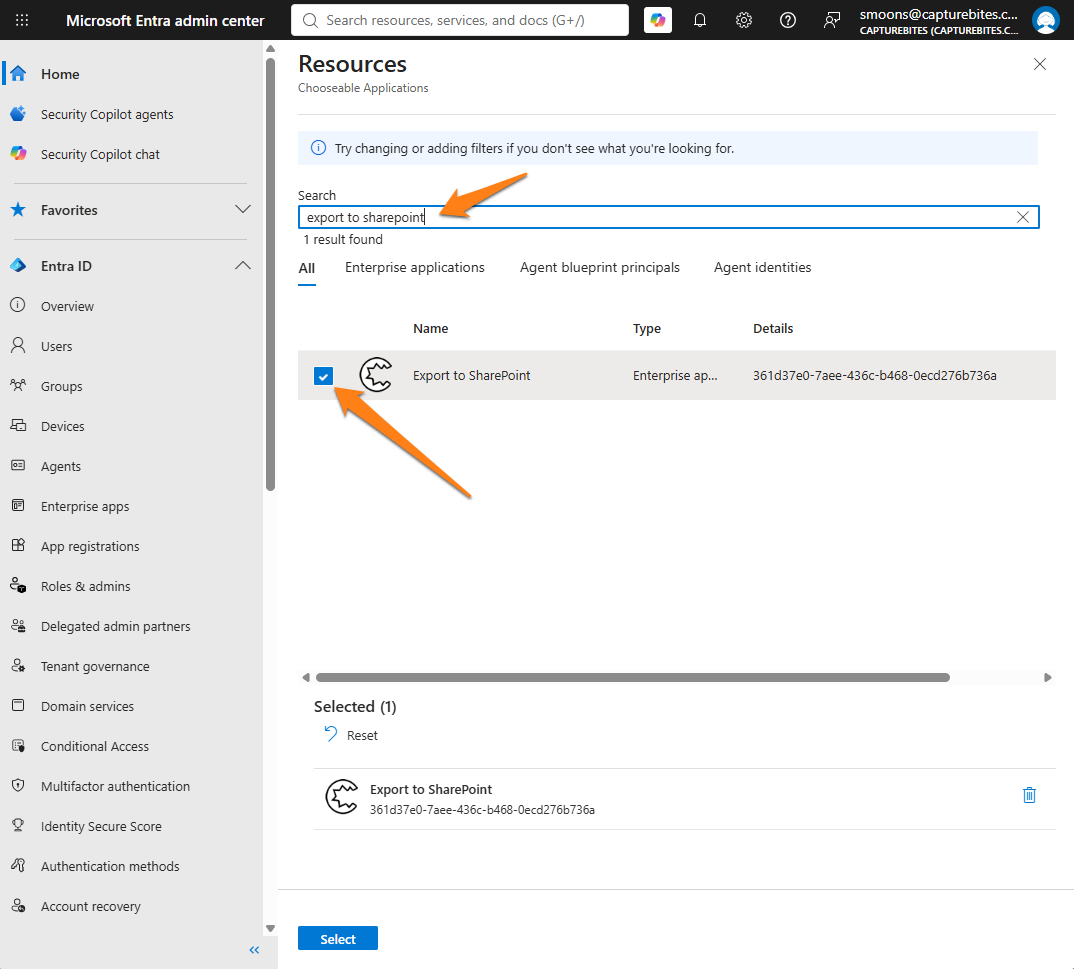
Step 5: Specify your target resource. Select "Target resources" and choose "Resources (formerly cloud apps").
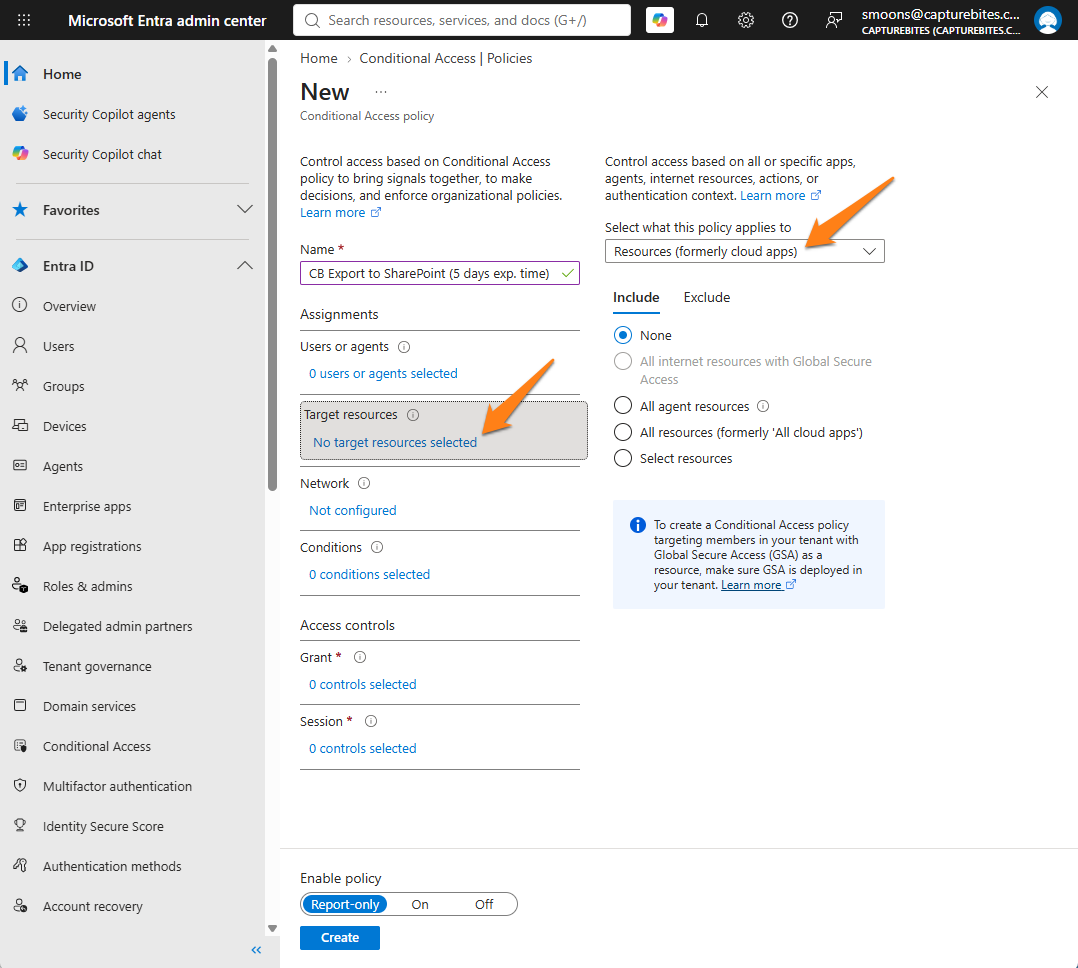
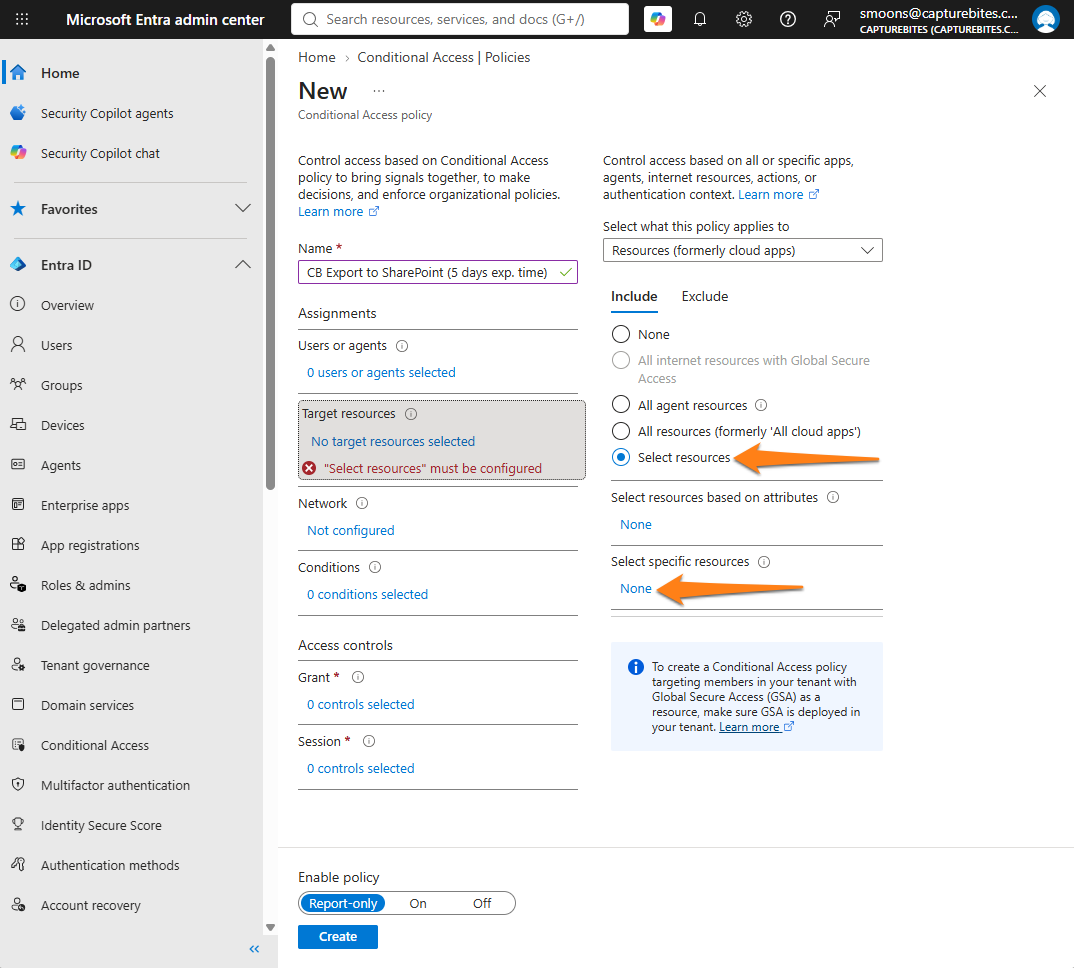
Step 6: Include "Select resources" and select the correct application as target resource for your applicable connector or function:
| Product / Module | Base Software | Application Name | Client ID |
|---|---|---|---|
| Export to SharePoint | Tungsten / Kofax Express 3.3 | Export to SharePoint | 361d37e0-7aee-436c-b468-0ecd276b736a |
| Export to Email | Tungsten / Kofax Express 3.3 | CaptureBites MetaServer | e1866e37-102e-46c0-aaba-1c84cb9e6d0e |
| Export to Email | Tungsten TotalAgility / Capture | CaptureBites MetaServer | e1866e37-102e-46c0-aaba-1c84cb9e6d0e |
| Export to Email | MetaServer | CaptureBites MetaServer | e1866e37-102e-46c0-aaba-1c84cb9e6d0e |
| Import Email | MetaServer | CaptureBites MetaServer | e1866e37-102e-46c0-aaba-1c84cb9e6d0e |
| Email Alert | MetaServer | CaptureBites MetaServer | e1866e37-102e-46c0-aaba-1c84cb9e6d0e |
| Export to SharePoint | MetaServer | Export to SharePoint | 361d37e0-7aee-436c-b468-0ecd276b736a |
The example below adds the "Export to SharePoint" application as their target resource, since they use the "Export to SharePoint" connector in MetaServer.
In case of an "Export to Email" connector, they would need to select the "CaptureBites MetaServer" application.
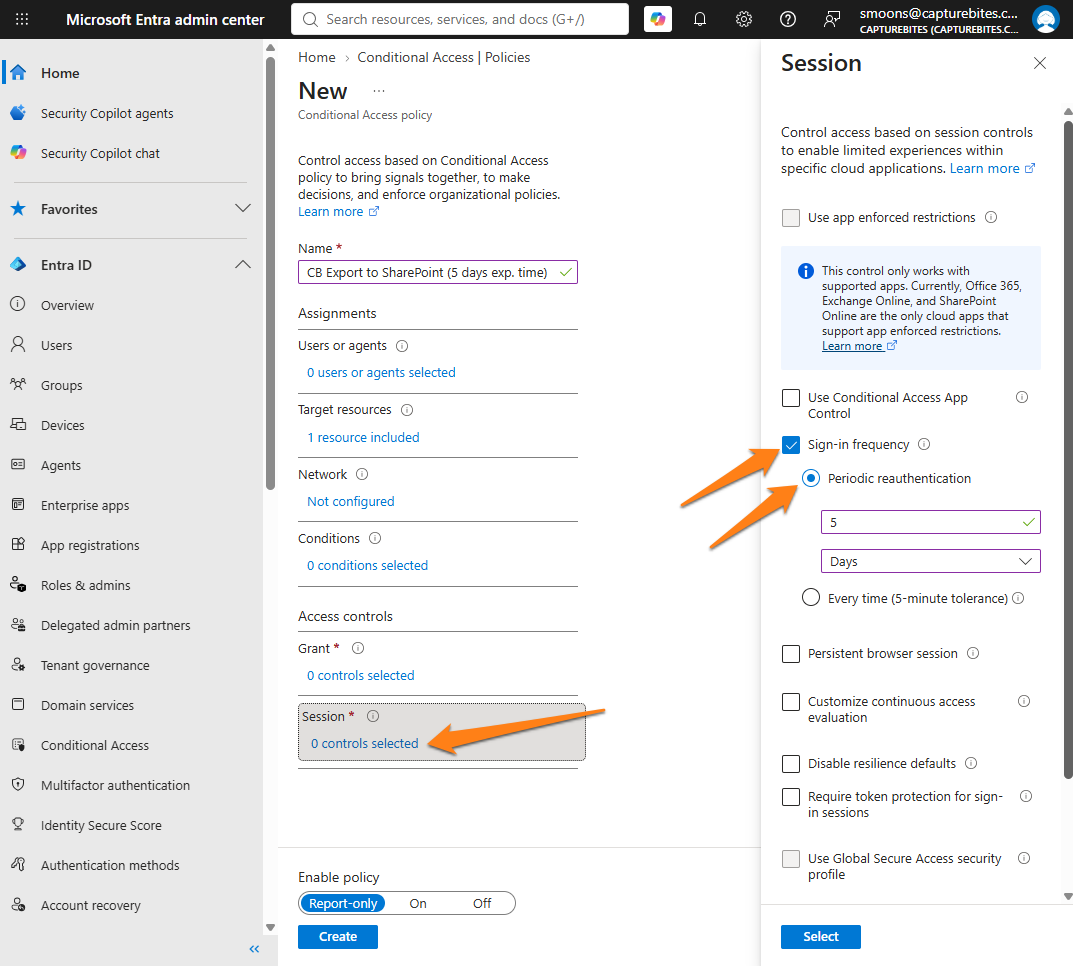
Step 7: Select Session and enable "Sign-in frequency". There, you can adjust the "Period reauthentication" to a specific number of hours or days. In our case, we want to increase the expiration time to 5 days, so we enter "5" as our value and "days" as the unit.
Press "Select" to save your session control.
Step 8: When finished, you can enable your policy by switching to "On" and select "Create".
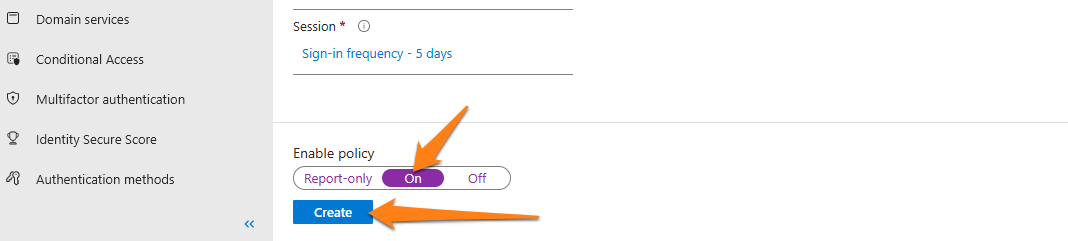
A message should appear that your policy was succesfully created! Your access token will now only expire after your set expiration time.
For any future adjustments, you can always come back to your conditional access policy overview and make changes to your policy where needed.