
MetaServer > Help > Troubleshoot > Export to SharePoint / Email with OAuth2
How to use OAuth 2.0 with Export to SharePoint / Email
Originally, our Export to SharePoint and Email Connectors for MetaServer and Tungsten / Kofax Express 3.2 used basic authentication. This has been replaced by OAuth 2.0 by Microsoft starting from 2018.
Since August 2025, Microsoft completely disabled basic authentication, which caused login issues for our Export to SharePoint and Email connectors and functions for MetaServer and Tungsten / Kofax Express version 3.2.
Solution:
Step 1) Update
° For MetaServer: Make sure your MetaServer version is 3.1.32.72 or more recent.
You can download the latest version of MetaServer from our Downloads page:
https://www.capturebites.com/download/
° For Tungsten / Kofax Express:
Export to SharePoint:
Migrate to Kofax Express 3.3 and version 3.3.12 of our Export to SharePoint connector.
IMPORTANT: This is only applicable if you use SharePoint Online. If you use an On-Premise SharePoint server, you'll need to use the legacy version 3.3.11 for the Export to SharePoint connector.
Export to Email:
Migrate to Kofax Express 3.3 and version 3.3.12 of our Export to Email connector.
You can find instructions on how to upgrade your Kofax Express 3.2 system to 3.3 here:
https://www.capturebites.com/2021/12/06/ready-kxp33/#01
You can sign up for a trial of Tungsten / Kofax Express 3.3 from Tungsten Automation's website. This will install the base software with a trial license which you can then later upgrade to a perpetual license. The fix pack can be downloaded through Tungsten / Kofax Express’ release information page:
Kofax Express 3.3:
https://www.tungstenautomation.com/products/express/trial
Kofax Express Fix Pack:
https://knowledge.tungstenautomation.com/bundle/z-kb-articles-salesforce4/page/24515.html
You can find the latest version of our connectors for Tungsten / Kofax Express 3.3 on our Downloads page:
Export to Email:
https://www.capturebites.com/download/#02-08
Export to SharePoint
https://www.capturebites.com/download/#02-19
Step 2) Grant Application Access Rights
- Instructions for the Export to SharePoint connector
- Instructions for Email connectors and functions (Import, Export, Alerts).
When you first log in to SharePoint from the Export to SharePoint setup, a process will start to set the permissions of the Export to SharePoint connector correctly in the Azure Entra ID Enterprise Applications section.
NOTE: This permission approval process is applicable to both the Tungsten / Kofax Express 3.3 and MetaServer solution.
NOTE: The following approval process to give the Export to SharePoint connector access to SharePoint is a one-time process.
When a regular, non-admin user logs in to SharePoint through our connector, you will get a message that the connector cannot connect before an admin gives permission.
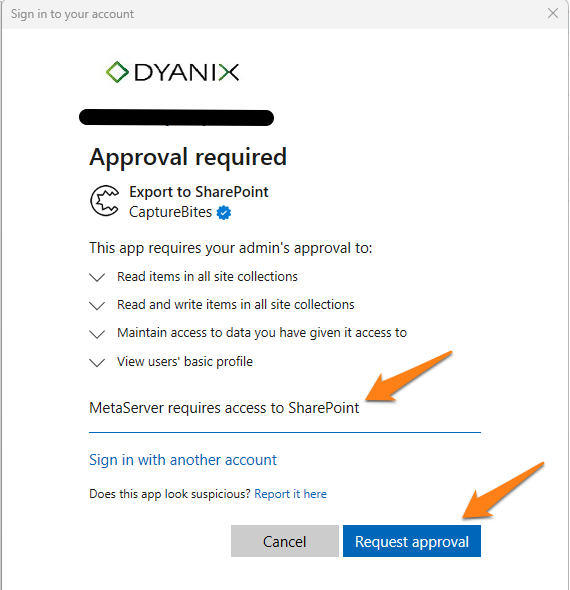
Step 1: Enter a justification, like "MetaServer requires access to Sharepoint" and press the "Request approval" button.
Step 2: Your company's admin will receive an email with the request for permission.

Step 3: the admin needs to press "Review Request" which opens the "Enterprise Applications" section in the Azure Portal.
After logging into the Azure portal, the admin selects Export to SharePoint in the Admin consent requests section and presses Review permissions and consent.
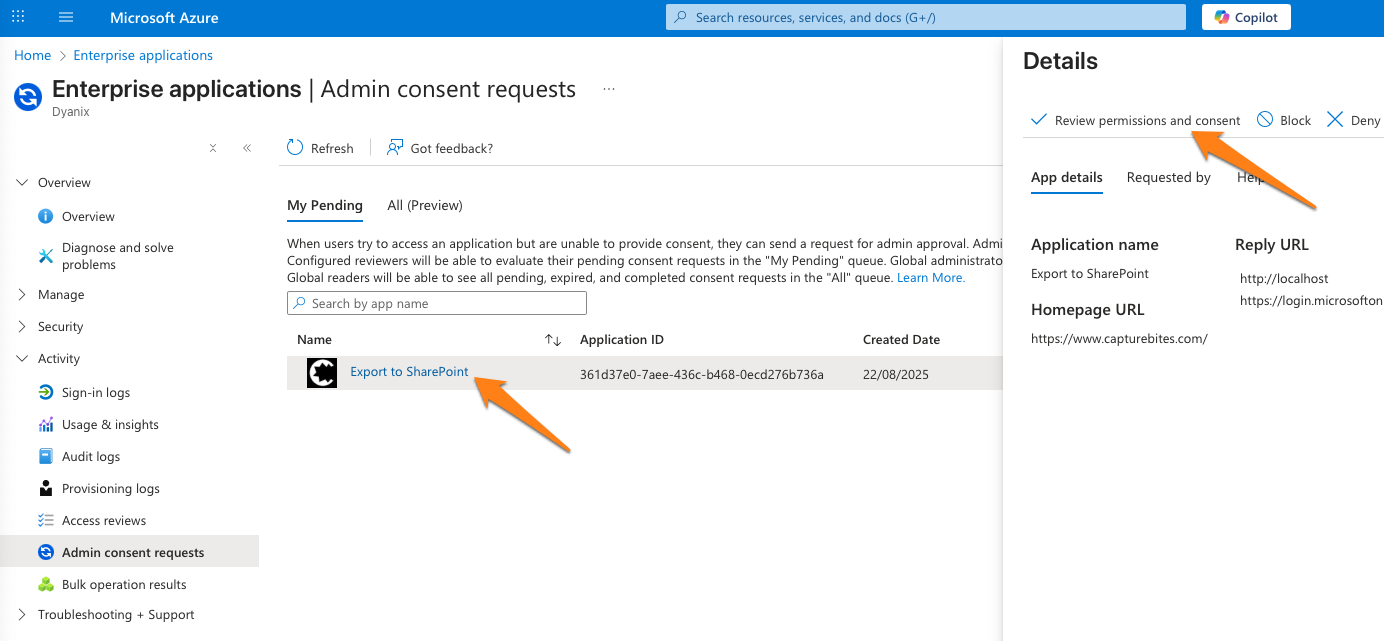
Step 4: the admin reviews the list of permissions and presses the "Accept" button.

Step 5: The user who requested access will now receive a message that the request was approved.
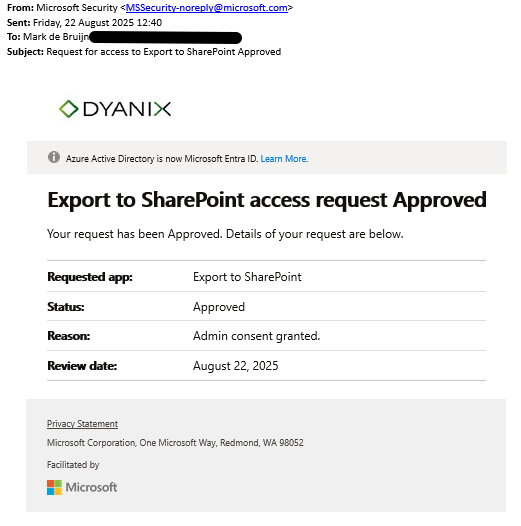
NOTE: The following approval process to give the Export to SharePoint connector access to SharePoint is a one-time process.
If you are able to log in as an admin in your Export to SharePoint connector, you will be able check a box called "Consent on behalf of your organization".
This will grant the permissions and give the connector access to SharePoint immediately.
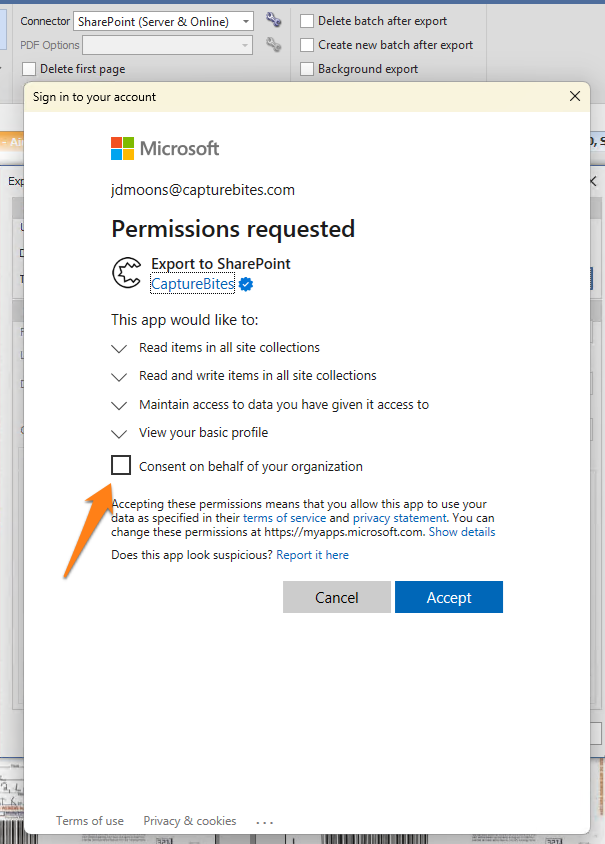
If you need to restart the permission approval process, you can do this using the following steps:
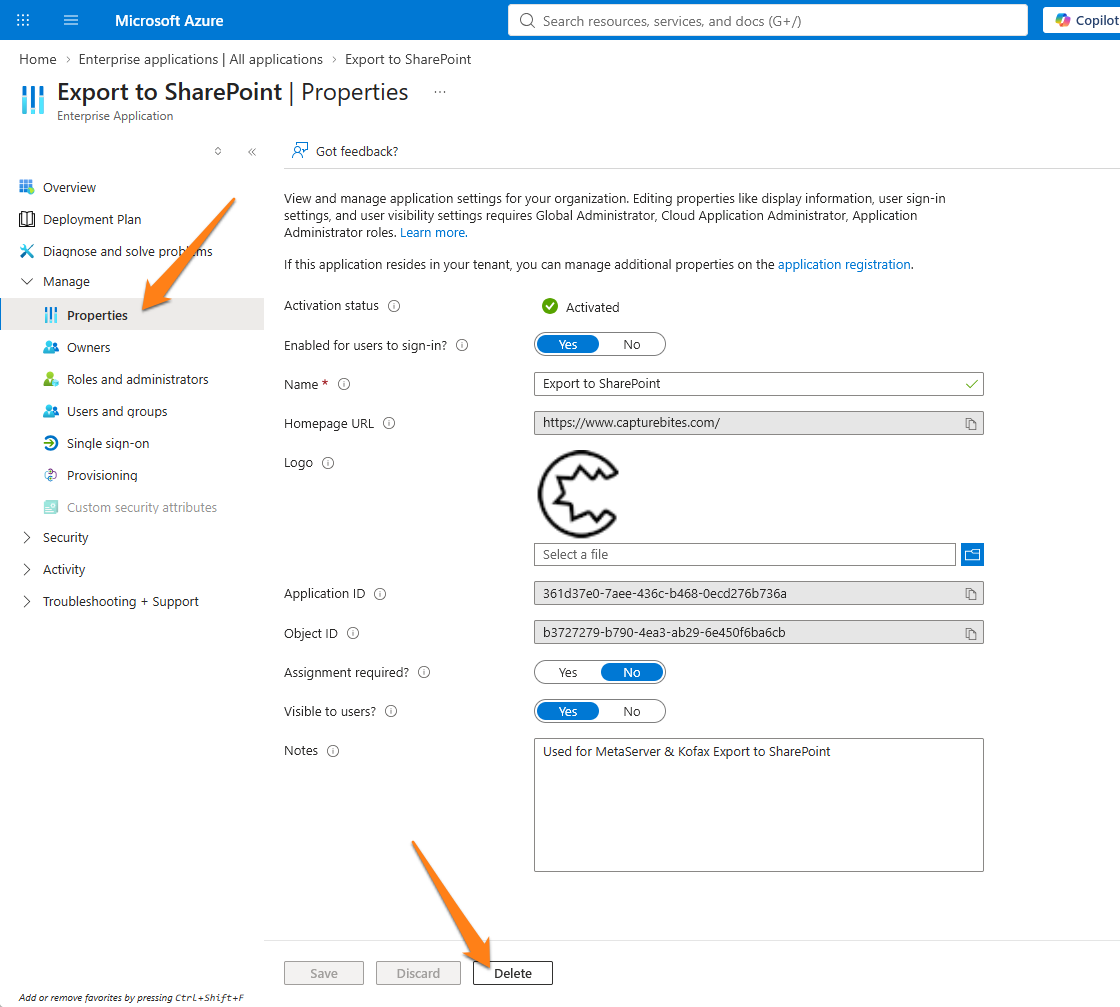
Step 1) Find the “Export to SharePoint” application in the Entra ID \\ Enterprise Applications section.
Step 2) Select "Export to SharePoint" and open the "Properties" section. At the bottom you will find the "Delete" button.
You can then login to the Export to SharePoint connector again and the permission approval process will start from the beginning.
If the above solution does not work, please contact us and describe your problem as detailed as possible.
Your SharePoint application access rights can be managed in your Entra ID Admin Center:
https://entra.microsoft.com/#view/Microsoft_AAD_IAM/StartboardApplicationsMenuBlade/~/AppAppsPreview
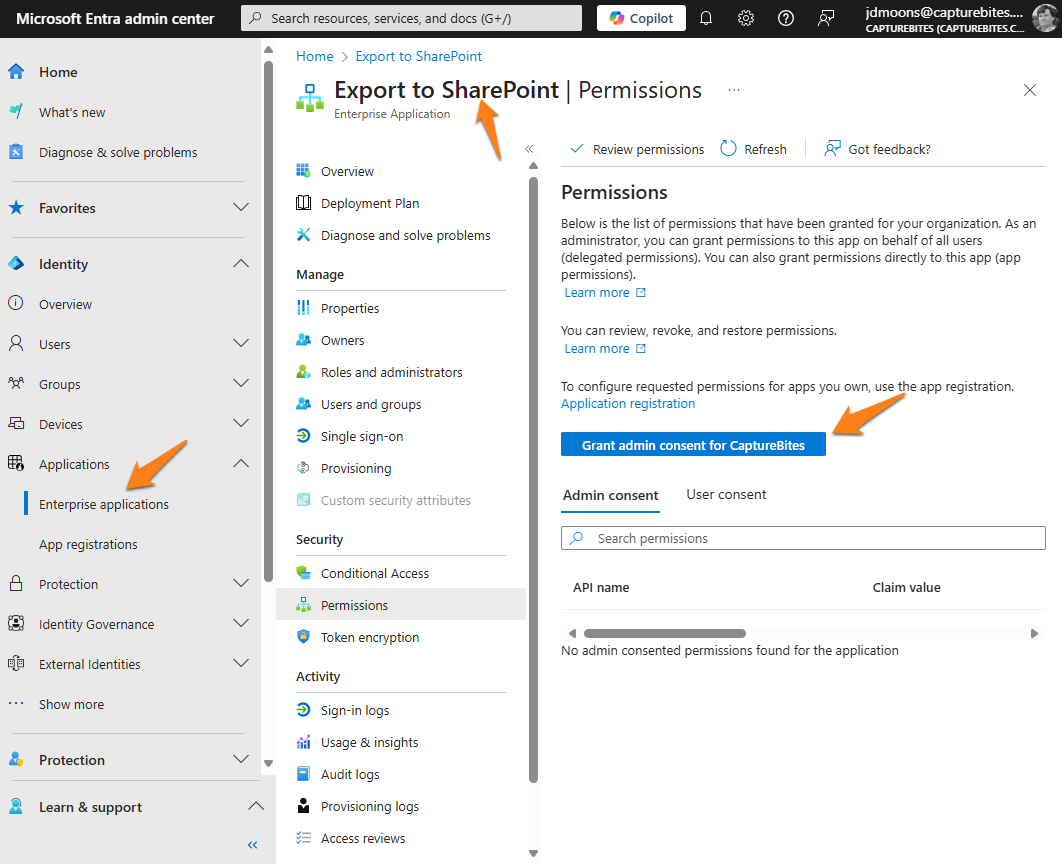
Step 1) Go to the Entra Admin Center and select "Enterprise applications".
Step 2) Select “Export to SharePoint”. In the left menu, press “Permissions“. Next, press the blue “Grant admin consent for CaptureBites” button.
Step 3) The permission screen will pop-up. Press "Accept".
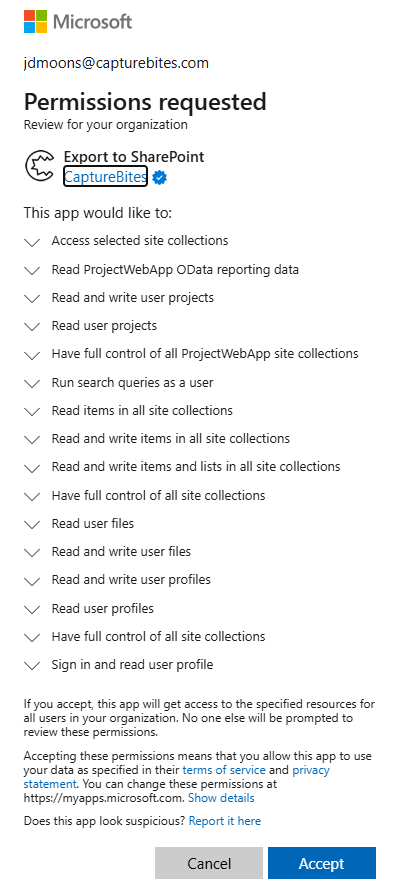
IMPORTANT: If you want to limit the rights to the minimum required permissions, only keep the 5 listed, required permissions in the table below and revoke all the other permissions.
Minimum Permissions
| API Name | Claim value | Permission | Type |
| Microsoft Graph | offline_access | Maintain access to data you have given it access to | Delegated |
| Microsoft Graph | openid | Sign users in | Delegated |
| Microsoft Graph | profile | View users’ basic profile | Delegated |
| Office 365 SharePoint Online | AllSites.Read | Read items in all site collections | Delegated |
| Office 365 SharePoint Online | AllSites.Write | Read and write items in all site collections | Delegated |
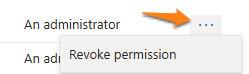
To revoke a permission, press the three dots next to the permission and press "Revoke permission".
If the above solutions don't work, please contact us and describe your problem as detailed as possible.
When you first log in to your Office 365 account from the setup window of the following connectors / functions, a process will start to set the permissions correctly in the Azure Entra ID Enterprise Applications section:
| Product / Module | Base Software | Application Name |
|---|---|---|
| Export to Email | Tungsten / Kofax Express 3.3 | CaptureBites MetaServer |
| Export to Email | Tungsten TotalAgility / Kofax Capture | CaptureBites MetaServer |
| Export to Email | MetaServer | CaptureBites MetaServer |
| Import Email | MetaServer | CaptureBites MetaServer |
| Email Alert | MetaServer | CaptureBites MetaServer |
NOTE: This permission approval process is applicable to Tungsten / Kofax Express 3.3, Tungsten TotalAgility, Kofax Capture and MetaServer solution.
Despite its name, the "CaptureBites MetaServer" application is used for the Email Connectors and functions' Application Access Rights for both Tungsten / Kofax and MetaServer software.
NOTE: The following approval process to give the Export to Email connector access to your Office 365 account is a one-time process.
When a regular, non-admin user logs in through our connector, you will get a message that the connector cannot connect before an admin gives permission.
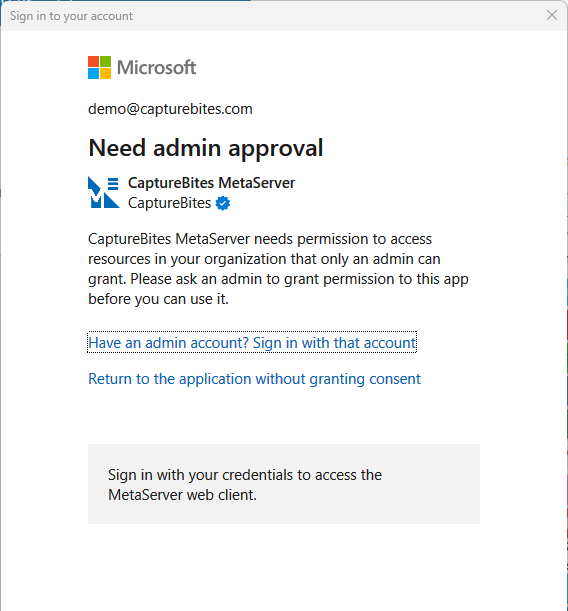
As soon as the user who requested access has received confirmation from their admin that the request was approved, retry logging in.
NOTE: The following approval process to give the Export to Email connector access to mailboxes via IMAP is a one-time process.
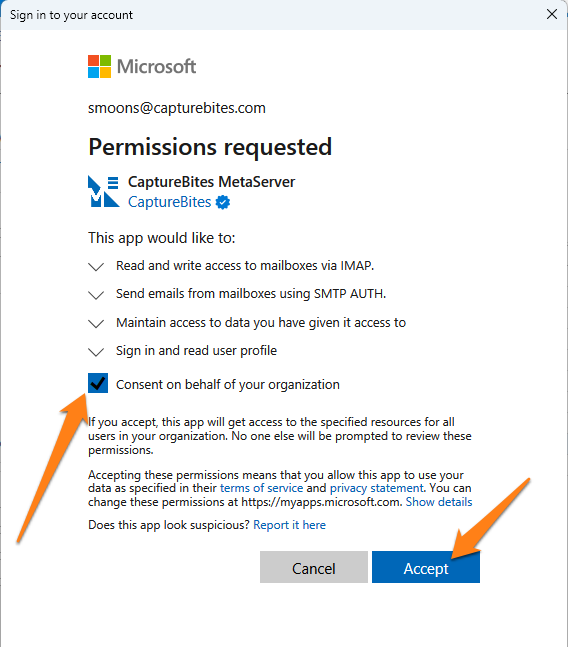
If you are able to log in as an admin Office 365 account in your Export to Email connector, you will be able check a box called "Consent on behalf of your organization".
This will grant the permissions and give the connector access to mailboxes via IMAP immediately.
If you need to restart the permission approval process, you can do this using the following steps:
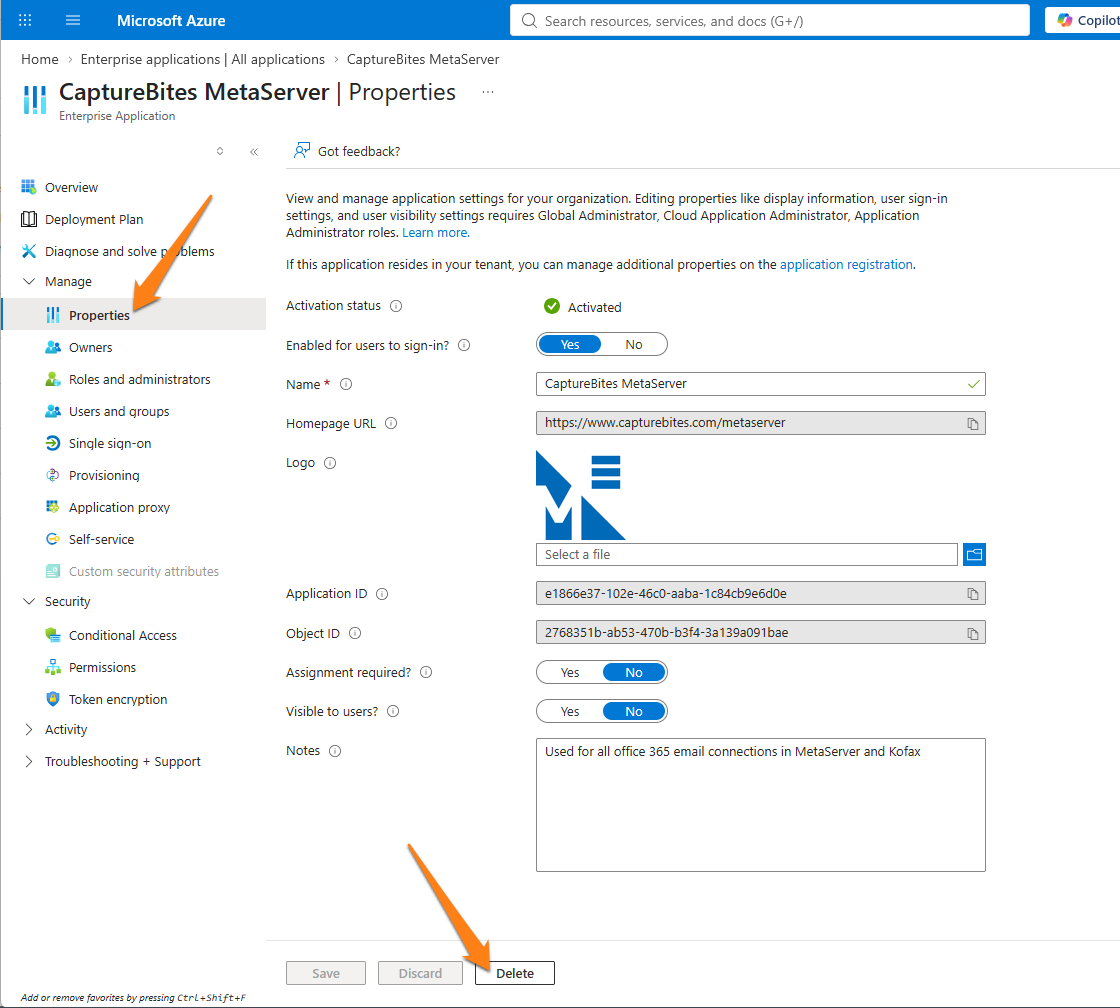
Step 1) Find the “CaptureBites MetaServer” application in the Entra ID \\ Enterprise Applications section.
Step 2) Select "CaptureBites MetaServer" and open the "Properties" section. At the bottom, you will find the "Delete" button.
You can then login with an Office 365 account in the Export to Email connector again and the permission approval process will start from the beginning.
If the above solution does not work, please contact us and describe your problem as detailed as possible.
Your CaptureBites MetaServer application access rights can be managed in your Entra ID Admin Center:
https://entra.microsoft.com/#view/Microsoft_AAD_IAM/StartboardApplicationsMenuBlade/~/AppAppsPreview
Step 1) Go to the Entra Admin Center and select "Enterprise applications".
Step 2) Select “CaptureBites MetaServer”. In the left menu, press “Permissions“. Next, press the blue “Grant admin consent for CaptureBites” button.
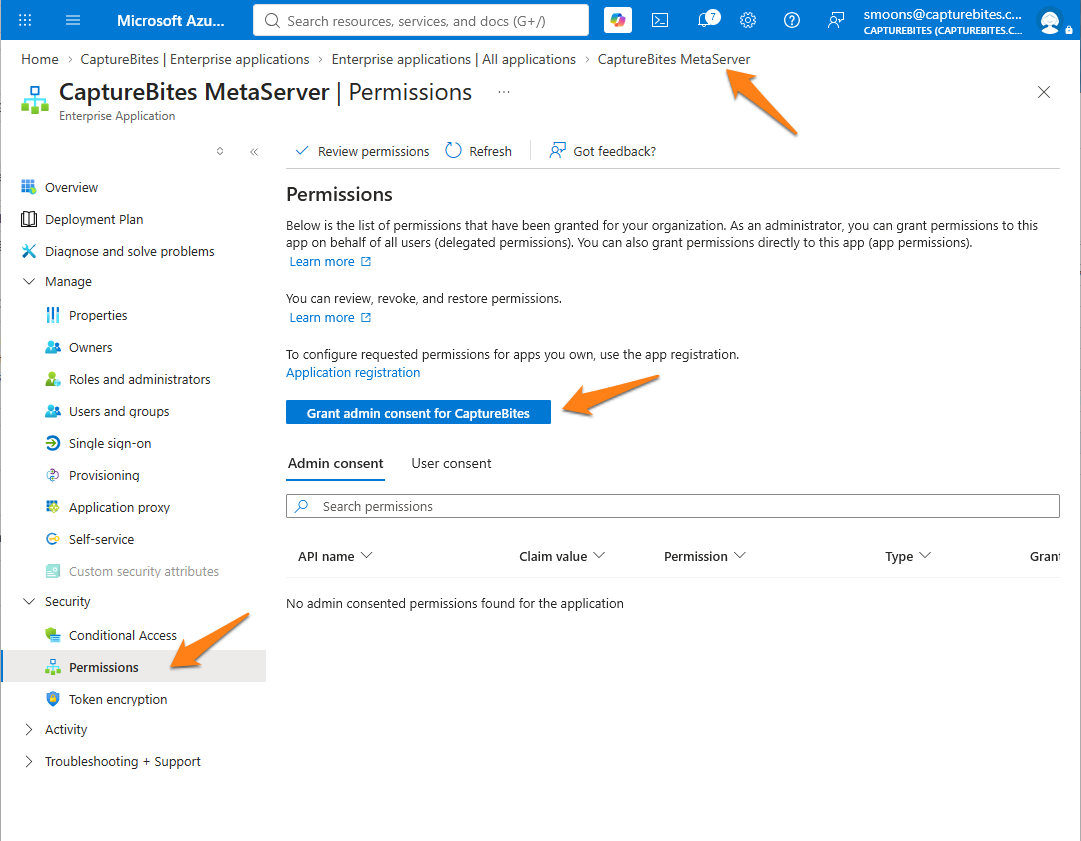
Step 3) The permission screen will pop-up. Press "Accept".
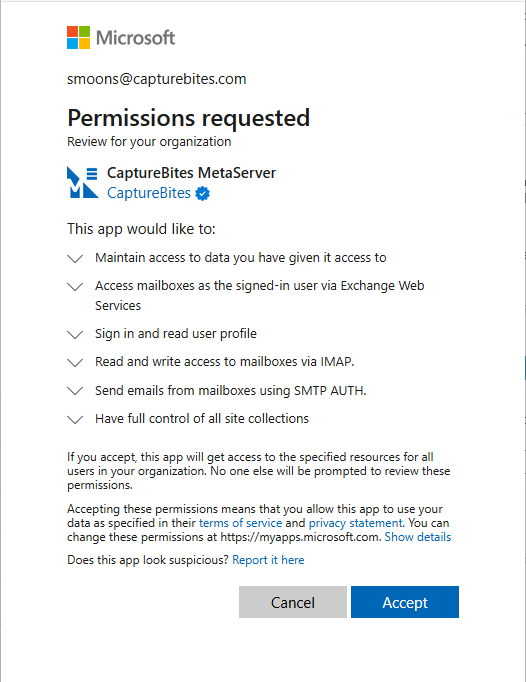
As a reference, the below permission are the minimum, required permissions:
Minimum Permissions
| API Name | Claim value | Permission | Type |
| Microsoft Graph | offline_access | Maintain access to data you have given it access to | Delegated |
| Microsoft Graph | EWS.AccessAsUser.All | Access mailboxes as the signed-in user via Exchange Web Services | Delegated |
| Microsoft Graph | User.Read | Sign in and read user profile | Delegated |
| Microsoft Graph | openid | Sign users in | Delegated |
| Microsoft Graph | View users' email address | Delegated | |
| Microsoft Graph | profile | View users’ basic profile | Delegated |
| Microsoft Graph | IMAP.AccessAsUser.All | Read and write access to mailboxes via IMAP. | Delegated |
| Microsoft Graph | SMTP.Send | Send emails from mailboxes using SMTP AUTH. | Delegated |
| Office 365 SharePoint Online | AllSites.Read | Read items in all site collections | Delegated |
| Office 365 SharePoint Online | AllSites.Write | Read and write items in all site collections | Delegated |
If the above solutions don't work, please contact us and describe your problem as detailed as possible.