
MetaServer > Help > Extract > Reserve
120-450 MetaServer Edit – Reserve
With MetaServer’s Reserve rule, you can reserve documents to be validated or organized by a specific operator or user group based on a field value holding the operator’s windows user name or user group name.
To set the value, you can use standard rules like Set Field Value rules, Replace Text rules, Find rules using DB lookup, etc.
NOTE: you can specify in the Server settings if you want to allow operators to manually unreserve an automatically reserved document with the Operator Client.
NOTE: you can reserve for users in a user group using an Active Directory if the Operator Client is inside a domain. This is not possible on a standalone PC outside any domain. The alternative is reserving for users within an internal MetaServer User Group, which doesn't need an Active Directory. You can configure your MetaServer User Group via the Admin Client's Users setup.
Reserving documents can be useful for MetaServer workflows with multiple Operator Clients. Because only the reserved user can access that document, it will avoid operators handling each other’s documents during organizing and validation.
In our example, we will make use of the “CB – INVOICES US” workflow. This workflow is automatically installed with CaptureBites MetaServer.
Reserve rules are defined in a MetaServer Extract or Separate Document / Process Page action.
To add this rule, press the Add button and select Edit -> Reserve
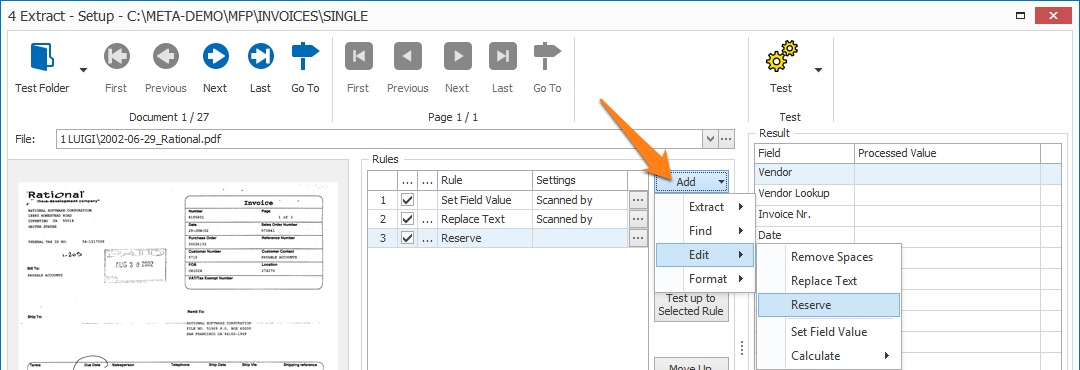
We want to automatically reserve each document based on the scanner-user. In our example case, the scanner-user is found by extracting the subfolder name of the document’s import folder with a Set Field Value rule. After that, we use a Replace Text rule to replace the names with the corresponding windows user name.
Finally, we use that field value to reserve the document for that user.
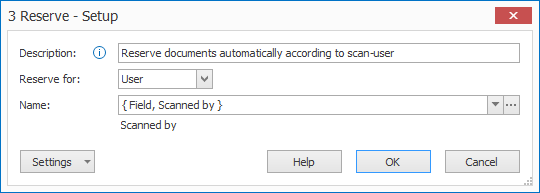
First, add a description to your rule.
01 - Reserve for: specify if you want to reserve for a specific User or for an AD User Group or MetaServer User Group.
NOTE: when reserving for users in a user group within an Active Directory, the Operator Client needs to be inside a domain. This is not possible on a standalone PC outside any domain.
The alternative is reserving for users within an internal MetaServer User Group, which doesn't need an Active Directory. You can configure your MetaServer User Group via the Admin Client's Users setup.
01 - Name: specify the user name or user group name. You can press the drop-down button to select different system and field values to compose your windows user or user group name.
In case you want to reserve for an AD User Group or a MetaServer User Group, you can select the user group by pressing the "..." button. This will open a list of all available user groups in your system's domain or internal MetaServer system.
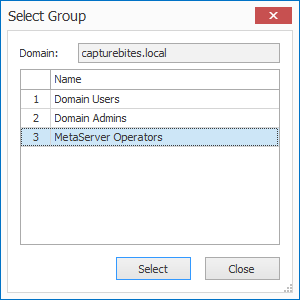
AD User Groups
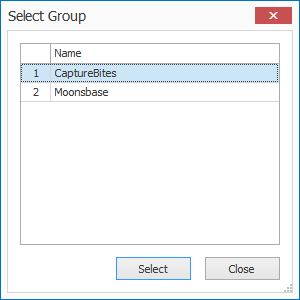
MetaServer User Groups
In this case, we just want to reserve for the scan-user in our domain, so we reserve for "User" and, as a name, select the field “Scanned by”.
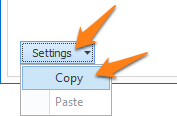
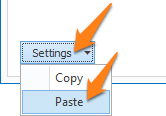
TIP: you can copy the current settings and paste it in another setup window of the same type. Do this by pressing the Settings button in the bottom left of the Setup window and selecting Copy. Then, open another setup window of the same type and select Paste.

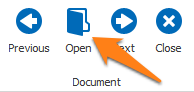
You can see your reserved documents by pressing the Open Document button in the Operator client.
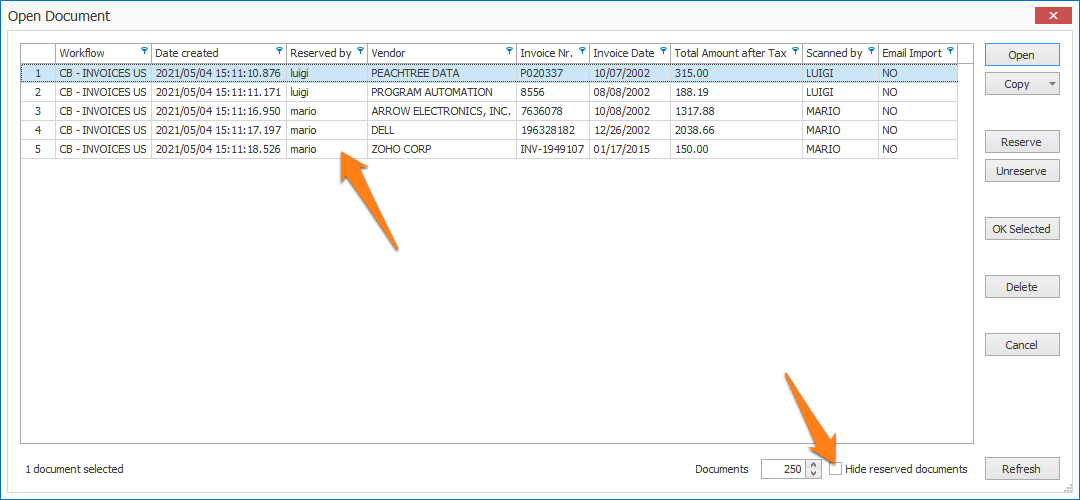
If you want to see the reserved documents for all users, uncheck the “Hide reserved” box.
The status bar will also show, between brackets, how many of the total documents are reserved for you.

In the example above, it shows that there are 2 reserved documents of a total of 3 waiting to be validated by the current user.