MetaServer > Help > Organize > Classify Mode
080-020 Organize – Classify Mode
With the Organizer's Classify mode, as opposed to the default Organize mode, the organizer will show the set's document type separators to easily check if the document type of each document was correctly detected. The Classify mode is typically combined with the new Separate & Classify action.
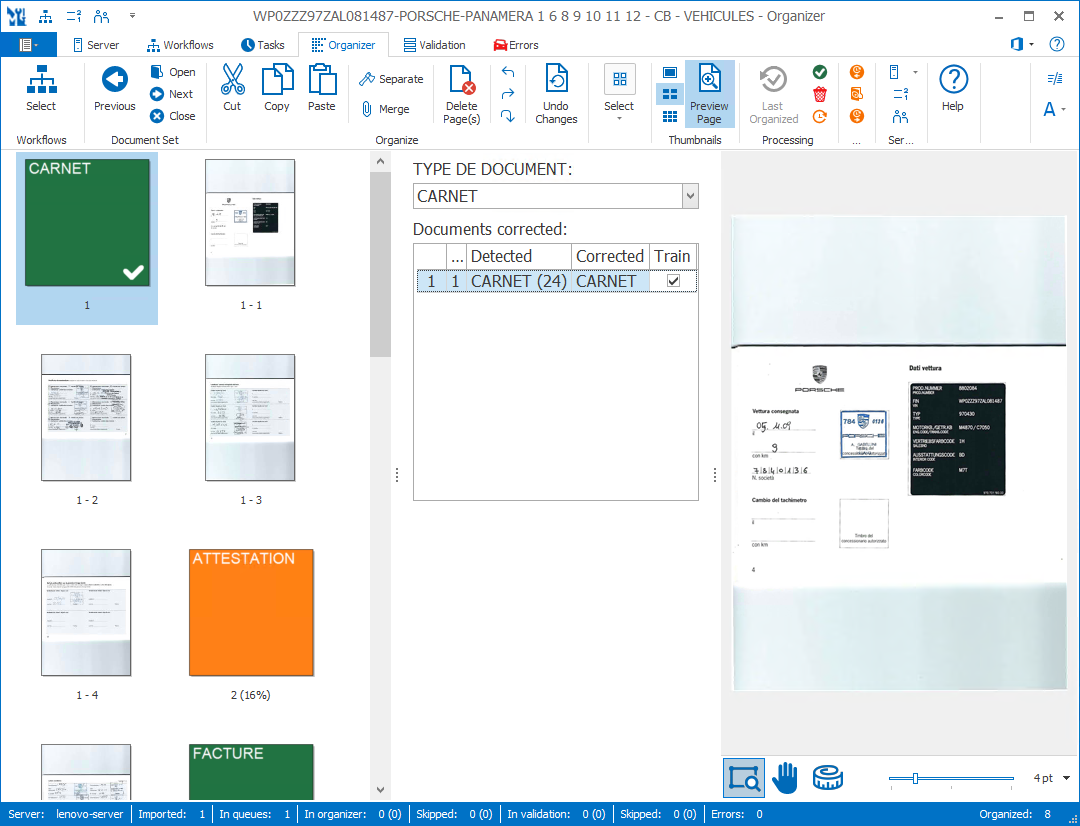
Classified document in the Organizer
TIP: The thumbnail on the right will follow you, so you can easily refer to the Setup window. Click on the thumbnail to zoom in.
The document type separators show the document type and the confidence level.
The separators are colored differently depending on the confidence level of the detected document type. The confidence thresholds can be set in the Organize action:
ORANGE: Separators below a set confidence level (e.g. 50%). These separators need to be checked and/or corrected in order to be valid.
RED: Separators below a set confidence level (e.g. 15%). These separators need to be checked and corrected in order to be valid.
GREEN: Separators above the orange threshold are seen as valid.
Also, if the operator manually confirms or corrects separators, it becomes green. Only when all separators are green, the user can OK the documents.
01 - Document type: The available document types are listed in a drop-down list in the middle, in an indexing panel. There you can change the document type or confirm the detected one.
The document types can be directly retrieved from the classification model or you can store them in a MetaServer database (= CSV). This is explained in more detail below.
02 - Documents corrected: If a document is misclassified (= red / orange), or if it is correctly classified but questionable (= orange), and you correct or confirm the document type, that document is added to the “Corrected documents” list. This list also has a check mark to signify the corrected documents to be added to an incremental training set and update the custom classification model.
The incremental document set is stored in:
C:\CaptureBites\MsData\Training\Classification\[WORKFLOW_NAME]
The file is named:
[CORRECTED DOC TYPE]_[OPERATOR NAME]_[DATE AND TIME]_(detected_[DOC TYPE BEFORE CORRECTION]_confidence_[CONFIDENCE PERCENTAGE]).PDF
For example:
FACTURE_johndoe_2025-09-08_12.30.00_(detected_ATTESTATION_confidence_15%).PDF

The right panel shows a preview of the selected page of your classified document. When you select a separator, it shows the first page of that classified document.

01 - Mode: here you can switch between Organize mode or Classify mode.
02 - Document type: here you specify the field containing your document type + connect it to the list of available document types to classify your documents.
To select your list of document types, press the "..." button next to the drop-down button to open the setup window. There, you can choose to retrieve your list from your Azure classification model or from a MetaServer database (= CSV).
IMPORTANT: If you use a MetaServer database to store your document types, the first column of that database is automatically considered as the column containing the document types.
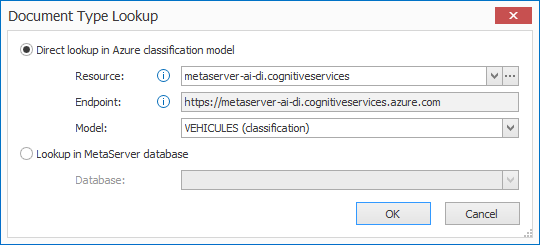
TIP: If you prefer to use a MetaServer database instead of directly using the document type list from your custom classification model, you can synchronize your MetaServer database with the document types of your Classification model using a Sync MetaServer Database Task.
03 - Low confidence level: this specifies the threshold where, if the confidence is below this level, the separator is shown as red (= not confident, needs to be corrected / confirmed). If the confidence level is higher, it's shown as orange (= less confident, needs to be corrected / confirmed).
04 - Very low confidence level: this specifies the threshold where, if the confidence is above this level, the separator is shown as green (= very confident, doesn't need to be corrected / confirmed). If the confidence level is lower, it's shown as orange (= less confident, needs to be corrected / confirmed).
05 - Always check: enable this option to force the operator to check the classification of each imported set of documents.
06 - Allow new document type: this feature has not been implemented yet.
07 - Update model: this feature has not been implemented yet.
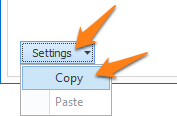
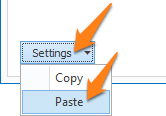
TIP: you can copy the current settings and paste it in another setup window of the same type. Do this by pressing the Settings button in the bottom left of the Setup window and selecting Copy. Then, open another setup window of the same type and select Paste.