
MetaServer > Version History
CaptureBites MetaServer Version History
Here you will find all MetaServer release notes, including details of new features, improvements and fixes.
You can always download the latest version of MetaServer including Operator, Admin clients and sample workflows on the MetaServer Product Page. If you are looking for base installers without any sample workflows, please refer to our download page.
IMPORTANT: Before refreshing or updating your MetaServer, please pause your MetaServer first. You can do this in your Admin Client, under the Server tab. As soon as all your action queues are "yellow" (= paused), you can perform your refresh or update.
This will ensure that no documents in your current queue become corrupted during your refresh or update.
IMPORTANT: If you are updating from a MetaServer version lower than 3.1.3
IMPORTANT: If you are updating from a MetaServer version lower than 3.1.3, it is possible that a Computer ID mismatch can occur.
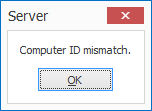
On most systems, the update will not cause any problems. However, occasionally, on some systems this may cause a Computer ID mismatch after upgrading. To fix this issue, please refer to the Computer ID Mismatch troubleshoot page.
IMPORTANT: If you are updating from a MetaServer version lower than 3.1.1
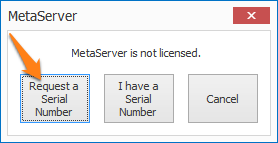
IMPORTANT: If you are updating from a MetaServer version lower than 3.1.1, a pop-up window will ask you to request a serial number. If you haven't received a serial number already, please press the "Request a Serial Number" button and fill out the form. We will send you your serial number as soon as possible.
Please also note that old MetaServer activation codes (e.g. "K-123F0-12345-123B4-CD12B-C0D12-E1EB2") are not compatible with this version and future releases of MetaServer. You can apply for a replacement serial number through our online request form.
IMPORTANT: If you are updating from a MetaServer version lower than 3.0.23
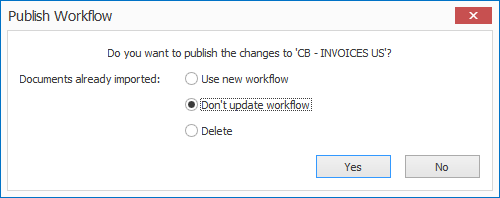
IMPORTANT: If you are updating from a MetaServer version lower than 3.0.23, it is required to republish existing workflows. Select each of your workflows, make a small change, like adding and removing a space to the workflow description, and publish the workflow. If there are documents already imported in the workflow, then you do not have to apply the changes to these documents.
Version 3.0(32) | 2020-03-02
NEW: EXPORT TO DOCUWARE: DOCUMENT LINK: You can now generate a direct link to a document exported to DocuWare. You can then use that link in an email message (for example, to send a notification email), export the value to a database or include it in an index file.
In the Export to DocuWare setup, you simply select a MetaServer field to hold the Document link. To disable this, you just need to select nothing in the fields drop-down list (default).

NEW: FIND WORD - DB LOOKUP: MAP MULTIPLE HITS: It is now possible to return multiple hits to mapped fields.
For example, if you first extract an invoice number related to a number of shipments, you can use that invoice number to find all container numbers in a database related to that invoice.
The new options are located in the Field Mapping tab of the "Accept words from database" setup. You'll find a drop-down with all possible actions to take if the search resulted in multiple hits:
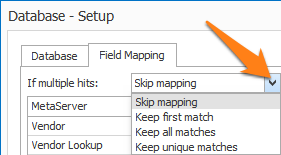
- Skip mapping: the current default behavior and returns "{ Multiple hits }" in the mapped fields.
- Keep first match: returns the first hit. This is useful if your database contains duplicates.
- Keep all matches: generates a list of all matched values in each of the mapped fields, including duplicate values
- Keep unique matches: generates a list of all matched values, removes the duplicates from the combined values of all the mapped fields and populates each mapped field with their values.
For example:
Assume the following database table:
| INVOICE_NR | CONTAINER_ID | ORDER_NR |
| 8963 | MNBU3634018 | 199702 |
| 8963 | MNBU3634018 | 199705 |
| 8963 | MNBU3634018 | 199708 |
| 8963 | SZLU9054464 | 199947 |
| 8963 | TEMU9151404 | 199820 |
| 8963 | TEMU9315771 | 198445 |
| 8963 | TEMU9387149 | 199506 |
| 8964 | MBNU980884 | 199646 |
| 9036 | TRIU8587601 | 208446 |
| 9036 | MNBU0224200 | 205980 |
| 9036 | MNBU0224200 | 205995 |
| 9036 | MNBU3194618 | 208447 |
If we look for Invoice Nr. 8963 on the document and we map the CONTAINER_ID field with the MetaServer CONTAINERS field, there are clearly multiple hits. This is the result for each of the "If multiple hits" options:
- Skip mapping: the mapping of the CONTAINER_ID will be skipped. The test value will show:
{ Multiple hits }
However, for Invoice 8964, there are no multiple records. In that case the CONTAINER_ID field will be equal to:
MBNU980884
- Keep first match: the first CONTAINER_ID of the multiple hits matching invoice 8963 will be used:
MNBU3634018
- Keep all matches: results in all CONTAINER_IDs matching invoice 8963, including all duplicates (total of 7 hits):
MNBU3634018, MNBU3634018, MNBU3634018, SZLU9054464, TEMU9151404, TEMU9315771, TEMU9387149
- Keep unique matches: results in all CONTAINER_IDs matching invoice 8963, excluding any duplicates (total of 5 hits):
MNBU3634018, SZLU9054464, TEMU9151404, TEMU9315771, TEMU9387149
If we both map ORDER_NR and CONTAINER_ID, all hits are returned and results in a total of 7 hits for:
- ORDER_NR:
198445, 199506, 199702, 199705, 199708, 199820, 199947
- CONTAINER_ID:
MNBU3634018, MNBU3634018, MNBU3634018, SZLU9054464, TEMU9151404, TEMU9315771, TEMU9387149
This is because the combination of the ORDER_NR and CONTAINER_ID is unique.
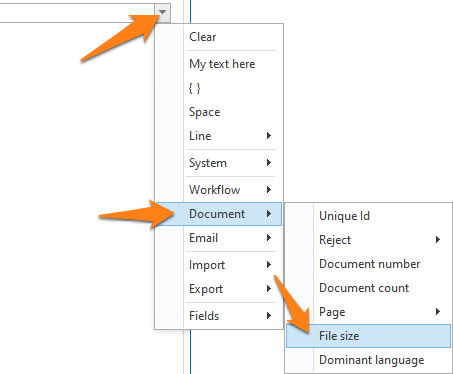
NEW: NEW VARIABLE: { Document File Size}: This can be used to, for example, compare file size before and after scaling, calculate the compression factor, or to just store it in a statistical database table.
ENHANCEMENT: EXPORT TO FOLDER: UPDATE FILE INDEX: updating a File Index in CSV or TXT format without a footer is considerably faster
Before, updating a CSV got slower as more records were added. We changed the update method. Not only is the update speed much faster, but you can now also update the same CSV with multiple workflows. We tested updating a CSV with 30 000 lines and updating it did not take notably longer than updating a CSV with 10 lines.
NOTE: this increased performance applies to index files without footer that are stored on a local disk or shared drive. Index files with footer, like XML files, or index files that are stored on an FTP server, require a more complex update process and take longer.
ENHANCEMENT: COUNTERS WINDOW: the counters window now refreshes automatically every second.
ENHANCEMENT: DELETING FILES IN WATCHED FOLDER: improved handling when files are deleted from a folder watched by MetaServer. When *.PDF.Server_Reserved files do not exist anymore, they are skipped. If they are used by another process, MetaServer retries once.
ENHANCEMENT: METASERVER SERVICE START SEQUENCE: if any of the MetaServer's configuration files are empty or corrupt (this can happen after a power interruption if the machine running MetaServer is not equipped with a UPS), then the corrupt file is now mentioned in the error log. This will make diagnosing the problem easier.
ENHANCEMENT: SCALE PAGE(S) / CONVERT EMAIL BODY TO PDF: the default JPG Q Factor has been changed to 70 instead of 82 in these actions. A JPG Q factor 70 reduces the file size with another 15% without a noticeable change in image quality. We also changed the default scaling to 150 dpi. Scaling from 300dpi to 150 dpi after OCR processing reduces the file size with a factor 3 without a noticeable loss in viewing quality.
FIX: VALIDATION - DB LOOKUP: when pressing the OK button while the focus was on a lookup field, lookup did not take place like it did when pressing the Enter key. This caused fields not be mapped correctly.
FIX: DOCUWARE DATE FIELD MAPPING: if you mapped a date field and the date field was empty, the export failed with an error. This was because the Year, Month, and Day parameters described an un-representable DateTime. Now, it is correctly seen as an empty date.
FIX: EXPORT TO FOLDER : PREPEND, APPEND, OVERWRITE LOCKED PDF FILES: FILE LOCKED CONDITION DID NOT WORK ANYMORE: when the PDF was locked and the File Locked condition was configured to send the document to Validation or Export to Email for example, this condition did not apply and the document was sent to the Errors tab instead.
It now works as intended:
- If an action is defined in case of File Locked, that action is now correctly executed.
- If an action is not defined in case of File Locked, the document is sent to the errors tab
NOTE: we recommend to not include the { Export File File Sequence Number Windows Style } element in your file name to make this mechanism work correctly.
You have the option to also define a sequence number in the file name. If the file is locked, the sequence number will be used and the File Locked action is called as well. If you don't want the additional copy with the sequence number, don't use the { Export File File Sequence Number Windows Style } element in your file name.
FIX: EXPORT: { Document Number } and { Document Count } were not available in the Export actions' File Name field.
{ Document Count } = the total number of documents in a set (a SET = a separated PDF in multiple PDFs)
{ Document Number } = the document number in the set
Version 3.0(31) | 2020-02-20
ENHANCEMENT: VALIDATION: Input (manual navigation): A Validation field in Input (manual navigation) mode, now auto-focuses and loads the correct page if the data is extracted automatically (i.e. there is a pink rectangle).
Only when there is no value / pink rectangle, it does not do anything and it will stay on the current position in the document. Previously, it did not focus on the extracted value if there was one.
Version 3.0(30) | 2020-01-15
ENHANCEMENT: CONVERT TO FORMAT: The Convert to Black & White setup now features 2 viewers:
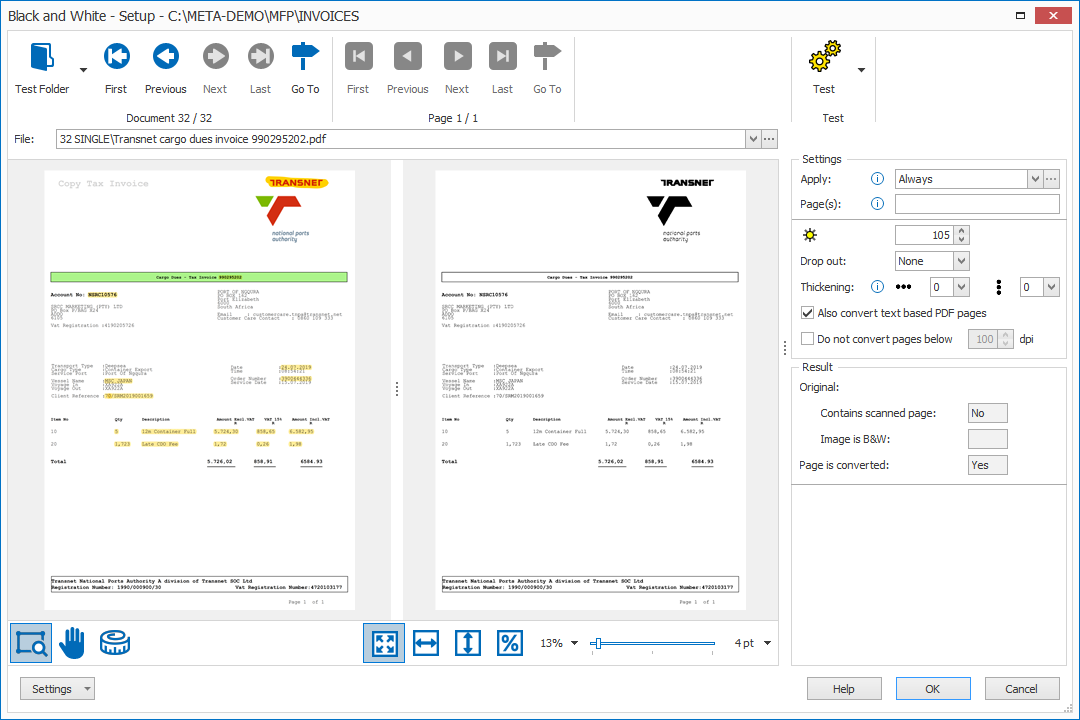
The left viewer shows the original, the right viewer shows the result after conversion.
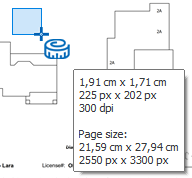
ENHANCEMENT: The Measure Tool is now always available in all viewers. It also shows the total page size in pixel and cm or inch (depending on your region settings).
FIX: { Document Page Number } is a variable that you can use in conjunction with a multi-line field.
For example, if you define a Set Field Value rule and set a field "Line items" equal to:
{ Document Page Number } of { Document Page Count },{ Field, Line items }
Then each line item will be preceded with the page number where it comes from.
The issue was that the line numbers were not updated correctly during Testing of the Extraction rules and always showed as Page 1.
FIX: Previewing separation rules using a Multi-page TIFF sample file caused an error.
NEW (still in development): KOFAX VRS UI: We are integrating Kofax VRS and started with the User Interface to setup VRS. You can preview the UI by selecting Kofax VRS from the Edit actions. The functionality is not yet plugged in, this is just the first step in integrating VRS. We will launch the final VRS integration together with the new online licensing method in a future release.
Version 3.0(29) | 2020-01-07
NEW: EXPORT TO SAP - ADVANCED HANDLING OF BARCODE MISMATCHES:
When the barcode on a document does not match the object in SAP, users often generate a new open barcode number in SAP and write that number on the page under the original barcode. The original barcode will be recognized but will fail the barcode check during Export to SAP.
When this happens, the Barcode mismatch condition becomes active and the document can be sent to validation or email export or both.
We updated the sample CB - LATE ARCHIVING workflow to send barcode mismatch documents to a special validation screen where the operator can enter the handwritten number instead of the barcode and resubmit the document to SAP.
NEW: PAGE SIZE VARIABLES TO SEPARATE ON PAGE SIZE:
We added 3 new variables in the Document and System variables category:
{ Document Page Width }: returns the width of a page in cm or inch depending on the windows region.
{ Document Page Height }: returns the height of a page in cm or inch depending on the windows region.
{ Unit of Length }: returns "cm" or "in" depending on the windows region. You can use this to make your separation rules region independent and compare with correct dimensions depending on the detected Unit of Length.
NEW: NEW DEMO WORKFLOW: CB - PAGE SIZE SEPARATION:
The main MetaServer installer includes a new workflow called CB - PAGE SIZE SEPARATION. It makes use of the { Unit of Length } variable to make it both work in US and Metric regions. It separates on A5 pages which can be scanned in portrait and landscape mode. Both orientations are detected and trigger a new document. Inspect the Separate Document action of this workflow to see how it works.
NEW: EXTRACT ACTION: SPACE LENGTH:
Previously, the Space Length parameter only influenced the spaces coming from text-based PDFs. The spaces coming from image-based PDFs that went through OCR, were always the spaces as returned by the OCR engine.
In the updated settings, spaces generated by OCR are now called "Scanned Image (OCR)" with "Automatic" space length:
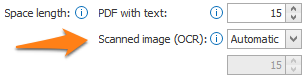
If you select that option you continue using the default behaviour.
However, now you can also switch to "Custom" space length:
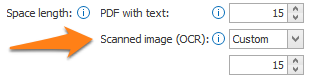
In this mode, you can adjust the space length parameter:
- Increase the value if the result shows too many spaces
- Decrease the value if words start sticking together (too few spaces)
The value is a relative value, it's the space relative to the detected font size. So, a space between a large font needs to be larger than a space between very small text to be considered as a space.
NEW: ORGANIZER / VALIDATION: COPY CONTENT OF DOCUMENT LIST:
When you select "Open Document" or "Open Skipped", you are presented a list of all documents that are waiting to be Organized or Validated.
You can choose to "Copy All" (copy the whole list) or only copy the selected line items.
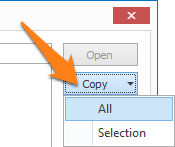
When you paste this in Notepad, each column is adjusted to the longest value automatically and formatted like below:
| Workflow | Date Created | Report Nr. | Inspector | |
| 1 | CB - INSPECTION REPORTS | 2019/12/18 14:33:43.225 | 148032 | Wallace D Cosare |
| 2 | CB - INSPECTION REPORTS | 2019/12/18 14:33:43.226 | 170080 | Travis M Linane |
| 3 | CB - INSPECTION REPORTS | 2019/12/18 14:33:43.227 | 110441 | Arin T Dadiw |
| 4 | CB - INSPECTION REPORTS | 2019/12/18 14:33:43.228 | 151030 | Andrew m Ries |
| 5 | CB - INSPECTION REPORTS | 2019/12/18 14:33:43.229 | 167915 | James H Steffenson III |
When you paste the content in Excel, columns are also formatted correctly with gray shaded column headers.
ENHANCEMENT: IMPORT FROM FOLDER:
Instead of .reserved we now rename files as .servername_reserved to reserve them for import by a specific MetaServer in case of load balancing.
ENHANCEMENT: IMPROVED HANDLING OF ANTIVIRUS FILE LOCKING:
We now skip data folders that cannot be created when locked by antivirus software.
For example, McAfee VirusScan Access Protection prevents the creation of of folders ending with .888 because it thinks they are created by ransomware. We create time stamped folders sometimes ending with .888 and they got locked by McAfee causing errors. We now skip data folders that cannot be created because locked by antivirus software and just create the next one available.
ENHANCEMENT: PROCESSING OF VERY HIGH RESOLUTION OR LARGE SIZE IMAGES:
The logic of how to process these images has been normalized. This is the high level logic:
1) VIEWING: To accelerate viewing and avoid memory issues, we scale very large images that are greater than 17.5 M pixels to a size just below 17.5 M pixels with a resolution as high as possible from this list: 600, 400, 300, 240, 200, 150, 100, 72, 50.
With very large images above 250M pixels, scaling and displaying may take several minutes.
2) SEARCHABLE PDF: We tested the Convert to Seachable PDF action with an A0 document at 300 DPI (14000 x 10000 pixels = 140 M pixels) and it was processed correctly. Images with more than 140 M pixels cannot be converted to searchable PDF and are moved to the Errors tab.
3) OCR EXTRACTION OF METADATA AND VALIDATION: A0 400 DPI (18700 x 13250 = 248 M Pixels) was processed in a sub minute time span and displayed correctly in Validation. A0 600 DPI (28000 x 19850 = 556 M Pixels) took about 6 minutes to process and it took another 6 minutes to view it (requires scaling). So, technically, it is possible to extract and validate A0 600 DPI images, but it takes a very long time.
4) CONVERT TO BLACK AND WHITE: We tested the Convert to Black and White action with an A0 document at 300 DPI (14000 x 10000 pixels = 140 M pixels) and it was processed correctly. Images with more than 140 M pixels cannot be converted to Black and White and are moved to the Errors tab.
5) CONVERT TO TIF: We tested the Convert to TIF action with an A0 document at 400 DPI (18700 x 13250 = 248 M Pixels) and it was processed correctly. Images with more than 248 M pixels cannot be converted to TIF and are moved to the Errors tab.
6) IMPORT JPG, PNG and TIF: Importing non-PDF files requires an internal conversion to PDF. This conversion is limited to A0 documents at 400 DPI (18700 x 13250 = 248 M Pixels). JPG, PNG and TIF images with more than 248 M pixels cannot be imported and are moved to the Errors tab.
7) SCALING: With the scaling action, you can reduce the image resolution so it can be processed after all. For example, you could convert a 600 DPI A0 to 300 DPI to be able to convert it to Black and White. We have tested scaling with A0 600 DPI color images (28000 x 19850 = 556 M Pixels) and it worked without issues.
8) APPENDING PAGES TO AN EXISTING LARGE PDF: We had a request to append A4 pages to an existing, very large A0 PDF. The A0 PDF is generated with a large A0 scanner and MetaServer Exports A4 pages to a file with the same name as the A0 PDF. By using the Append or Prepend feature in the Export to Folder action, pages are added to the A0 PDF. This process does not require to load the very large A0 images in memory and appending and prepending pages to an existing A0 PDF works very fast and without limitations.
FIX: COPY EXTRACT RULES DID NOT COPY THE ZONE:
If you defined a specific zone on a sample to extract text, barcodes, etc., copying the settings of such rule did not copy the zone.
FIX: FIT JPG to A4 / LETTER:
In the Extract text setup dialog, when you selected an oversized JPG file and enabled the "Fit JPG to A4 / Letter" option in one of the import actions and then clicked Test, the orange zone jumped to another position.
Version 3.0(28) | 2019-12-02
NEW: EXPORT TO DOCUWARE ACTION
With the MetaServer Export to DocuWare action, you can export documents to DocuWare Cloud and On-Premise. Basically, DocuWare stores documents in File Cabinets. Each document can be categorized using multiple index fields. In the Export to DocuWare action, you can directly connect to your DocuWare system and list all available File Cabinets.
After a File Cabinet is selected, the associated index fields are listed and can easily be mapped with MetaServer fields and values. If you use index fields as DocuWare workflow triggers, then you can start a workflow automatically by feeding the trigger index field the correct value directly from MetaServer.
We can also export documents to DocuWare Document Trays. Consider a Document Tray as a generic inbox for documents that need some human interaction like manual review and classification. Document Trays don't feature index fields because the purpose is to assign them to a File Cabinet in DocuWare manually or by using automation inside DocuWare. You can configure the document name displayed in the Document Tray by using a variety of MetaServer metadata fields and values.
You can apply for a 30 day DocuWare account free of charge here.
ENHANCEMENT: If you use illegal characters in a folder or file name then MetaServer automatically converts these to legal characters to make it possible to write the file to disk. If you want to control yourself how the illegal characters are replaced, please apply a Replace rule to the fields that you use in the Export file name.
This is the conversion table:
| (pipe) is converted to ¦ (broken bar)
* (asterisk) is converted to ˟ (superscript x)
? (question mark) is converted to ¿ (inverted question mark)
" (quotation mark) is converted to ' (apostrophe)
: (colon) is converted to ꞉ (modified letter colon)
< (less than) is converted to ( (left parenthesis)
> (greater than) is converted to ) (right parenthesis)
For example, if a time field contains 11:50:00 and you don't replace the colons with a replace rule. If you use this field in a file or folder name, then it will be auto-converted to 11꞉50꞉00
and / are not converted because they can be used to create a folder. However, they are not supported in a DocuWare file name.
The Export to DocuWare action auto-converts and / as follows:
(backslash) is converted to ¦ (broken bar)
/ (forward slash) is converted to ¦ (broken bar)
ENHANCEMENT: The Date Validation rule is renamed to Date and Time, because it also supports time elements.
FIX: MEMORY ISSUE IN THE CONVERT TO BLACK AND WHITE ACTION: When converting files with a large number of pages to black & white, sometimes a memory error locked the conversion action: "Insufficient memory to continue the execution of the program." We saw it occuring with a PDF with 97 pages.
This is now fixed and tested with a 500 page PDF without any problem.
FIX: PDF pages with huge dimensions like 2m x 3m caused an error during processing "A generic error occurred in GDI+". We now adjust the size automatically, so they can be processed without memory issues.
Version 3.0(27) | 2019-11-21
NEW: { EMAIL BODY TEXT } VARIABLE: We added a variable { Email Body Text } that contains the flat text of the imported email body. You can set a field equal to { Email Body Text } to extract data from it.
For the moment, you cannot load EML or MSG emails for testing. The easiest way to test extraction from the email body, is to create a special workflow to import emails, convert the body and export the body as PDF. You can then use those body PDFs for testing.
Alternatively, export the { Email Body Text } as a File Index in *.TXT file format, open the .TXT file in Word for Windows, save it as PDF and use those PDFs for Testing.
In the future, we plan to support *.EML and *.MSG files in the test viewer populating the email metadata variables such as the { Email Body Text } based on the selected email MSG or EML file in the Test viewer.
NEW: IMPORT OPTION: ONLY IMPORT FROM SUBFOLDERS: Some customers place PDF files in a sub folder of the MetaServer's watched folder. The subfolder's name is actually the batch name and is used to name the final CSV or XML with the metadata of all documents in that subfolder. In these cases, the subfolder is mandatory, otherwise there is no batch name and we cannot name the CSV file. Hence the need to avoid that users put files directly in the root of the watched folder.

If the option is ON, files that are placed directly in the root are ignored.
NEW: PDF files with an access permissions password to prevent printing, copying text, modifying, etc. can now be imported and processed (including document separation and extraction). Previously these PDFs generated errors.
ENHANCEMENT: Upgraded to EvoHtmltoPDF V8. This is used to convert the email body of imported emails to a PDF.
FIX: TEST EXTRACTION ON NON-PDF FILES: Test did not produce *.XtrTxt files when non-PDF (jpg, tif, png) were used for testing. This caused testing to never accelerate after the first test on non-PDF files. This is now fixed.
FIX: The { Import File Subfolder, x } variable did not resolve correctly during testing. It did still correctly resolve during runtime.
FIX: VALIDATION NAVIGATION THROUGH RESERVED AND UNRESERVED BUTTONS: We improved the behavior of the NEXT and PREVIOUS navigation through a list of reserved and unreserved documents in previous release, but broke something in the OK and OK ALL behavior. OK and OK ALL now works as before.
This is how it now works:
Assume you have 2 reserved and 8 unreserved. The NEXT and PREVIOUS buttons cycle through all 10 documents. Before version 3.0.26, it only cycled through the reserved documents. In other words, with NEXT and PREVIOUS you can now navigate to all documents available for a user. This includes documents reserved for a specific user and unreserved. It skips documents reserved for other users because they are not available.
OK and OK ALL prioritize Reserved documents and will first go through the reserved documents. If there are no reserved documents to validate anymore, it starts going through the unreserved. Obviously OK and OK ALL will never display documents that are reserved for other users.
Version 3.0(26) | 2019-11-14
NEW: IMPORT: SUPPORT FOR PNG: You can now import and process PNG files in the same way as we already did with TIF and JPG files. Refer to the release notes of Version 3.0(25) for more details.
ENHANCEMENT: IMPORT: BETTER SUPPORT FOR SMART PHONE GENERATED JPG AND PNG FILES:

Documents captured with a smart phone in JPG or PNG format often do have incorrect, too large page dimensions causing data extraction and viewing problems.
Enabling this option reduces these very large JPG or PNG files to A4 or Letter Size. Image quality is preserved, only the paper size is updated. JPG and PNG images with small dimensions such as receipts or business cards remain untouched.
You can enable this correction in the Import Email and Import from Folder action. By default, the paper size is Letter Size for US and A4 for other regions. The setting is not only applied during import, but also during testing in Extraction and Separation actions.
ENHANCEMENT: When a file is corrupt, for example a zero bytes file, it is moved to the errors tab instead of causing a critical red import error.
ENHANCEMENT: JPG files with JPE and JFIF extensions are now also considered as valid JPG files and will be imported and processed by MetaServer.
ENHANCEMENT: PNG files incorrectly using a JPG extensions are now processed correctly. Previously such incorrectly named PNG files came out as solid green images.
FIX: Import KTM generated TIF files caused an error: "File is corrupted." This is now fixed.
FIX: Rejected Emails were processed by default. Reject emails are emails without valid attachments. By default, these emails are not processed anymore.
FIX: Importing document while rebooting Active Directory server, caused a critical red import error. When an incident, such as "network path does not exist", occurs during listing of files in the import folder, MetaServer does not get in a critical red error state anymore. We had a case where the customer rebooted the Active Directory server causing the list process to be interrupted and causing a critical red error. Thanks to this fix, MetaServer will resume importing files gracefully as soon as the network path is available again.
FIX: When exporting the Imported PDF after separation, the export succeeded but also generated red critical export error "Could not find file 'C:ProgramDataCaptureBitesProgramsMetaServerDataDocuments201911.0616.57.24.850CreatedFiles*1.pdf*'". This is now fixed.
FIX: Index values were not allowed in the subject of Email Alerts anymore.
FIX: Separation on Last Page: Extracted data from the last page was taken over by the next document. That data belongs to the last page's document not to the next document. This is now correctly handled.
FIX: VALIDATION NAVIGATION THROUGH RESERVED AND UNRESERVED BUTTONS: Next, Prev Doc and Next Skipped and Prev Skipped only browsed through reserved and skipped unreserved. Now, all reserved and unreserved are cycled through with prev. and next document buttons.
FIX: "Convert Email Body / URL" action is renamed to "Convert Email Body" and Convert URL option is now removed from the setup because this is not yet implemented.
Version 3.0(25) | 2019-10-30
NEW: IMPORT FROM FOLDER AND IMPORT EMAIL: MetaServer can now import TIF and JPG from folder and TIF and JPG email attachments.
NEW: IMPORT FROM FOLDER: CREATE A DOCUMENT PER SUBFOLDER: You can now create documents from subfolders in the watched folder containing TIF and JPG files each representing a page of the final document.
A typical input structure would be:
WATCHED FOLDERDOCUMENT001�01.JPG
..........................................�02.JPG
..........................................�03.JPG
WATCHED FOLDERDOCUMENT002�01.JPG
..........................................�02.JPG
..........................................�03.JPG
..........................................�04.JPG
The output would be 2 PDFs with the first PDF containing 3 pages and the second PDF containing 4 pages.
In the Export actions you can select following source types:
Imported TIF: These are the original imported TIFs
Imported JPG: These are the original imported JPGs
Imported PDF: These is the PDF derived from the imported TIFs and/or JPGs before any separation or other processing. If the PDF is the result of a subfolder of JPGs or TIFs, then { Import File Name } = the name of the input subfolder.
Processed PDF: The PDF after processing actions such as document separation, searchable PDF conversion, scaling, etc.
Currently we don't support TIF or JPG yet for testing during setup. So, to test and set up your extraction rules, first convert your JPGs and TIFs to PDF. Once your workflow is configured with PDF samples, you can import and process TIFs and JPGs.
NEW: CONFIGURABLE NUMBER OF ACTIVE SEARCHABLE PDF QUEUES: 1,2,3 or 4. Default is 4 queues. If 4 queues overload your system and pushes the CPUs to 100% continuously, reduce the number of queues to reduce the CPU load. If you also want to output the searchable PDFs in the same sequence as they were imported, reduce the number of queues to 1.
ENHANCEMENT: SEARCHABLE PDF: Better memory management when converting 600 DPI scanned PDFs to searchable PDF.
FIX: Some electronic PDFs reported “Invalid paper size”. This is now fixed with the inclusion of DevEx, 19.1.7.
FIX: If an index field contained more than 1 word group (in other words, containing TABs) and was used in an export file name, illegal characters such as "<" and ">" in the second or higher word groups were not substituted with legal characters, causing export errors.
Version 3.0(24) | 2019-10-10
FIX: Documents were time stamped with local time stamps. This could cause issues in the unusual case that an operator or admin client accessed a MetaServer in another time zone. This is now fixed and time stamps are always in UTC format.
FIX: Incorrect handling of "invisible" preprocessing actions (introduced in version 3.0.22) if a workflow had more than one import action and if documents were in the queue at the moment of upgrading to version 3.0.22 or 3.0.23.
Version 3.0(23) | 2019-09-23
ENHANCEMENT: PDFs only containing vectorized representations of text which is not real text but rather a drawing of text objects which is not searchable, are now also converted with OCR. The text in PDFs containing real text (TrueType fonts) is still directly extracted and no OCR is used.
Version 3.0(22) | 2019-09-19
NEW: PASSWORD PROTECTED PDFs: When opening a password protected PDF in Extraction Setup or any other setup, the passwords as defined in the import action(s) of the selected workflow are used to open the PDF. If none of the passwords work, a message opens: "Unable to open password protected file: XYZ.pdf. To use this PDF, enter its password in the Import Action(s) of this workflow."
NEW: EXPORT TO ALFRESCO: We added a new method to authenticate using Alfresco's "Basic Authentication" method. This makes the connector work with Alfresco 6.x as well. The new option is called "CMIS 1.1 - Basic Authentication" and can be selected from the Protocol selection list.
ENHANCEMENT: ERROR LOGS: If a file fails to export, the path and name is registered in the Error Logs in C:ProgramDataCaptureBitesProgramsMetaServerDataLog
ENHANCEMENT: IMPROVED FILE INDEX UPDATE PROCESS: MetaServer is able to update a CSV or XML file index. We now update the index as a TMP file first before updating the main file. This avoids corrupt index files when MetaServer is suddenly interrupted because of a power failure.
ENHANCEMENT: FILE INDEX RECOVERY AFTER POWER FAILURE: If MetaServer is in the middle of updating a file index and the server crashes because of a power failure, the file index may be damaged. This is now detected and repaired by MetaServer when the next document updates the file index. If some index lines are lost during the recovery process, then this is reported in the Server Tab and Errors tab with instructions how to recover those lines from the last written version of the file index.
FIX: WHEN PUBLISHING CHANGES TO A WORKFLOW WITH PASSWORD PROTECTED PDFs IN THE QUEUE, the passwords as defined in the export action were not applied causing errors. This is now fixed.
FIX: DESKTOP STOP AND RESTART BUTTONS: We stopped installing the MetaServer folder containing Stop/Restart buttons etc. We now install this folder again.
Version 3.0(21) | 2019-09-11
NEW: ENABLE / DISABLE "SELECT WORKFLOWS" IN THE OPERATOR CLIENT: You control this setting from the Server tab in the Administration client. With this new option, you can make sure that documents of specific workflows are validated on specific workstations.
For example, HR documents can only be validated on PCs in the HR department. You first select the workflows that are accessible by each Operator Client, then you disable the "SELECT WORKFLOWS" option. The "SELECT WORKFLOWS" button will still be available but the selected workflows will be displayed in read only mode and selections cannot be modified in the Operator client.
NEW: IMPORT FROM FOLDER AND EMAIL ACTIONS: PDF Password(s): [ XXX, YYY, ZZZ... ]. If you want to import password protected PDFs, you can now enter all possible passwords in a list.
If none of the passwords work when importing a PDF, the document will be moved to the Errors tab.
Select "Processed PDF" in your export action to export a version of the PDF without password.
Select "Imported PDF" in your export action to export the original version with password.
ENHANCEMENT: OPTIMIZED METHODS FOR PUBLISHING CHANGES TO A WORKFLOW:
- It is never required anymore to restart MetaServer when making changes to workflows, considerably speeding up publishing changes.
- We now show a progress message when publishing changes to existing documents in a workflow if there are more than 50 documents requiring an update.
- We detect the presence of documents per workflow when publishing changes.
ENHANCEMENT: SPECIAL METASERVICE LOGIN SETTINGS ARE PRESERVED: When installing a new version of MetaServer or a workflow, the MetaServer Service is just stopped and restarted at the end of the installation process.
Previously, the MetaServer service was completely uninstalled and re-installed. This caused special login settings, if defined, in the MetaServer Services panel to be wiped out. The only way to uninstall the MetaServer service completely, is by doing an Uninstall via the Windows Control panel.
ENHANCEMENT: REMOVED DESKTOP STOP AND RESTART BUTTONS: We removed the need for the desktop buttons to restart MetaServer. We normalized the functionality between desktop buttons and server tab and you can now do a restart directly from the Administration Client's Server Tab.
ENHANCEMENT: IMPROVED PUBLISHING PROCESS IF DOCUMENTS ARE IN THE QUEUE: If you make changes to a workflow, we now check if there are documents in the queue for that specific workflow and only if there are such documents. We then prompt to apply the changes to those documents or not. Before, we just checked presence of documents in the queue regardless the workflow to show the prompt.
ENHANCEMENT: EXPORT TO FOLDER ACTION - BETTER HANDLING IN CASE OF PATH TOO LONG: If the path or file name is too long or the export fails because of a windows OS error, the document is moved to the errors tab. We also add file info (path, name) to the error to help resolving the issue.
About Windows path and file name length limitations:
- The folder path including all back-slashes and including the trailing back-slash cannot exceed 248 characters. This is because Windows automatically reserves space for a 12 character MS DOS file name 12345678.EXT. This limitation is the same for drive letter paths and UNC paths (starting with SERVER_NAME).
- The total length of path and file name including all back-slashes and *.extension cannot exceed 259 characters.
ENHANCEMENT: IMPROVED HANDLING OF CLIENT EXCEPTIONS: When an exception error occurs, log info is registered in "C:ProgramDataCaptureBitesProgramsAdminDataLog" or "C:ProgramDataCaptureBitesProgramsValidationDataLog" depending on the Client generating the error.
ENHANCEMENT: ADDED SCAN RESOLUTION PROPERTY TO ERRORS TAB: We added the scan resolution of the selected PDF page in the Properties panel of the error tab. If the PDF page is text based, the resolution property indicates that the PDF page does not contain an image.
ENHANCEMENT: CONVERT TO FORMAT / CONVERT TO BLACK & WHITE: We added a new option "[ X ] Do not convert pages below [ 100 ] DPI". By default the option is OFF and everything is converted. Conversion to Black & White works fine above 150 DPI but below, small text can become unreadable. Now you have the option to conditionally convert to Black & White based on the resolution of the image.
ENHANCEMENTS: MORE EFFICIENT HANDLING OF DB LOOKUP IN VALIDATION: Connections are saved, to avoid reconnecting every time. If using the connection fails, it is closed and re-opened. If re-opening fails, then the error is reported like before.
Up to 50 connections are saved (and re-used). When the limit is reached, all connections not used for more than a month (exactly 31 days) are closed.
FIX: It was possible to create multiple fields with the same name in prior versions.This could cause unpredictable results. You cannot create multiple fields with the same name anymore.
FIX: In a Set Field Value rule, if a condition like "If Field is blank" was set, it was possible to leave the field to be evaluated blank. It is not possible anymore to leave the field selection blank in a Set Field Value rule.
Version 3.0(20) | 2019-09-02
FIX: System.Runtime.Serialization.SerializationException error in Separate action when the Find Word with Mask / Words rule uses "Accept words from database" with a MetaServer database
FIX: When exporting a Date / Time to Alfresco, the Date / Time is sent as UTC (was local)
Version 3.0(19) | 2019-09-02
ENHANCEMENT: Log files: date format in the file names is dd-MM-yyyy_... (was MM-dd-yyyy ...)
FIX: Convert to Black and White could report "Access denied"
Version 3.0(18) | 2019-08-21
FIX: Convert to Black and White of images at DPI lower than 100: "Value does not fall in the expected range"
Version 3.0(17) | 2019-08-14
NEW: EXPORT TO SHAREPOINT: With the MetaServer Export to SharePoint action, you can export documents to SharePoint on premise or SharePoint Online.
You can construct the folder structure and file name using fixed elements and variables or metadata fields.
Select a library and content type and map variables or metadata fields with its columns.
The export connector makes use of SharePoint’s versioning feature and when a document with the same name is exported a new version of the document will be created.
FIX: If C:META-DEMO did not exist and you opened an Extract action, opened an Extract Text rule and pressed OK, you got an error "System.Exception: Trying to delete a file with a very short path:".
Version 3.0(16) | 2019-08-12
NEW: EXPORT TO ALFRESCO: With the MetaServer Export to Alfresco action, you can export documents to the Alfresco Community Edition or the Alfresco Content Services Enterprise Edition.
You can construct the folder structure and file name using fixed elements and variables or metadata fields.
Select a custom document type and map variables or metadata fields with its properties.
The export connector makes use of Alfresco’s versioning feature so, when a document with the same name is exported, a new version of the document will be created.
NEW: LOAD BALANCING OPTION: If you watch the same folder(s) with several MetaServers, you need to keep your Import queue low so the documents are evenly imported among all servers. If lots of documents end up in in Validation, all servers become idle. To avoid this, you can now enable the new Load Balancing option in the server tab and set the load balancing limit which does not take documents in validation in consideration. The import limit is an absolute limit including documents in validation.
In summary, the Load Balancing option is all about keeping all servers busy by ignoring documents in validation.
Both limits consider imported documents" before separation". So a document that is separated in 10 documents only counts as one.
For example:
- Import limit = 20
- Load balancing limit = 5
5 document sets (a document set is a document before separation) are imported and each document set is separated in 10 documents.
8 documents of the set are processed automatically and 2 stay in validation. As soon as all 8 automatically processed documents leave the system and the document set only has documents in validation, that document set is not counted anymore for the load balancing limit.
If all 5 imported document sets only have documents in validation, MetaServer can pull in 5 other document sets because the sets with their documents in validation don't count anymore.
The total number of document sets in the system will be 5+5 = 10 of which 5 are actively processed and 5 are sitting idle in validation.
If the number of document sets with only documents in validation exceeds 20, the server will pause until documents are validated and some document sets completely disappear from the system.
NEW: VALIDATION - SELECT TEXT – DEFAULT TOOL OPTION: When you select the Select Text tool, there is now an additional sub option, called "Default tool". It's a drop down with two options:
1) Select Text
2) Zoom
The default is "Select Text" but you can now also make the Zoom tool the default tool when navigating in a field where the Select Text Tool feature is enabled.
Selecting the Zoom tool as the default avoids that less experienced operators select and overwrite text by accident.
ENHANCEMENT: Retry when OCR extraction fails:
- it first retries after a sleep of 200 milliseconds
- it this fails, it retries after a sleep of 500 milliseconds
- if this fails, it reports the error code returned by TOCR: "Failed to initialize OCR engine: " + tocr error
ENHANCEMENT: Admin and Operator Desktop program icons and the MetaServer folder with server start, stop and status icons are now available for all users on their desktop.
ENHANCEMENT: DE-ACTIVATE INSTALLED METASERVER WORKFLOWS: We added an option to the CTRL+SHIFT OPTIONS mode in the installer to de-activate installed workflows.
[X] De-activate installed workflows.
This is useful when you want to install a workflow from an external source and you are not sure what folders it is watching. To avoid conflict, you can now de-activate the workflows in the installer before installing.
FIX: CALCULATE NUMBER RULE: Adding a blank value to for example 10,00 resulted in nothing. Blanks are now considered as 0 automatically. and 10.00 + Nothing = 10.00
FIX: EXPORT TO FOLDER: When a folder ends with a space, a red error occured. "Export folder is not reachable" because leading and trailing spaces in folder names are not supported in Windows. We now autocorrect spaces preceding or following a / or (folder separators) in an export path.
FIX: EXPORT TO EMAIL: Enable/Disable action: When opening the action again after disabling, the fields were not grayed out.
FIX: FORMAT DATE & TIME: Time formatting did not accept 12:10 PM. If you tried to convert 12:10 PM with an input mask { Time, hh }:{ Time, mm } { Time, tt } and an output mask { Time, HH }'{ Time, mm } you got an error.
Version 3.0(15) | 2019-07-25
NEW: TASK SCHEDULER MODULE. This is a new module to run repetitive tasks automatically triggered by one or more timers.
The functionality of the new Tasks feature is fully documented in the MetaServer Online Help.

The Task Scheduler is a separate module in the price list with the following product code:
CB-META-TASK: MetaServer Task Scheduler
Currently there are two main use cases:
1) Syncing a MetaServer database with an external database such as Ms SQL table and cleaning up inconsistent values with replace rules and dedupe records.
2) The automatic deletion of outdated processed document backup files or any other backup files.
TASK SCHEDULER - USE CASE 1:
The first use case is for the automatic synchronization of any type of database table (MS SQL, ODBC, MetaServer) with a MetaServer database. The sync action allows to sync all columns of the source table or only a selection of columns.
In the process, one or more columns of the resulting MetaServer database can be cleaned up, using following cleanup rules:
- Replace: E.g. Replace all "Inc." and "Incorporated" at the end of all company names. Or replace all periods "." with nothing in all VAT IDs.
- Remove Spaces: E.g. Remove all spaces between digits in IBAN numbers and TAX IDs.
- Sort by Column rules: E.g. Sort a table by company name.
- Delete Records by Value: E.g. Delete all records where the field type = TEST or Delete all records where the field type = { No Value }
- Delete Duplicate Records: E.g. Only keep records with unique Client IDs.
- When the source database of a MetaServer sync task is not available, the task is skipped until the next scheduled trigger and an email alert is sent if email alerts are enabled for that task.
To check the result of your database sync and cleanup task, you can use the Run Now function and after the task has finished, open your database directly from the Task ribbon. Press the Open Database button to select a database from a list of all MetaServer databases on your system. The button's drop down shows recently opened databases for quick access.
The MetaServer database will open with the Windows program associated with *.csv files. If there is no associated program defined for *.csv files in Windows, the "How do you want to open this file" Windows dialog will be displayed. Using that dialog, you can associate a default program with the *.csv file type. If you want to change the default program associated with *.csv files, right-click such file in Windows File Explorer and select Open with... / Choose another App / ... Select your preferred *.csv Application and select the [ X ] Always use this app to open .csv files.
Version 3.0(14) | 2019-06-22
NEW: CHANGE TO THE QUEUE LIMIT: The Queue Limit defined in the Admin Server tab is renamed to Import Limit. Previously the queue limit was considering documents after separation. Assume that your queue limit was set to 100 and you would import PDFs which were separated in 200 individual PDFs, then this would cause the MetaServer to pause importing until 101 of the separated 200 PDFs would be exported before importing another document.
The new Import Limit which replaces the Queue Limit works differently and checks the number of imported files and disregards any separation action after import.
In our example with an Import Limit of 100, importing a PDF which is separated in 200 PDFs will not pause importing anymore and will continue to import until 100 PDFs are imported. Of course if each of these 100 PDFs would be separated in 200 PDFs, your MetaServer queue would grow to 100 x 200 = 20.000 documents which is too high. So adjust you Import Limit and avoid exceeding 10.000 documents (after separation) at one time in the MetaServer queue. Ideally you never have more than 1000 documents in the queue.
In the client's status bar and the document counters window, you can see at any moment how many documents are imported and how many are in the queue.
This is an important change implemented for load balancing where multiple MetaServers are watching the same watched folders. The new Import Limit will make sure that all servers will import an equal amount of documents regardless of any separation action.
NEW: SHOW TIMER WHEN RESTARTING METASERVER FROM DESKTOP: On systems with many documents in the queue, restarting the MetaServer may take several minutes. The restart message now shows a timer, indicating the elapsed time. This gives an indication how long a restart takes on a given system, making it easier to anticipate the remaining restart time during later restarts.
NEW: Guided update process if a difference is detected between the clients and the server:
There are 4 different update scenario's that are handled gracefully with meaningful messages and a direct link to the correct downloads:
A) Admin Client Version < Server Version
Button [ Download and install the latest Admin client ]
When the button is pressed the installer is downloaded from URL:
https://www.capturebites.com/downloads/CaptureBites_Windows_MetaServer_-_Admin_Client_Base_3.0.exe
The installer starts and the admin client closes so it can be upgraded to the latest version.
B) Operator Client Version < Server Version
Button [ Download and install the latest Operator client ]
When the button is pressed the installer is downloaded from URL:
https://www.capturebites.com/downloads/CaptureBites_Windows_MetaServer_-_Operator_Client_Base_3.0.exe
The installer starts and the admin client closes so it can be upgraded to the latest version.
C) Operator or Admin Client Version > Server Version and the PC = the Server
Button [ Download and install the latest MetaServer and Clients ]
When the button is pressed the installer is downloaded from URL:
https://www.capturebites.com/downloads/CaptureBites_Pack_MetaServer_-_Server_&_Clients_Base_3.0.exe
The installer starts and the clients close so the clients and the MetaServer service can be upgraded to the latest version.
D) Operator or Admin Client Version > Server Version and the PC <> the Server
Please contact your administrator to update your server [SERVER_NAME] with the latest version. You can find the download link on: downloads.capturebites.com
NEW: Find Word / Words from DB - New option located in the field mapping tab on top.
[ X ] If multiple hits, select first hit
Use case: DB with duplicate records now also returns mapped values if this option is switched ON.
The option is switched off by and if there are multiple hits in the database, mapped values are not returned.
NEW: Direct MS SQL DB Lookup and Export: Table list now also shows views.
ENHANCEMENT: Import Email action queue in Server tab, now also shows the watched email address between the brackets to easily check for conflicts between several watched email inboxes.
ENHANCEMENT: We added more Queue levels in the very low range: 1,2,3,4,5,6,7,8,9 important for load balancing.
ENHANCEMENT: Validation and Organizer Tabs: A new option in the Validate and Organizer action allows to enable or disable the Reject function. If disabled (default is OFF for new workflows), the reject function is hidden in the organizer and validation tab.
ENHANCEMENT: REQUIRED READ-ONLY FIELDS: It is now possible to make a Read-Only field required.
Use case: If you look for an important but meaningless unique client id via Client Name in a DB for example. The Client Name is not required and is actually a means to an end to search for the client ID.
The operator will never lookup through the client id, because it is meaningless, so it is a read-only field.
But if the operator does not look up a client id through the optional Name, it will be blank and the document should not be valid despite the client id being blank.
We don't want to make the client id editable to avoid that an operator starts typing something in the meaningless id field. The client id field can only be filled by looking it up through other fields.
FIX: EMAIL TIME ISSUE - Email time was always expressed in GMT which did not match the time reported in an email client such as Outlook. Email time is now expressed in local time just like in email clients like Outlook and Gmail.
FIX: VALIDATION SKIP ERROR: Validation Skip function showed an error when doing Next Skip: "Index was outside the bounds of the array."
FIX: RESERVE WAS CASE SENSITIVE: Validation, organizer and error counters were indicating 0 documents if the reserved user was in a different case than the case when the user logged in. For example user logs in as scan-user and documents are reserved for SCAN-USER, then reservation worked correctly but validation, organizer and error counters were showing zero.
FIX: PUBLISH - DELETE DOCUMENTS IN QUEUE: When you had documents in the export queue stalled because of an unreachable export path and you made corrections to your workflow. When you published the updated workflow with the option to delete all documents in the queue for that workflow, then the documents queue-ed for export were not deleted.
FIX: PDF WITH CORRUPT FONT made MetaServer's separate action crash: The issue surfaced when the first 2 pages of an email PDF were moved to the end of the document in organizer. The problem came from one of the pages in the PDF having a corrupt font. Update to DevEx 19.1.4.19177 fixed the problem.
FIX: RESTART METASERVER FROM DESKTOP ISSUE: Restarting MetaServer from the desktop (aka from the command line) reprocessed document sets from the beginning if one of the documents in the set was open in an Operator client.
FIX: EXPORT TO FOLDER - CREATE FOLDER IF IT DOES NOT EXIST: The problem was that we checked the existence of the destination folder in the preliminary check, but we did not check again when we did the actual copy of the PDF / Metadata File. We know do check this and create the folder if it does not exist. Now, when the copy throws a DirectoryNotFoundException, it’s handled as an "Export folder is not reachable".
Version 3.0(13) | 2019-06-19
ENHANCEMENT: Direct SQL Server Lookups and Export to Database: We now also list views in the tables list and you can search in views.
ENHANCEMENT: Workflow ON / OFF button: If the workflow is switched ON, the power icon is now green instead of red. If it the workflows is switched OFF it is red instead gray.
ENHANCEMENT: We added "Copy DB Connection Settings" to copy all DB connection settings (not the lookup and mapping) from one rule to another regardless the type. So the settings can easily be copied between Find Word, Find Word Group, Validation DB Lookup and DB Export. We already did this with SMTP settings and it made sense to do the same with DB settings.
ENHANCEMENT: SELECT SERVER: When the operator presses the menu part of the select servers button, show previously connected servers to do fast switching between MetaServers without having to wait for the discovery.
Version 3.0(12) | 2019-06-13
ENHANCEMENT: ADMIN CLIENT: SERVER TAB: Added 4, 25, 50 and 75 as possible values for the server queue. This in context of watching the same folder with multiple MetaServers.
FIX: VALIDATION: Required option in combination with Check if blank ON or Always check ON made the field non-required if the field was not pre-populated.
- HELP UPDATE:
- Organizer tab
- Validate Action
- Organize Action
Version 3.0(11) | 2019-06-08
ENHANCEMENT: Import from Folder: "Move file to" option: If the file already exists (locked or not locked) in the "Move file to" folder, the moved file generates a new file with a sequence number (x). This avoid errors when the file is locked and will also show if a file with the same name is imported multiple times.
ENHANCEMENT: DB LOOKUP: More efficient handling of multiple DB Lookups.
- During Find Word. If the search field is looking up in an empty Source field, no lookup is done at all.
- During Check Validity: Identical lookups are only performed once.
- When Validation is opened: Field evaluation is not repeated right after Check Validity
Version 3.0(10) | 2019-05-30
This version requires .Net Framework 4.6.2 or higher on both the server and the clients. In case your .Net Framework version is not up to date, you can download the latest .Net Framework from here:
https://dotnet.microsoft.com/download/dotnet-framework
NEW: Find word with Type and Validate: NEW TYPE (Check Digit): Numéro d'identité Luxembourg. You can now extract "Numéro d'identité Luxembourg" using a Find Word with Type rule. We make use of the check digit in the "Numéro d'identité Luxembourg" to locate it. You can also use the same check in a validation rule and only numbers that have a valid check digit and length will be accepted. The "Numéro d'identité Luxembourg" is printed on les "Feuilles d'Impôts" (Tax Declarations) and makes extraction of this number extremely reliable.
NEW: Find word with Type and Validate: NEW TYPE (Check Digit): KBC Bank Mod97 Checksum. You can now extract KBC Customer IDs using a MOD97 check (check digits 00 = 97) using a Find Word with Type rule. We make use of the check digit to locate it. You can also use the same check in a validation rule and only numbers that have a valid check digit and length will be accepted.
NEW: RESERVE FILES DURING IMPORT FOLDERS: This makes it possible to watch the same folder with several MetaServers for load balancing. For example 2 or 3 servers could watch the same folder to convert scanned PDFs to searchable PDF.
FIX: VALIDATION: CUSTOM MESSAGE SHOWED AFTER STANDARD ERROR MESSAGES : The custom error message only showed after the field was completely entered, before that the standard min length message was displayed. The custom error message, if defined, now shows as soon as you start entering data in the field.
FIX: ORGANIZER: AFTER DELETING A PAGE, THE NEXT PAGE WAS NOT SELECTED: When deleting a page, the next page was not really selected (although highlighted), and if you wanted to delete that page as well, you needed to click it first.
FIX: SEPARATION: ON SOME ELECTRONIC PDF FILES, SEPARATION FAILED WITH AN ERROR MESSAGE. Fixed by upgrading DEVEX version 18.1.6.0 to 19.1.3.19149
FIX: Some PDFs did not scale correctly in the setup and validation viewers. We added 2 checks to validate the image covering the page to determine the page dpi
1) the image aspect ratio must be within 1% of the page aspect ratio
2) the image dpi must be >= 100 and <= 600
In the sample PDF of the incident both checks failed:
1) page aspect ratio: 1.41423 (1% limit = 1,4 and 1,42837)
image aspect ratio: 0.33067
2) image dpi 9,91
FIX: DELETING A DOCUMENT IN THE ERROR TAB CAUSED ERROR: Deleting a document in the error tab produced an error "Unable to delete directory"
ENHANCEMENT: When you restart the server with the icon on the desktop, incorrect documents in the data folder with only CurrentDocument.CBMSDocument are not deleted.
Version 3.0(9) | 2019-05-17
NEW: REPLACE "TAB" (Long Space) WITH THE REPLACE TEXT RULE: Sometimes redundant TABs need to be removed from extracted text.
For example if a total amount is printed like this:
1000 . 00
The OCR result may result in this output:
1000→.→00
This makes it impossible to extract the complete amount 1000.00 because it's spread over different word groups. You can now fix such anomaly by using a Replace Text rule replacing "{ Tab }.{ Tab }" with ".". This will remove the TABS surrounding the decimal point and leave any other TAB in the text untouched.
NEW: VALIDATION – NEW OPTION TO DISABLE POP-UP BALLOON MESSAGES: If you use the field labels to explain what the user should enter, then you can now disable the pop-up validation error messages (e.g. This field is required. It cannot be left blank.) by disabling the option "[ X ] Show pop-up error messages during validation" in the Validation action.
FIX: ORGANIZER JUMPED TO FIRST PAGE AFTER SEPARATE: When separating documents, the selection always jumped back to the first page of the document set making it hard to look for the next separation point.
Version 3.0(8) | 2019-05-15
FIX: DOCUMENT SEPARATION: If the last page of a document set was a separator to be separated "after the page", an error occurred.
Version 3.0(7) | 2019-05-07
ENHANCEMENT: SEPARATE DOCUMENT: 2 METHODS ALLOWED: We now allow 2 different separation methods in a single separate document action. For example you can separate on a barcode on the first page and separate on a barcode on the last page.
ENHANCEMENT: ADMIN CLIENT: Remember last selected workflow: We remember the last selected workflow you worked on when re-opening Admin. Before the first workflow was always selected in the Workflows tab when opening the Admin client.
NEW: HELP FILE: Edit - Calculate Time Span
FIX: IMPORT FROM EMAIL: When moving emails to an IMAP folder after processing, they were correctly moved to the defined IMAP folder but only marked for deletion in the inbox. However, they were not purged from the inbox resulting in processed emails both showing up in the processed folder and the inbox. Moved emails are now correctly purged from the inbox.
FIX: ADMIN & OPERATOR CLIENTS: MetaServerValidation.CBMSVSettings and MetaServerAdmin.CBMSVSettings are used to save information relevant to the clients, such as last used workflow, test folders, position of windows etc. When these files were damaged, the corresponding client would not start anymore. This is now fixed and we keep a backup of these files which we restore when the *.CBMSVSettings is damaged. If the backup is also damaged, we load the client with the default settings.
FIX: EXTRACT - CALCULATE TIME SPAN: Negative spans inconsistency: If the Second Date is more recent than the First Date then the calculated time span was only negative if expressed in hh:mm:ss format. All formats now express a negative value in this case.
FIX: EXTRACTION - CALCULATE TIME SPAN: Wrong result: If you calculated a Time Span in h:mm:ss output format and if you calculated the time span between 17:00:00 (HH:mm:ss format) and 18:00:00, then the result was 1:00:00 which was correct, but the span between 17:01:00 and 18:00:00 resulted in 1:59:00 (should be 0:59:00).
FIX: FIND WORD: Accept words from database using integers: If you looked up via an INTEGER type field, the mapping did not work and mapped fields remained blank. The "check if the looked up value existed in the database" worked correctly, but the mapping failed.
FIX: CONVERT TO SEARCHABLE PDF: The redundant entry "Orientation & Script Detection Data" in the language selection list has been removed.
FIX: VALIDATION DB LOOKUP: "Sort" caused an error: When trying to sort a database drop down list, an error occured.
FIX: VALIDATION DB LOOKUP: Last lookup always opened: The last drop down always opened with a cascading lookup.
FIX: OPERATOR CLIENT - REJECT REASONS: There were only 8 (1-8) reject reasons in version 3.0.6, now there are 10 possible reject reasons again with shotcuts CTRL+1, CTRL+2 etc. Reject reason 10 uses CTRL+0 as its shortcut.
FIX: ADMIN CLIENT: In the Workflows tab, delete the last action of a workflow failed.
FIX: DATE/TIME FIELDS NOT REPORTED WITH ODBC: In version 3.0.6, Export to DB with ODBC did not report Date/Time fields anymore.
Version 3.0(6) | 2019-05-01
FIX: Import from Folder: Before, when files were placed in the MetaServer watched folder(s), they could not be deleted or renamed anymore. Also opening them in a PDF viewer would make MetaServer fail. This version handles these conditions gracefully.
1) Deleted files are now ignored.
2) Renamed files are imported under the new name.
3) Locked files (for example when a PDF file is opened in a PDF viewer) are skipped until they are unlocked.
ENHANCEMENT: Find Word, Validation DB Lookup, Export to Database and Stored Procedure: MS SQL uniqueidentifier field type is now supported in the mapped fields and stored procedure.
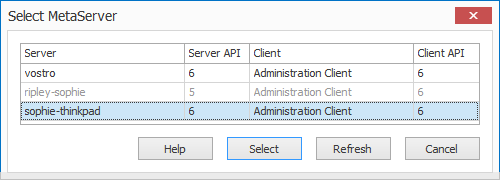
ENHANCEMENT: SELECT SERVER: The Select Server list now also shows the API version. You can only connect with a MetaServer with the same API version as the client. If the API versions don't match, the MetaServer will be listed but marked in gray.
NEW: OUTGOING EMAIL ACTIONS: All setups with SMTP settings now have a new option:
[ X ] Check internet connection.
Disable this option if you only send internal email not requiring an internet connection, otherwise leave this option enabled.
NEW: Help buttons added for the following actions and rules:
Extract - Find Word with Type
Extract - Find Line with Mask / Words
Extract - Set Field Value
Extract - Reserve
Edit - Calculate Date
Edit - Calculate Number
Select Server Window
Select By URL
FIX: WORKFLOW MANAGEMENT: ACTIVATE ALL AND DEACTIVATE ALL DID NOT MAKE APPLY BUTTON ACTIVE: If you used the Deactivate All or Activate All button, the Apply button remained gray. Only when you selected or unselected individual workflows, the Apply button became active.
FIX: Extract Text: When you, for example, extracted page 4 up to the last page (page range 4--1) and if these pages were not present, for example in a 3 page document, then an error 1 occurred.
Version 3.0(5) | 2019-03-22
NEW: Multiple Conditions in Set Field Value rule: You can now set up to three conditions combined with "AND" to set the value of a field conditionally. For multiple "OR" conditions, just define several SET FIELD rules like before.
Example 1: set "EMAIL TO" equal to "[email protected]" if:
TOTAL AMOUNT is greater than or equal to 10000.00
AND
CUSTOMER is equal to NEWCUST
In that case the manager will only be notified for orders >= 10000 that come from customer NEWCUST.
Example 2: Document type detection using keywords. If for example you find keywords that classify a document both as ACKNOWLEDGMENT and OFFER then you can force this combination to for example OFFER with these settings:
Set DOCUMENT TYPE equal to OFFER if:
DOCUMENT TYPE 1 is equal to ACKNOWLEDGMENT
AND
DOCUMENT TYPE 2 is equal to OFFER
ENHANCEMENT: Document number appears in the Document list: The Test Documents Drop Down List and Browse Document Thumbnails now display the document number in front of each PDF file name for easier reference.
FIX: Export to SAP R/3: After 1 document being uploaded to SAP, the MetaServer service got unloaded. This is now fixed.
FIX: AFTER A LICENSE ACTIVATION, WORKFLOWS REMAINED HIDDEN: After you activated the MetaServer license, the workflows were not immediately visible. You needed to reconnect to the server of restart the Admin client to see them.
FIX: ACTION AFTER DELETE WAS NOT CALLED IF DOCUMENT WAS DELETED FROM DOCUMENT LIST: If you defined an action after Deleting a document (like export to a Deleted Documents folder) then this action was only called when you deleted a document with the Delete button in the ribbon in the Organizer or Validation ribbon. It did not call the action when documents were deleted from the list.
FIX: REJECT REASONS ARE NOW NUMBERED FROM 1: Reject reasons in the Setup UI of the Organizer and Validation actions were numbered from 0 and should have been numbered from 1 because the first reject reason is considered as 1 in the Validation drop down and in the { Reject Reason Number } variable.
FIX: TABS IN 2D BARCODE VALUES ARE NOW CORRECTLY HANDLED: If a Barcode contained real TAB characters, we now substitute them with the MetaServer TAB character format represented by the → symbol.
FIX: CORRECT HANDLING OF CORRUPT PDF ATTACHMENTS: Corrupt email attachments were not handled. They are now moved to the Errors tab similar to corrupt PDFs imported from a Folder.
FIX: A document originating from an email in the errors tab that was deleted did not trigger email archival.
Version 3.0(4) | 2019-03-18
NEW: MULTI-SELECT PAGES IN THE ORGANIZER: You can now select multiple pages using the CTRL-CLICK or SHIFT-CLICK technique, or select all pages with the CTRL-A shortcut. Once multiple pages are selected you can apply a function to all selected pages (documents), such as separate, merge, delete and rotate.
FIX: When doing a MetaServer install without any of the sample workflows or demo files, C:META-DEMO was not created. This caused problems when creating an Extract or Separate action pointing to C:META-DEMO as the Test Folder. When MetaServer is now installed, it will create C:META-DEMO automatically if it does not exist.
Version 3.0(3) | 2019-03-13
NEW: UTF-8 BOM and UTF-8 option in Export to Folder: The file index can now be encoded in UTF-8 BOM or in UTF-8 format. Default is UTF-8 BOM. For more info about the byte order mark (BOM), see here:
https://en.wikipedia.org/wiki/Byte_order_mark
NEW: Help button added to Find Number Extract Rule:
https://www.capturebites.com/metaserver/help/extract/120-240/
NEW: OK ALL BUTTON IN VALIDATION: This makes it possible to validate all green fields (valid but forced check) with a single click. The OK All button is optional and is by default disabled in the Operator Client. To enable it, open the Admin client and enable the OK All option in the Server tab.
NEW: The last selected test document folder is now saved as part of the workflow: If you now create an installer and include the last selected test document folder, it is automatically selected as the test folder on the target system. If the target system had a previous version of the workflow with another test folder already selected then the test folder does not change.
ENHANCEMENT: In Validation, the Drop Down List now automatically opens as you type in a database lookup field.
FIX: better handling of changes to test document folders: When previously used test document folders for testing extraction or separation rules for a given workflow were deleted or renamed, the test results were deleted on unexpected moments.
Version 3.0(2) | 2019-03-04
FIX: Find Word with Mask / Words in combination with the Keep All Matches did not work correctly anymore in 3.0.1 and concatenated all words found on the same line of text. Also finding words containing a string did not return the whole word but only the set string.
Version 3.0(1) | 2019-02-18
NEW: EXPORT TO SAP R/3: This connector requires its own activation code. SAP Transport files are placed in C:CaptureBitesMetaServerSAP Transport.
Help is directly accessible from the setup and is located here.
Export to SAP R/3 exceptions are handled as follows:
1) BARCODE EXCEPTIONS: No open internal barcode (late archiving) or already existing external barcode (early archiving). A Document causing such barcode error is moved to the errors tab. However this does not stop the Export to SAP R/3 export action and documents with correct bar codes will continue to be processed. To solve the issue, adjust the barcode value in SAP and retry the documents in the Errors tab. Or delete the documents from the Errors tab and scan them with a correct barcode.
2) THE EXPORT TO SAP R/3 IS NOT LICENSED. Documents exported to non-licensed connector, are moved to the errors tab and the Export to SAP R/3 is halted (red state), documents in the MetaServer queue stay on hold until the problem is resolved. Apply for a license (https://www.capturebites.com/trial). Activate the connector and publish and apply the changes to the current documents in the queue. Documents in the system will be correctly exported.
3) THE EXPORT TO SAP R/3 IS NOT CONFIGURED CORRECTLY. A wrong configuration typically causes an "unable to connect to SAP" error. The document is moved to the errors tab and the Export to SAP R/3 is halted (red state), documents in the MetaServer queue stay on hold until the problem is resolved. Resolve the configuration issue and publish and apply the changes to the current documents in the queue. Documents in the queue and in the Errors Tab will be correctly exported.
4) THE SAP R/3 TRANSPORT IS NOT CONFIGURED CORRECTLY. This will cause an "unable to connect to SAP" error. The document is moved to the errors tab and the Export to SAP R/3 is halted (red state), documents in the system stay on hold until the problem is resolved. You can find more documentation here.
Select the error document and retry the action to rety the export to SAP R/3 action. Documents in the MetaServer queue and Errors Tab will be correctly exported.
NEW: IN WORKFLOWS TAB: DISABLE EMAIL ALERTS - We added an option to disable email alerts. In environments with unknown smtp settings, email alerts can now be disabled until correct SMTP settings are provided. The default for new workflows = Email Alerts OFF (no alerts). When the email alerts are switched off, the Alert icon in the workflows tab is gray. When email alerts are switched on, the icon is red.
NEW: The Find Word rule will now find words across multiple lines. For example, if you have a text like:
Solutions for SMBs from CaptureBites
Software Development are easy to configure.
Notice how "Software Development is on another line than "CaptureBites".
If you try to Find "CaptureBites Software Development" with a Find Word rule in that text block, it will now find it. Previously, Find Word could only find words in the same line. This is useful to find key phrases and lookup the matching document type corresponding with that key phrase.
NEW: ERRORS TAB - CORRUPT PDF HANDLING: When an invalid PDF is imported and detected, it is now reported in the Errors Tab. The viewer shows a red image with the words: "FILE NOT VALID". The invalid file can be saved with a new Save As function in the Errort tab.
NEW: ERRORS TAB: SAVE AS FUNCTION: If you want to share a PDF that was moved in the Errors tab, you can now save it on your system with the new Save As function. By default the proposed pdf file name is the original file name of the imported file.
NEW: Week Number - Format Date / Time: We introduced a new output format - Week Number: { Date , W } and { Date , WW } For example 9 JAN 2019 would generate week 2 or 02 (WW).
The 1st week of the year is determined according to the ISO convention: The basic principle is that a week needs to contain all days of the week from Monday through Sunday. This means that sometimes the last week of a year contains days of the following year or the first week of a year contains days of the previous year. According to ISO conventions, the first week of a year is the week with a Thursday in that year. For example 1 JAN 2017 (a Sunday) belongs to week 52 of the year 2016 and 31 DEC 2018 (a Monday) belongs to week 1 of 2019
NEW: Distribute action Help button is implemented.
FIX: Find Word with Accept words from DB: The Match whole word option now triggers an exact match lookup in the database to find mapped fields. Before it did a START WITH search sometimes causing { Multiple hits } in the mapped fields.
FIX: When the workflow is active, and the button is red, the tooltip now indicates "Deactivate Workflow" instead of "Activate Workflow". When it's OFF (gray) the tooltip indicates "Activate Workflow".
FIX: When a corrupt file was imported it stayed behind in the workflow's the watched folder but was also added to the internal document structure. When you then restarted the server, it failed to restart and was never found until the corrupt documents were removed from the internal document structure in C:ProgramDataCaptureBitesProgramsMetaServerData. In this version, MetaServer cleans up these issues automatically and correctly starts. When new corrupt files are placed in the watched folders, they are now moved to the Errors Tab for further inspection.
Version 3.0(0) | 2019-01-11
NEW: SEPARATE ADMINISTRATION CLIENT - All Admin functions have been removed from the Validation client (now called Operator Client) and moved to an all new MetaServer Administration Client.
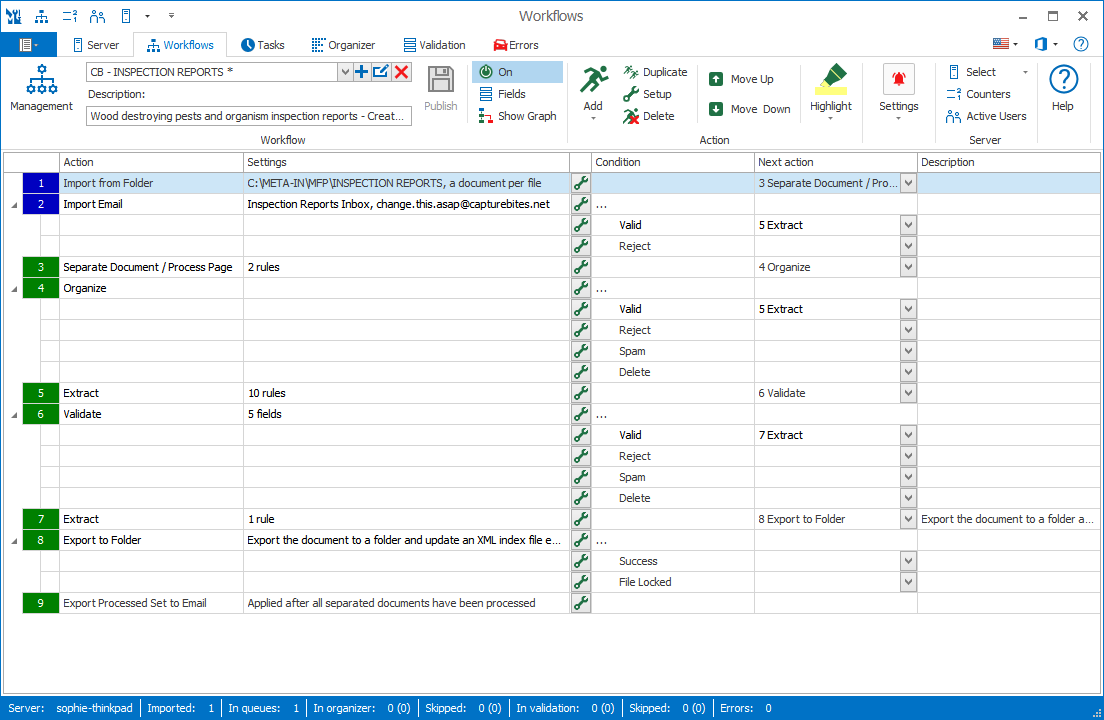
MetaServer Administration Client
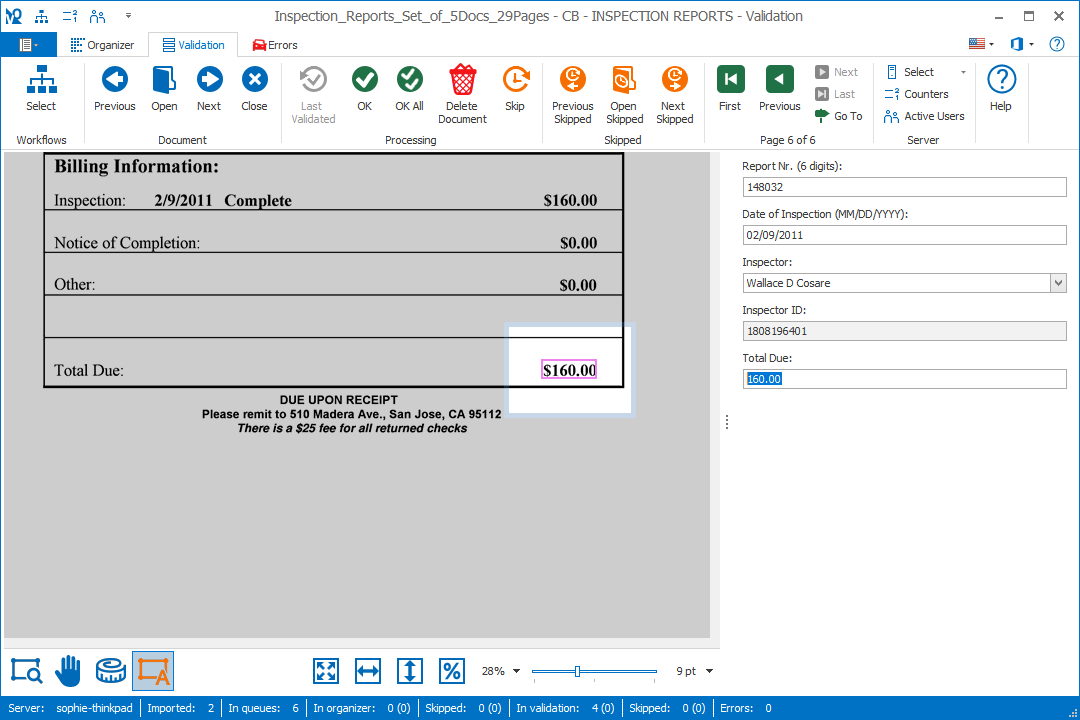
MetaServer Operator Client
NEW: The Validation client is renamed to MetaServer Operator Client. You will now find two icons on the desktop:
MetaServer Admin:

MetaServer Operator:

NEW: All functionality of the Admin and Operator clients are organized in a ribbon UI consisting of 6 tabs in Admin between 1 to 3 tabs (depending on hidden or exposed functionality) in the Operator Client.
Each tab has an online help link explaining all functions:
ADMINISTRATION CLIENT TABS:
1) Server
2) Workflows
3) Queues (planned for future release)
4) Organizer
5) Validation
6) Errors
OPERATOR CLIENT TABS:
1) Organizer (can be hidden if not in use)
2) Validation
3) Errors (can be hidden if solving errors is reserved to admins)
NEW: WORKFLOWS TAB - WORKFLOW MANAGEMENT: The Workflow management button opens a dialogue to multi-select workflows to delete, activate or deactivate multiple workflows at once.
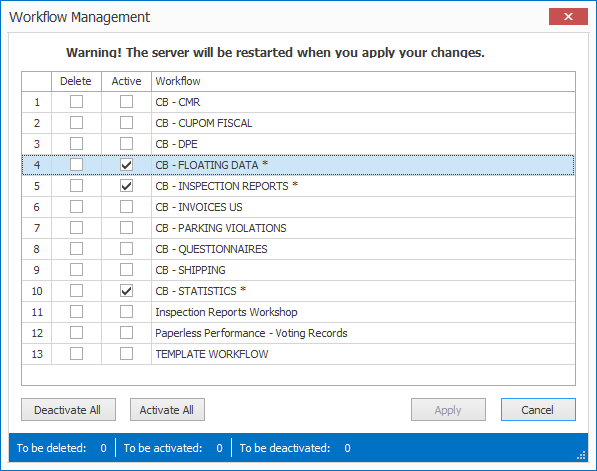
NEW: MANUALLY CONNECTING CLIENTS TO THE SERVER: You can now enter the connection URL of the MetaServer manually in the Operator and Administration Clients if they run outside the server's domain. The URL is accessible by pressing the menu option of the Select Server button. First copy it from the client running on the server and copy it in the Server URL setting on the client(s) outside the domain. This manual connection method is only required for clients running outside the server's domain. For clients in the same domain as the server, the MetaServer is automatically detected as before.
NEW: ERRORS TAB: The Errors tab shows any documents in an error state. For example documents that could not be exported because a database was not available. You can view the documents, read detailed error information and after you have resolved the problem, you can retry the failed action or reprocess the error document from the beginning after resolving the issue causing the error. You can also delete error documents from the list in case they cannot be resolved (corrupt unreadable PDF files for example).

The Errors tab also indicates if a document belongs to a document set or not. A document set originates from a single PDF file containing multiple documents that has been separated in multiple documents using separation rules or using the Organizer. If a document belongs to a document set, you have the choice to reprocess the whole document set that the error document belonged to or to just retry the failed action on that particular document.
Through a new group of client settings in the server tab, you have the option to expose or hide the Errors tab in the Operator Client to allow or not allow validation operators to resolve errors.
NEW: ORGANIZER THUMBNAILS: We introduced a 3rd, Large size type of thumbnail.
NEW: VALIDATION: DB LOOKUP - "Search as you type" option: MetaServer has always searched records as you typed. This decrease keyboard responsiveness if you lookup in very large tables. You can now disable Search as you type. With the feature disabled you can type in a lookup field and the search will only be triggered when hitting the ENTER key or pressing OK in the Validation Tab.
NEW: SERVER TAB CLIENT OPTIONS SECTION: You can customize the Operator Client's experience by hiding or exposing skip functions, hiding or enabling the Organizer tab, hiding or exposing the Errors tab.
NEW: EXPORT TO WORKFLOW: The Export to Workflow action allows to send documents from one workflow to another preserving all metadata. Ideal for complex uses cases with multiple format output, multi level document separations, document classification etc.
NEW: DISTRIBUTE ACTION: We were missing a way to export to different workflows conditionally in case we want to classify documents first with a classification workflow. This action makes this possible.
The Distribute action can send a document to one of many workflows or other actions. It is an easy way to create a Document Classification workflow distributing documents to their correct workflow depending on their document type.
This new action allows to send a document to any action in the same workflow conditionally based on for example an index field value like "Document Type". The field of the value is set in previous extraction or validation actions.
The Distribute Setup has a select field drop down to select a field like "Document Type" holding one of the conditions defined in the list of different possible conditions.
When processing a document, the next action matching the condition value will be selected.
If the field value does not match any of the conditions, the { Default } next action will be selected.
If you name a condition "invalid", "reject", "spam" or "delete", then the action is marked red in the graph and workflow graph.
NEW: IMPORT FROM FOLDER option to wait x seconds before importing a file. The option is called "Import [xxx] seconds after file creation". By default the time is set to 0 seconds. The feature is inspired by the fact that some MFP devices (we experienced it with Konica-Minolta MFPs) write PDF files gradually in the destination folder and does not always lock them while being written. This can cause a partial import of a PDF file by MetaServer generating a corrupt PDF file. By setting a delay before importing the file, the MFP can correctly finish the PDF file.
ENHANCEMENT: F5 can now be used as a keyboard shortcut to refresh lists: like the Document List in the Organizer and Validation tabs, the actions list in the Server tab and the Document Counters List.
ENHANCEMENT: ORGANIZER VIEWING: If the user clicks on the separator, the first page is now loaded in the single page viewer instead of nothing.
ENHANCEMENT: ORGANIZER AND VALIDATION - CLOSE DOCUMENT: You can now close a document with a dedicated Close button to make it available for another station to organize/validate.
ENHANCEMENT:SERVER TAB SELECT WORKFLOWS: The Select Workflow function is now also available in the Server tab. You can use to filter the Import actions in the list. This is useful when you have many workflows on a demo system to reduce the long import action list and only show the relevant ones during demos.
ENHANCEMENT:HELP IN ALL TABS: A help button is added to each tab opening an online help page explaining all functionality for each of the tabs.
ENHANCEMENT:The MetaServer version is now included in error emails.
ENHANCEMENT: Convert to Black & White: Additional info about the conversion process when you press Test with following indications:
If the original contains a scanned page: Yes / No (If No, there is nothing to convert to B&W)
If the original image is black & white: Yes / No (If Yes, the conversion is skipped because the image is already B&W)
If the PDF was converted to B&W: Yes / No
ENHANCEMENT:We do not allow two separation actions in a single workflow path anymore because, in case of errors, documents can be lost. When publishing such a workflow, an error message shows and recommends to split the workflow using the new Export to Workflow action. For more info how to send documents from one workflow to another, refer to the Export to Workflow online help page.
ENHANCEMENT:The Exchange error: "Export to Email: Temporary server error. Please try again . PRX5 (451). is now considered as a recoverable error (orange). The Export to Email action will be retried until it works again.
FIX: Validation: When the field forced a zoom mode, like "fit to width", the corresponding fit button was not correctly selected when the document was opened in Validation.
FIX: Extraction Action: The sequence number of the extraction rule in the title of its setup was wrong. If you opened an extraction rule of an extraction action the sequence number in the tile bar was not correct. For example rule 1 was displayed as rule 0 in the title bar or rule 22 ias rule 21.
ENHANCEMENT: You can now sort the Document list on any of the columns by clicking on a column header.
ENHANCEMENT: Online MetaServer help now shows breadcrumbs and you can easily navigate to the main help page from any specific help page.