
MetaServer > Version History
CaptureBites MetaServer Version History
Here you will find all MetaServer release notes, including details of new features, improvements and fixes.
You can always download the latest version of MetaServer including Operator, Admin clients and sample workflows on the MetaServer Product Page. If you are looking for base installers without any sample workflows, please refer to our download page.
IMPORTANT: Before refreshing or updating your MetaServer, please pause your MetaServer first. You can do this in your Admin Client, under the Server tab. As soon as all your action queues are "yellow" (= paused), you can perform your refresh or update.
This will ensure that no documents in your current queue become corrupted during your refresh or update.
IMPORTANT: If you are updating from a MetaServer version lower than 3.1.3
IMPORTANT: If you are updating from a MetaServer version lower than 3.1.3, it is possible that a Computer ID mismatch can occur.
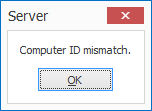
On most systems, the update will not cause any problems. However, occasionally, on some systems this may cause a Computer ID mismatch after upgrading. To fix this issue, please refer to the Computer ID Mismatch troubleshoot page.
IMPORTANT: If you are updating from a MetaServer version lower than 3.1.1
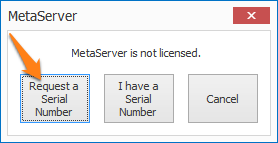
IMPORTANT: If you are updating from a MetaServer version lower than 3.1.1, a pop-up window will ask you to request a serial number. If you haven't received a serial number already, please press the "Request a Serial Number" button and fill out the form. We will send you your serial number as soon as possible.
Please also note that old MetaServer activation codes (e.g. "K-123F0-12345-123B4-CD12B-C0D12-E1EB2") are not compatible with this version and future releases of MetaServer. You can apply for a replacement serial number through our online request form.
IMPORTANT: If you are updating from a MetaServer version lower than 3.0.23
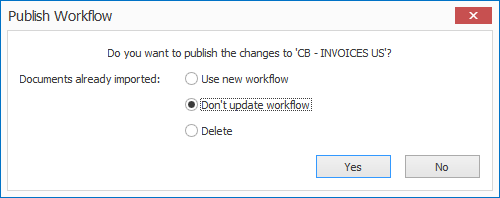
IMPORTANT: If you are updating from a MetaServer version lower than 3.0.23, it is required to republish existing workflows. Select each of your workflows, make a small change, like adding and removing a space to the workflow description, and publish the workflow. If there are documents already imported in the workflow, then you do not have to apply the changes to these documents.
Version 1.0(30) | 2018-06-18
NEW: MetaServer System Variables: Current Date & Time. These are useful to calculate the time span between two actions to log in a statistics DB or CSV file. You can calculate the time from before until after extraction for example or from workflow start time to final export time.
NEW: MetaServer: Calculate Time Span: New Rule to calculate the time between two times. With this rule you can caculate the number of days between dates. If you also include a time element, you can calculate the time span with a precision to the second.
NEW: Delayed Validate and Delayed Organize: You can now set a delay (default 10 seconds). During this time the last validated document remains available for further corrections. This is handy when the validation operator hits the ENTER key too fast by accident and realizes some more adjustments need to be made to the last validated document. With the Last Validated button the operator can go back to the last validated document and make further changes to the document and its metadata.
NEW: Setup windows last used size and position is saved. The main Extract, Validate and Separate action setup windows size sets the size of their child setup windows like: Extract Text Setup, Extract Barcode Setup, Validate Rules Setups, Organize Preview.
ENHANCEMENT: New preformatted date and time formats are added to the metadata pick-lists. Instead having to compose a date format like { Import Date, MM }/{ Import Date, DD }/{ Import Date, YYYY }, you can directly select this from the picklist. This saves many clicks.
Version 1.0(29) | 2018-06-11
NEW: Export to Folder: If the export folder is set by a field and the field is empty, the document is not exported. You can then conditionally export a document by leaving the export folder empty, similar to exp. to email with empty email.
ENHANCEMENT: The rules processing speed is considerably improved during both testing and run time
ENHANCEMENT: ExtractTxt files, generated during testing of extraction rules and introduced in version 1.0.25 to speed up testing, are now automatically deleted when placed in a MetaServer watched folder.
NEW: Extract Text: Implementation of the options:
“Text based PDF: [ X ] Apply OCR if PDF contains images” and
“Image based PDF: [ X ] Use OCR text layer if present”
Text based PDFs are PDFs that don’t contain an image equal to the PDF page size.
Text PDFs sometimes contain one or more small images containing logos or small font header or footer text. If you want to process these PDFs with OCR, enable the option “Apply OCR if PDF contains images”
Image based PDFs contain an image equal to the page size without any visible text on top of the image.
Image PDFs sometimes contain an invisible searchable OCR text layer. If you want to extract this existing OCR text layer, enable the option “Use OCR text layer if present.
The options are by default Off.
ENHANCEMENT: Report error emails: The email now also includes the path where the document triggering the error is saved:
Example:
The document has been moved to:
Folder: C:ProgramDataCaptureBitesProgramsMetaServerDataErrors2018.06.11 11.29.52.047
ENHANCEMENT: The default demo folder when an action is opened the first time is now C:/META-DEMO/MFP instead of C:/MetaServer/Test Documents. From there you can browse to the correct demo folder which will be remembered next time you open the action.
FIX: Export to Folder: Following options are not yet implemented and are therefore hidden from the User Interface:
- Create a document per subfolder
- Metadata file
Version 1.0(28) | 2018-06-07
NEW: If an action locks up because of mistakes in the workflow settings. You can know restart that action without having to restart the complete server. Just fix the mistake and then click on the red action in the Server tab, and press the Restart queue button. The action restarts instantly. Only red import action errors cannot be restarted individually, you still need to restart the server to restart import from folder and import from email actions.
FIX: Field cells and type cells were editable instead of display only in DB Lookup mapping panels and in DB Export mapping panel.
FIX: When importing email attachments, { Import Source File Full Name } and other import variables were empty during Extraction. They were correct when used during export.
Version 1.0(27) | 2018-06-04
NEW: Export to Database: Export metadata to an ODBC compliant database. If you also want to update a field holding the path to the exported PDF file, use a Export to Folder action first followed by an Export to Database. Map the export path with any of your fields in the DB. You can have multiple Export to Folder actions in your workflow which each will update the export paths and each can be followed by their own Export to Database action. The Export to Database also supports the time element in DateTime fields. In that way it is possible to update a database table registering time of import and time of export of each processed document. The export to database is thoroughly tested with a variety of field types using MS-Access, MsSQL Server, MySQL Server and Excel.
NEW: Extract: Replace Text: Fields are added to the setup menus of replace fields.
ENHANCEMENT: DB Lookup Setups: Move “Select data source from field” behind a setup button next to the selected data source. The tool tip of the setup button with the three dots is “Setup dynamic database switching…”. We noticed that inexperienced users were selecting a random field for dynamic DB switching even if they didn’t need it, causing runtime errors. By not directely exposing this setting in the main UI and by considering as an advanced settings, this mistake should not happen again.
ENHANCEMENT: Excel ODBC data sources are now hidden for DB Lookup. When using DB Lookup the data source is both accessed by the client and the server. This is not possible with Excel because it is not multi-user and caused an error.
Excel ODBC data sources are still available for export to database actions because in that case only the server accesses the source. You still need to be careful that Excel sheet is not open in Excel, because that locks the Excel sheet for access and causes an error.
FIX: Find word with accept words from database – If the setup used mapping and the search returned multiple hits, the 1st value in the BB was mapped or caused an error. In case of multiple hits, the mapping now always results in blanks, so the correct record can be selected during validation.[/showhide]
Version 1.0(26) | 2018-05-21
FIX: Extract: Electronic PDFs or Searchable PDFs disappeared in the text extraction rule viewer when extracting text in version 1.0(25). If you defined extraction rules with version 1.0(25), you may need to redefine them.
FIX: Export to Email: MetaServer locked up when and invalid "email to" address was used or incorrect SMTP settings were configured. In this version, the erroneous export email action will turn red, the document that cannot be sent leaves the workflow and an error is emailed to the specified email address in the report error setup.
Version 1.0(25) | 2018-05-17
NEW: Set Field Value: It is now possible to add the page number next to each line of a text extraction result. This is useful info if you need to know the page number where each line is located. For example to find all pages potentially containing a signature.
NEW: Extraction: Test function: Save text extraction result. If text extraction settings don't change, the text extraction rules are not rerun, speeding up testing.
If you delete an *.ExtractTxt, it will be recreated when a test is run on that PDF.
Two types changes are allowed without having to recreate the complete result:
1) Delete a text extraction rule
2) Add a text extraction rule: Only the additional extraction rule will be excecuted and the result will be added to the saved result file.
Saved results are saved per test file in the same file as the test file.
For example the OCR test result for
2003-11-24_Fedex.pdf
is saved as
2003-11-24_Fedex.ExtractTxt
Version 1.0(24) | 2018-05-11
NEW: Request Trial Function: If MetaServer is not licensed and user goes to backstage, we now show a message: "MetaServer not licensed. [I have an activation code] - [Request a Trial] - [Cancel]. "Request a trial" brings the user to a form with the computer ID pre-filled.
DB Lookup fixes and enhancements
-----------------------------------------
FIX: When a lookup field was not the first field to check, and the lookup field was required or always check, validation did not stop on the lookup field.
FIX: If you edited an existing DB Lookup rule and you changed the lookup field, then the mapping list was not updated. The selected field was still in the list and the previously selected field was not exposed.
FIX: With a lookup field with DB match required and look up “without confirmation”, selecting a looked up value in the list, would move to the next document without loading that value completely in the index field.
FIX: When typing in the DB Lookup field the lookup list did not open automatically.
FIX: Confirm Lookup option forced the user to hit ENTER twice to confirm instead of once when picking the value from the list with cursor keys or mouse.
FIX: If DB match was not required and a mask was defined to check manually entered values, this mask was ignored and any value could be entered.
FIX: If you created an new DB Lookup rule, and you unselected Database match required, the Type list defaults to nothing and pressing setup, causes an error. The type now defaults to Mask / Words. An empty type is not accepted anymore.
FIX: When you entered nothing in the lookup field, and you opened the lookup list, nothing was displayed. If few records, we show them all. If many records, we display the first 1000.
FIX: DB Lookup Filter Option: Only the UI was implemented but not the functionality. DB Filtering is now fully functional.
FIX: DB Lookup Filter Option: The Filter icon was incorrect, it was a magnifier and is now changed to a funnel similar to the filter icon in Excel and Access.
FIX: MsSQL ODBC – MsSQL tables showed some strange prefixes like dbo.tablename.
ENHANCEMENT: A lookup field with “Update database” ON, validation is complete and where a new record will be added, a message now pops up: A new [lookup_field name]: [new_field_value] will be added to the [DB Name] database. Are you sure? YES / NO (default is NO). If Yes, the record is added and validation moves to the next document. If No, the record is not added, and the cursor jumps back to the lookup field.
Version 1.0(23) | 2018-05-07
NEW: Set Field: New option: Replace line separators with [ ]. This allows to replace line seperator with a character of choice. The option is disabled by default and when enabled, the default replacement character is SPACE.
NEW: Workflow Setup: Last used test images folder is now saved per workflow.
NEW: Open Document: New option with check box: "Hide reserved". This hides all items reserved by others. This setting is remembered per validation client. By default, it is enabled.
NEW: Admin: New server setting: “Queue limit”. The default is 1000. And the maximum accepted value is 25000. The 25000 limit has been tested on our systems and works without problems on a machine with sufficient memory (8GB+) and documents with a standard number of metadata excluding any full text fields. We noticed a considerable drop in performance after 30000 documents in the queue. This is the reason why we have set the limit to 25000.
Although you can theoratically set the queue limit to 25000, we recommend to set the value that you practically need and consider the following when setting the queue value:
The queue value acts as a buffer. Imagine you set it to 5000. That means it stops importing after 5000 documents, but as soon as you validate and a document is exported and exits the workflow, MetaServer will import again until it reaches the buffer level. So, in practice a queue limit or buffer of 5000 is already a lot. If 5000 or less works for you, don’t set it higher.
Each document in the queue also stores all extracted values. So if the documents also have an index field with the full text of the first page for example, then the workable limit is reduced to about 10000 documents or less (depending how many pages of full text you extract and how much memory your systems is equippend with) in the queue.
Often full text fields are used for temporary storage and to extract specific values from the full text. In that case make sure you clear the full text field with a Set Field rule at the very end of your extraction rules to get rif of this redundant information throughout the whole workflow. If you clear the full text field(s) before Validation, the queue limit can be set to a higher value closer to the limit of 25000.
The queue limit sets the maximum number of documents queued for processing. Once this number is reached importing of additional documents is paused until documents are exported and make place to import additional ones. We recommend to keep the value at its default of 1000.
Only increase the value when you want to extract data from a lot of documents overnight to queue them up for validation during day time.
NEW: Open Document: Added an option to list more items (up to 9999) – Default is 1000. This setting is remembered per station. Listing more than 1000 items can take a long time. We recommend to keep the list size equal to 1000 or less.
ENHANCEMENT: Export to Folder: FTP mode: Update CSV works in the same way as exporting to local disk.
ENHANCEMENT: Export to Email: A body can now be configured if a “File source” is selected, even when “[ ] Attach files” is not selected, resulting in an email with no attachment but with a body which can contain metadata of the not attached document.
Version 1.0(22) | 2018-04-27
NEW: Set Field: New option: Replace line separators with [ ]. This allows to replace line seperator with a character of choice. The option is disabled by default and when enabled, the default replacement character is SPACE.
NEW: Workflow Setup: Last used test images folder is now saved per workflow.
NEW: Open Document: New option with check box: "Hide reserved". This hides all items reserved by others. This setting is remembered per validation client. By default, it is enabled.
NEW: Admin: New server setting: “Queue limit”. The default is 1000. And the maximum accepted value is 25000. The 25000 limit has been tested on our systems and works without problems on a machine with sufficient memory (8GB+) and documents with a standard number of metadata excluding any full text fields. We noticed a considerable drop in performance after 30000 documents in the queue. This is the reason why we have set the limit to 25000.
Although you can theoretiically set the queue limit to 25000, we recommend to set the value that you practically need and consider the following when setting the queue value:
The queue value acts as a buffer. Imagine you set it to 5000. That means it stops importing after 5000 documents, but as soon as you validate and a document is exported and exits the workflow, MetaServer will import again until it reaches the buffer level. So, in practice a queue limit or buffer of 5000 is already a lot. If 5000 or less works for you, don’t set it higher.
Each document in the queue also stores all extracted values. So if the documents also have an index field with the full text of the first page for example, then the workable limit is reduced to about 10000 documents or less (depending how many pages of full text you extract and how much memory your systems is equippend with) in the queue.
Often full text fields are used for temporary storage and to extract specific values from the full text. In that case make sure you clear the full text field with a Set Field rule at the very end of your extraction rules to get rif of this redundant information throughout the whole workflow. If you clear the full text field(s) before Validation, the queue limit can be set to a higher value closer to the limit of 25000.
The queue limit sets the maximum number of documents queued for processing. Once this number is reached importing of additional documents is paused until documents are exported and make place to import additional ones. We recommend to keep the value at its default of 1000.
Only increase the value when you want to extract data from a lot of documents overnight to queue them up for validation during day time.
NEW: Open Document: Added an option to list more items (up to 9999) – Default is 1000. This setting is remembered per station. Listing more than 1000 items can take a long time. We recommend to keep the list size equal to 1000 or less.
ENHANCEMENT: Export to Folder: FTP mode: Update CSV works in the same way as exporting to local disk.
ENHANCEMENT: Export to Email: A body can now be configured if a “File source” is selected, even when “[ ] Attach files” is not selected, resulting in an email with no attachment but with a body which can contain metadata of the not attached document.
Version 1.0(21) | 2018-04-24
NEW: There is a new version of the API between MetaServer and the client. You can see this API version in the About tab of the backstage.
NOTE: A previous version of the client is not allowed with this version of MetaServer and vice versa.
ENHANCEMENT: For File names, CSVs etc, tabs are always replaced using this logic: TABs around values without pink rectangles are suppressed, other TABs are replaced with SPACE even if all objects in the file name have positional data.
ENHANCEMENT: New way of concatenating values with Set Field to address issues with word group separators:
If in the Set Field formula, there is at least 1 object without positional data (no pink rectangle), then TABs around values without positional data (no pink rectangles) are suppressed, other TABs are replaced with SPACE.
Something like:
{WGROUP1→WGROUP2}-{WGROUP3→WGROUP4} (NOTE: - does not have postional data)
becomes:
WGROUP1 WGROUP2-WGROUP3 WGROUP4
Something like:
{WGROUP1→WGROUP2}{WGROUP3→WGROUP4} (NOTE: all elements have postional data)
becomes:
VALUE1→VALUE2→VALUE1→VALUE2
Something like:
{WGROUP1→WGROUP2} {WGROUP3→WGROUP4} (NOTE: the space separator does not have postional data)
becomes:
VALUE1 VALUE2 VALUE1 VALUE2
PREFIX{WGROUP1→WGROUP2} (NOTE: the PREFIX constant does not have postional data)
becomes:
PREFIXVALUE1 VALUE2
PREFIX {WGROUP1→WGROUP2} (NOTE: the PREFIX+SPACE constant does not have postional data)
becomes:
PREFIX VALUE1 VALUE2
{ Workflow Name }{WGROUP1→WGROUP2} ((NOTE: the system value { Workflow Name } does not have positional data)
becomes:
WORKFLOW NAMEWGROUP1→WGROUP2
(we may argue that the TAB in the result should become a space in this case because the string contains an object without positional data. However this is such an exotic case, we'll leave it as is)
{ Workflow Name } {WGROUP1→WGROUP2} ((NOTE: the system value { Workflow Name }+ SPACE does not have positional data)
becomes:
WORKFLOW NAME WGROUP1 WGROUP2
NEW: Set Field: New option: [ X ] Replace tabs by [ ] Default is OFF and default value is nothing. When tabs (word group seperators) are replaced, then only the pink rectangle of the first word group in the set field value is kept.
ENHANCEMENT: Server Tab: The Database "Reload" button is renamed to "Load": Since database updates are loaded automatically, we renamed the Reload database button to Load database. Because it only serves for loading new databases.
ENHANCEMENT: Publish Worfklow: When deleting documents in the queue, a progress windows shows if there are many documents (>100) in the workflow.
NEW: Test Folder: When loading a test folder, all the files in its sub folders are also loaded. This allows for easier testing of sub folder names loaded in a field with a Set Field Rule. Consider the selected Test Folder as the watched folder. Subfolders below are numbered 1, 2, 3 etc. Following dialogue use the new Test Folder logic:
ExtractRuleExtractBarcodesSetup
ExtractRuleExtractTextSetup
ExtractSetup
SeparateDocumentSetup
ValidateDatabaseSetup
ValidateDateSetup
ValidateNumberSetup
ValidateTextSetup
FIX: Set Field: Extract Segment: If a segment does not exist (ex. segment 3 out of 2 segments), an error occurs "Index was out of range. Must be non-negative and less than the size of the collection....". It should return a blank instead.
Version 1.0(20) | 2018-04-16
NEW: Find Word from MetaServer & ODBC Database: It is now possible to map fields with the lookup results if Keep first or Keep last match is selected. Thanks to this, you can instantly see the lookup result during Validation and if necessary use the looked up value to set other conditions.
NEW: Find Word from MetaServer Database: It is now possible to load a MetaServer data source from a field to dynamically switch Database in the same workflow.
NEW: Validation - Database Lookup: It is now possible to load a MetaServer data source from a field to dynamically switch Database in the same workflow.
NEW: When you edit a MetaServer CSV database it is reloaded automatically.
NEW: MetaServer CSV databases can now also use ; (semi-colon) as delimiter.
ENHANCEMENT: Publish Workflow: Delete Documents action does not restart MetaServer anymore.
FIX: Combined word groups are correctly output in CSV, XML files, file names, email body text etc. Previously word group seperators triggered the creation of redundant " characters.
FIX: Reload Database sometimes stopped working.
FIX: Document Separation Setup: The document now stays on the selected page if you change rules or open a rule setup. Before it jumped to page 1.
Version 1.0(19) | 2018-04-11
NEW: Export to Folder: Index files can also be updated on an FTP server.
NEW: Export to Folder: New Overwrite option to overwrite existing PDF files or File index files instead of creating copies.
NEW: Separation and Extraction: You can now read Patch Codes with the Extract Barcodes rule.
NEW: Separation and Extraction: Set Field Value: It is now possible to select a range of segments based on one or more separators for example select from 2--1 (the 2nd segment until the last) based on SPACE as the separator.
NEW: Find Word From Database: It is now possible to load an ODBC data source from a field to dynamically switch Database in the same workflow.
NEW: Validation - Database Lookup: It is now possible to load an ODBC data source from a field to dynamically switch Database in the same workflow.
Version 1.0(18) | 2018-04-06
NEW: Update File Index in Export to Folder when it has the same name. This makes it possible to put all index data of a group of documents. For example all index data originating from the same scan batch or scanned the same day.
FIX: When a document ended with a separator, the separator was deleted.
Version 1.0(17) | 2018-03-23
NEW: Document Separation action: Unattended document separation: You can now peform document sepration without an Organize action for fully unattended document separation.
NEW: Edit / Delete pages action: With this action you can delete pages from PDF files. Typically, the action is used to delete the first page and get rid of the separator page. If all pages are deleted, there is a separate flow to process PDF without pages. The PDF without pages still contains the pages before the delete action. Deleting any of the pages does not affect the document index.
NEW: Document Separation: If you separate every page, it is now also possible to extract data from each of the pages in the separation action. Previously it was required to run a separate extraction action to do this.
NEW: Document Separation: When previewing separation points during setup, a progress windows pops up showing page Processing page x of y and also indicates the pages where it found the separation points.
FIX: Document Separation: Index data of first page of document is kept, also when changed during organize.
FIX: Export to Folder: File Index: Illegal XML characters are now escaped automatically in any index values or variables in the XML when XML is selected as type. These are the five illegal XML characters that are automatically substituted with their escape code:
" replace with: "
' replace with: '
< replace with: <
> replace with: >
& replace with: &
Version 1.0(16) | 2018-03-19
NEW: Added TEMPLATE WORKFLOW that can serve as a basis when creating a new workflow
NEW: Export to Folder: Export file index to FTP is now implemented.
FIX: Calculate Number / Date: Location of the extracted date (pink rectangle) is lost after a calculation.We now take over the coordinates of the source field and if it doesn't have any, we take over those from the field used in the calculation formula.
Version 1.0(15) | 2018-03-16
NEW: Document Separation Action - Document Separation can currently only be used if followed by Organizer action to view the result of the Document Separatio.
ENHANCEMENT: Bar Code Setup - Zonal Barcode - Conditional barcode reading - Reading barcodes only on specific pages.
NEW: Barcode defaults: Default Skew Tolerance is now 5, Selected types are: 39, QR and 128
NEW: Extraction - Edit - Calculate Number rule to add, subtract, divide and multiply values.
NEW: Extraction - Edit - Calculate Date to add or subtract a number of days from a date. For example Due Date = Invoice Date + Payment Term in Days.
NEW: Extraction - Edit - Calculate Days Between Two Dates to calculate the difference between two dates. The result is an absolute number in days. For example, Due Date - Invoice Date = Payment Term in Days.
NEW: Validation - Dates - new Calculated option - This allows to add or subtract a number of days during Validation by pressing a small calculator next to the date field.
NEW: Validation - Number - improved Calculated option - It was already possible to add, subtract, divide and multiply values during validation, it is now also possible to calculate the difference between two dates, resulting in a number of days. That is why thisis part of the Number rule, since the result is always a number.
FIX: Validate Rule (Edit Text): Replace text had no effect on bar code values.
Version 1.0(14) | 2018-02-16
FIX: Time out error when publishing workflows
NEW: Extraction Rule: Find / Find Line with Number
NEW: You can now search in the text result when testing extraction.
ENHANCEMENT: Validation Select Text Tool: You can now select more than one line with the Select text tool and the lines are correctly concatenated in the field.
NEW: better defaults when creating a new workflow.
ENHANCEMENT: When a "To" email address needs to be defined, the value "[email protected]" is set to clearly indicate that the email address should be changed.
NEW: Validation / Organizer: New Reserve documents mechanism. It is possible to select one or more documents in the Open Documents list and Reserve them for validation. As soon as the documents are reserved they are not accessible by other validation stations anymore unless they are unreserved. During Validation, the Organizer and Validation clients will first cycle through the reserved documents before opening any non-reserved documents.
ENHANCEMENT: When a a document is reserved in the Organizer, the separated documents are also automatically reserved for Validation.
NEW: Fields Setup: Show field in open document list. To help selecting documents in the open document list, additional columns showing fields can be defined. For example if you use a sub folder to set a field called "Scanned by", you can simply a check a box in the Fields Setup to include it in the open document list. Fields with the same name accros worfklows will all displayed in the same column.
NEW: Extraction: New Edit / Reserve rule:
This rule makes it possible to auto-reserve unreserved documents based on an index field.
The rule is simple to setup: You select an index field holding the windows user name to reserve a document. You can use standard set field rules, replace rules, db lookup etc. to set the value. This rule will only apply if the document is not reserved yet.
For example, if the document was already manually reserved during Organize, that reservation is not overwritten by this rule.
This is the use case to explain this behavior:
Unseparated PDFs arrive in one folder sending it to Organizer with a sub folder per user. Single PDFs arrive in another folder with a subfolder per user for auto-reservation and goes straight to extraction. In extraction just before organize the reservation is set based on the subfolder value. For singles, another extraction just before validate also sets the reservation. However, if the unsplit document is first split in Organizer and the auto reserve is manually overwritten in Organizer, then the second auto-reserve in Extraction should not overwrite this. Hence the mechanism to not set the reservation if it is already set.
NEW: Validation / Organizer: Open Document List: It is now possible to multi-select documents and delete them all from the workflow.
ENHANCEMENT: Validation / Organizer Title Bar now shows the original subfoldersfile name of the current document.
NEW: Validation badge in Taskbar: A counter icon appears on top of the Validation icon in the Taskbar when there is validation or organizer work. NOTE: A small counter on top of an icon in the taskbar to warn the user of pending work is called a badge in MS Windows 10 terminology. The logic is as follows:
ENHANCEMENT: Validation and Organizer Notification edits:
Validation counter = orange
Organizer counter = green
If Validation is active and there are documents to be validated, an orange counter shows the number of documents to be validated.
If Organizer is active and there are documents to be organized, a green counter shows the number of documents to be organized.
If Validation is active and there are no documents to be validated but there are documents to be organized, a green counter shows the number of documents to be organized.
If Organizer is active and there are no documents to be organized but there are documents to be validated, an orange counter shows the number of documents to be validated.
If there are only skipped documents a skipped icons is displayed to indicate pending skipped work. It is Green or Orange depending on what skipped works is pending (Validate / Organized)
ENHANCEMENT: Redesigned program icons better suited in combination with counter: After installation on a PC with an old version of MetaServer, you need to restart the PC to see the updated MetaServer icons.
NEW: New counters in the status bar of validation which indicate:
DOCUMENTS: The total number of all documents in all workflows for the selected MetaServer. This gives an idea of the total load of the server, this number is also indicated in the backstage in the Server tab.
IN ORGANIZER: Total available documents in Organizer for that station (all unlocked unreserved + all reserved documents for that station). This is the same counter as displayed in the taskbar.
IN ORGANIZER SKIPPED: Total available documents in skipped in Organizer for that station (all skipped unlocked unreserved + all skipped reserved documents for that station).
IN VALIDATION: Total available documents in Validation for that station (all unlocked unreserved + all reserved documents for that station). This is the same counter as displayed in the taskbar.
IN VALIDATION SKIPPED: Total available documents in skipped in Validation for that station (all skipped unlocked unreserved + all skipped reserved documents for that station).
All the counters are updated in real time.
- Fix: MS_Status.exe and MS_Organize.exe is now also digitally signed.
- New: Select Workflow button in Validation to select one or more workflows to perform validation.
- New: Find Word Group: A word group is a sequence of words preceeded and followed by a TAB. For example following line contains 3 word groups:
Date: 15 FEB 2018 PO: 987654 Invoice: 123456
The rule also allows to find word groups around a keyword or keywords. You can find word groups below the word Invoice; for example. This is very useful in cases like this:
Date PO Invoice Nr.
15 FEB 2018 987654 123456
In such case, you can find a Word Group containing "Invoice Nr." and configure the rule to find word groups 1 cm / 0.4 inch below that word group. Resulting in "123456".
To find the position of a word group in relation to the match, the logic works as follows:
Step 1: Each word group is tagged with 1 of 8 possible location tags (above, below, right above, left, etc.). The centers of the bounding boxes are used to determine the location.
Step 2: Check if the word group is inside the radar (the rectangle around the match) and ignore word groups outside the radar.
For above and below word groups, the distance from the match to the center of the word group is used.
For right above, right and right below word groups, the distance from the match to the center of the left side of the word group is used.
For left above, left and left below word groups, the distance from the match to the center of the right side of the word group is used.
NEW: Included in the installer is an PDF file located in C:/META-DEMO/MFP/FIND WORD GROUP TEST SHEET/MetaServer Find Word Group Test Sheet.pdf. Use it to experiment with the new Find Word Group rule.
The new Find Word Group rule includes many info tips explaining all the options.
NEW: Extraction Setup: Measure Tool: With this tool, you can measure an object on an image. This is useful in combination with the new "Find Word Group" rule to measure distances between word groups.
NEW: Extract Text setup: When you draw a zone, the dimensions of that zone are displayed in cm or inches and in pixels.
NEW: Status Bar shows selected server
NEW: Validation: The Original file name, subfolder(s) and workflow are now displayed in the title bar when opening a document in Validation or Organizer.
FIX: Format Date: On Brazilian machines the date formatter deducted 1 day of the extracted date.
FIX: Extraction: Test: Improved zooming, panning and page selection when clicking on the result when testing Extraction rules.
Version 1.0(13) | 2017-01-15
- Email Import can be used to import PDF attachments via IMAP.
- After import the PDF attachments are processed in the same way PDF files imported from folders.
- Once all attachments are processed, the corresponding email message is archived. The archive action can be configured to keep the processed email in the inbox, move it to another IMAP folder or delete it.
- Emails without PDF files or only containing non-PDF attachments are always rejected. Rejected emails can be processed with other actions.
- New document variables for last validation station and user who validated the document.
- After installation of this version, delete the temp folder: C:ProgramDataCaptureBitesProgramsValidationDataGraphs. Many files are automatically created in this folder when editing workflows. The new version only creates the graph files, when you press the Graph button. When a Log sub folder exists in the Graphs folder, also the log files are saved.
- Extract Text Rule. New option "Apply if..." to only extract text if a certain condition passes. For example: Extract Text if field value of field Invoice Number is blank.
- You can now copy the "SMTP Server" settings from one action to another even if those actions are not the same. You can copy /paste SMTP Server Settings between the Report errors setup, the Export to Email action and the Forward Email action.
- For consistencty reason we renamed the variables { Reject Error Label } to {Reject Reason} and {Reject Error Number} to { Reject Reason Number }. These variables are located in the Document category of the Setup menu.
- The Email Subject is now configurable with full use of variables in the "Report error" setup and in the "Forward Email" action.
- The Archive action is now hidden and automatically used when required.
- Workflows: The Graph button now generates a graphical represenation of the selected workflow
- Defective PDFs generates with mobile apps or scan apps that don't specify a resolution tag are now correcty processed.
- PDF "Page Count" Metadata in Import/Source/File/Page Count is now available.
- Validation: Select Text: Select 2 or more lines of Text in a text field rejected the value with an error. Now the lines are correctly concatenated in the field and accepted.
- Extraction: Test: When a result is selected the viewer now jumps to the correct page where the result is extracted from.
Version 1.0(12) | 2017-08-18
Includes:
- Floating Data Workflow
- DPE (Diagnostic Performance Energetique) workflow with Doc. Sep and DB Lookup