
MetaServer > Version History
CaptureBites MetaServer Version History
Here you will find all MetaServer release notes, including details of new features, improvements and fixes.
You can always download the latest version of MetaServer including Operator, Admin clients and sample workflows on the MetaServer Product Page.
If you are looking for base installers without any sample workflows, please refer to our Downloads page.
If you wish to get notified as soon as a new version of MetaServer is published, please subscribe to our CaptureBites Newsletter.
IMPORTANT: Before refreshing or updating your MetaServer, please pause your MetaServer first. You can do this in your Admin Client, under the Server tab. As soon as all your action queues are "yellow" (= paused), you can perform your refresh or update.
This will ensure that no documents in your current queue become corrupted during your refresh or update.
IMPORTANT: If you are updating from a MetaServer version lower than 3.1.3
IMPORTANT: If you are updating from a MetaServer version lower than 3.1.3, it is possible that a Computer ID mismatch can occur.
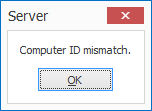
On most systems, the update will not cause any problems. However, occasionally, on some systems this may cause a Computer ID mismatch after upgrading. To fix this issue, please refer to the Computer ID Mismatch troubleshoot page.
IMPORTANT: If you are updating from a MetaServer version lower than 3.1.1
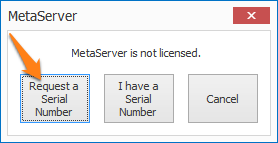
IMPORTANT: If you are updating from a MetaServer version lower than 3.1.1, a pop-up window will ask you to request a serial number. If you haven't received a serial number already, please press the "Request a Serial Number" button and fill out the form. We will send you your serial number as soon as possible.
Please also note that old MetaServer activation codes (e.g. "K-123F0-12345-123B4-CD12B-C0D12-E1EB2") are not compatible with this version and future releases of MetaServer. You can apply for a replacement serial number through our online request form.
IMPORTANT: If you are updating from a MetaServer version lower than 3.0.23
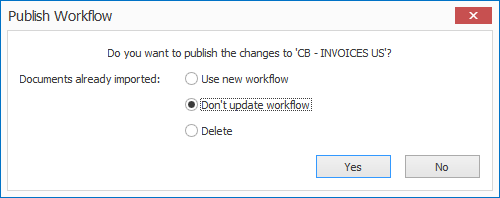
IMPORTANT: If you are updating from a MetaServer version lower than 3.0.23, it is required to republish existing workflows. Select each of your workflows, make a small change, like adding and removing a space to the workflow description, and publish the workflow. If there are documents already imported in the workflow, then you do not have to apply the changes to these documents.
Version 3.1(36) | 2026-10-19
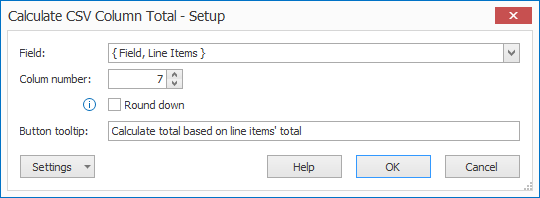
NEW #2422: VALIDATE NUMBER - CALCULATE CSV COLUMN TOTAL: It is now possible to calculate the total of a CSV table's column. Just select CSV Column Total as the Calculated Type.
In the setup, you specify the field containing the table and column number for which you want to calculate the total. You can also define the tool tip of the calculate button.

NEW #1404: VALIDATE CSV - TABLE CONTROLS: We have added the following controls to the Validate CSV field's table:
- Add Row
- Delete Row
- Move Row Up
- Move Row Down

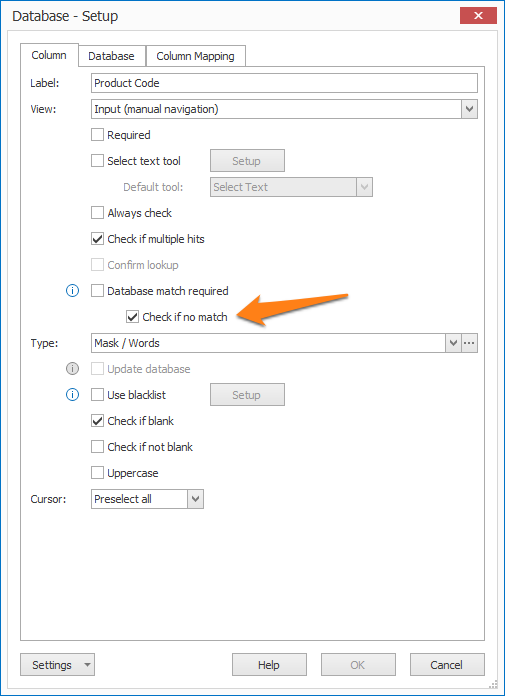
NEW #2492: VALIDATE CSV - DATABASE COLUMN: CHECK IF NO MATCH: We have added an option to the Validate CSV field's Database column settings to force-check a value if there is no DB match, even if having a DB match is not required.
You can apply this by enabling the sub-option "Check if no match". This is only available if the "Database match required" option is disabled.
Because the "Database match required" is disabled, the document will stop in validation if a value is not available in the database. The operator is then forced to verify the value, BUT they can still accept it, even though it doesn't exist in the database.
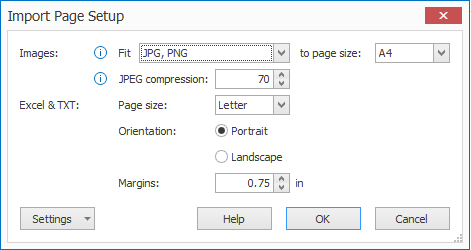
NEW #2481: IMPORT FROM FOLDER / EMAIL - IMPORT PAGE SETUP: We have added options to the Import Email and Import from Folder actions to configure the PDF output of Excel & Text files. You can adjust the following settings:
- Paper Size: A4, Letter, Legal, A3, Ledger,...
- Orientation: Portrait or Landscape
- Margins
NOTE: To make this work for all Office formats, we have updated Developer Express from v23.2 to 26.1.5.
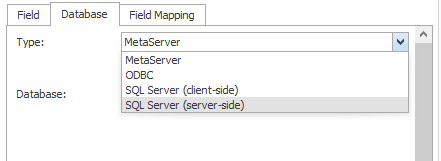
NEW #2486: DATABASE LOOKUP - SERVER-SIDE SQL MODE: The old "client-side" method remains available but you can now also select the new server-side method to look up in SQL Server databases.
As the terms imply, in client-side mode, all queries take place between the operator or admin clients and the SQL server which requires access to the SQL server by the client machines.
With the new server-side method, only the MetaServer server queries the SQL server and it is not required to whitelist the client machines to do DB Lookup in MsSQL server. This is often a pre-requisite in high security environments.
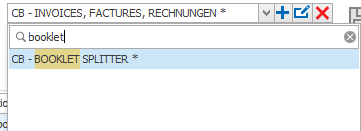
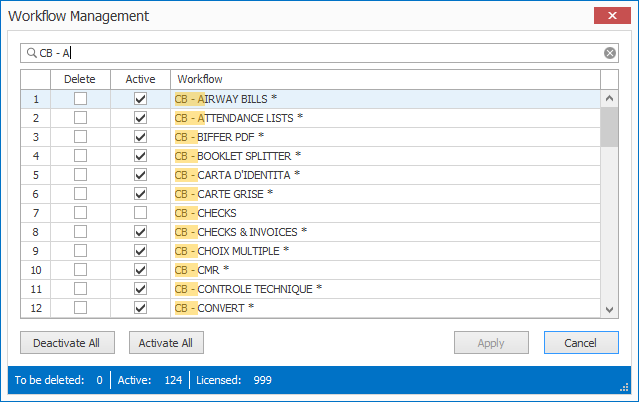
NEW #2508: WORKFLOWS - SEARCH BAR: In the Workflows tab, it is now possible to search for a workflow in the Workflow list and in the Workflow Management window.
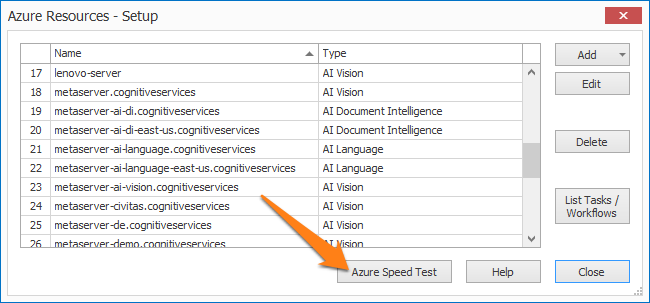
NEW #2535: AZURE RESOURCES - AZURE SPEED TEST: In the Server tab, in the Azure Resources window, you can directly go to Microsoft's Azure Latency Test online page using the "Azure Speed Test" button.
This helps you to check if your Azure AI Service region is not having any speed issues.
ENHANCEMENT #2452: CONVERT TO SEARCHABLE PDF - TESSERACT: The option "Improve OCR on Low Resolution Images" now also works on 75 and 240 DPI scans and works better on 100, 150, and 200 DPI scans.
The logic is:
- Images at 75 or 100 dpi are quadrupled in resolution.
- Images at 150, 200, 240 are doubled.
- Images with another dpi, e.g. 96, remain untouched.
Before, images of 100, 150 or 200 dpi were doubled, 75 and 240 dpi remained untouched.
ENHANCEMENT #2472: CONVERT TO SEARCHABLE PDF: If you try to install the Searchable PDF module directly from the Admin client, but your system's windows security settings don't allow you to install anything, you now get a meaningful error:
"Security on this system does not allow to download the installer from the MetaServer Admin Client.
Please close the Admin client and install from a browser by navigating to:
https://www.capturebites.com/downloads/CaptureBites_Windows_MetaServer_-_Searchable_PDF_5.5.exe
ENHANCEMENT #2484: RESERVE - ACTIVE DIRECTORY (AD) GROUPS: We moved the check of the logged in user's AD Group membership to the server to avoid any communication between the MetaServer clients and Active Directory. This is in line with zero-trust corporate security.
ENHANCEMENT #2529: LICENSING: We now keep track of the installed MetaServer version in our license manager to provide even better support.
FIX #2477: IMPORT EMAIL: The sender's whitelist was case-sensitive. This has been corrected.
FIX #2528: IMPORT EMAIL - ARCHIVE EMAIL: Since the worldwide Microsoft Online Outage issue EX1464935, some of our customers have experienced erratic email account connection losses when archiving emails (= moving the emails from the inbox to an Outlook folder).
"Connection attempt timed out" & "The operation was not completed within the specified time limit."
This fix re-establishes the connection when it's lost.
FIX #2474: MS SQL CONNECTION: We now put passwords between quotes to escape the potential presence of the special characters ; ' or " ((semicolons, single-quote character, double-quote character) in the password
FIX #2475: DB LOOKUP / EXPORT TO DB - MS SQL: Table Views were listed twice without schema prefix
FIX #2436: AZURE ADI / SUMMARIZE / VISION: Async operation HTTP GET was retried endlessly under some error conditions.
FIX #2435: AZURE ADI / SUMMARIZE / VISION - LOGGING: Several logging messages have been updated. Logs now also mention the correct Azure resource type: AI Vision, AI Document Intelligence or AI Summarize
FIX #2463: CONVERT TO PDF MRC: PDF MRC files were often rendered in a too low resolution. This affected several functions requiring rendering, such as:
- Extract Text
- Convert to Black and White
- Deskew
- Auto-Rotate
Etc.
We improved resolution detection of PDF MRC files by applying the following conditions:
- if at least 1 image covers the page
- if more than 1 item
- if dpi < 300
=> then dpi = 300
FIX #2520: CONVERT TO SEARCHABLE PDF / AZURE ADI: Before, searchable PDFs created with Azure AI Document Intelligence used hardcoded JPG Q-Factor 100 instead of the Q-Factor set in the Import Action. This resulted in very large files. This has been fixed.
FIX #2464: CONVERT TO SEARCHABLE PDF: auto-switched from Tesseract to Azure when updating to MetaServer 3.1.34 or 3.1.35 and caused a licensing error. This has been fixed.
FIX #2452: CONVERT TO SEARCHABLE PDF - TESSERACT: After the recent move to Tesseract 5.5, changing the option "Improve low-resolution optical character recognition…" was not saved.
FIX #2467 #2469: CONVERT TO SEARCHABLE PDF - TESSERACT: Tesseract caused an error with some PDF Text and PDF Image+Text document:
Object reference not set to an instance of an object.
The action was always trying to retrieve the Azure settings, even when converting using Tesseract.
FIX #2337: BASE64 OUTPUT: Exporting large file index files with processed files in Base64 format increased memory usage and caused an OOM.
We started noticing the problem with 300 DPI documents of 100 pages or more.
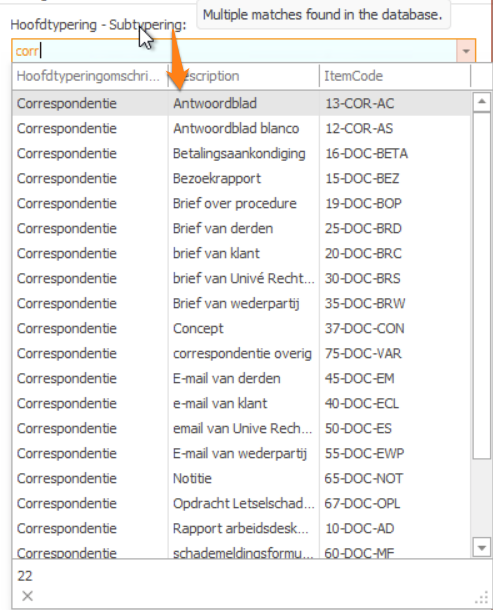
FIX #2226: VALIDATE - DB LOOKUP: We now sort lookup list on column 1 and 2 instead of only on column 1.
We have a use case where the operator first searches for a main category, for example "CORRESPONDENCE". They then select one of 22 "CORRESPONDENCE" subcategories in column 2.
Originally, we only sorted the 1st column, the main category. Now we also sort the 2nd column to make it easier to select the sub-category.
In the below screenshot, you can see that the description column is also sorted:
FIX #2531: TASKS: Email Alerts did not have the { Task Name } variable available in the subject line.
FIX #2523: FIELDS SETUP: The field descriptions were not saved.
FIX #2551: IMPORT EMAIL - EMAIL BODY TO PDF: Long spaces were converted to " ". This was caused by a new HTML to PDF rendering module that was not forgiving anymore for wrongly formatted occurences. We now format the non-breakable spaces correctly as " "
This addition was published in version 3.1.36.87 (2026-10-19).
FIX #2553: IMPORT EMAIL - OFFICE 365: Error "Fatal error 'ProtocolVersion' has been reported by the remote connection end. This is probably caused by Exchange Online retiring support for legacy TLS 1.0 and 1.1 on POP3 and IMAP4 connections between July 1 and December 31, 2026, and connections must use TLS 1.2 or later.
We used "classic TLS core" with a broad cipher mask, which also advertises the old versions. Some stricter front ends reject such a ClientHello outright. We now explicitly restrict the allowed protocols to TLS 1.2 and TLS 1.3 only (no 1.0/1.1).
This addition was published in version 3.1.36.87 (2026-10-19).
Version 3.1(35) | 2026-06-24
NEW #2311: EXPORT TO REST API: With the Export to REST API action, you can create your own web server export connector by defining REST calls similar to PostMan.
You cannot only use the Export to REST API action to export documents and metadata to a web server, but also to connect to a web server to retrieve information or trigger an action in another service.
For example, use the VIES API to check if a VAT ID is valid and to retrieve the company name (www.viesapi.eu), or use the MarketCheck CARS API to check if a VIN (Vehicle Identification Number) is valid and retrieve additional information about the car like model, build year, etc. (docs.marketcheck.com/docs/api/cars/vehicle-specs/basic)

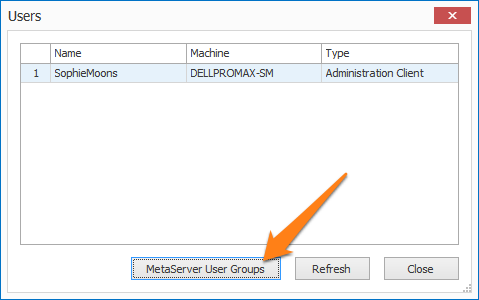
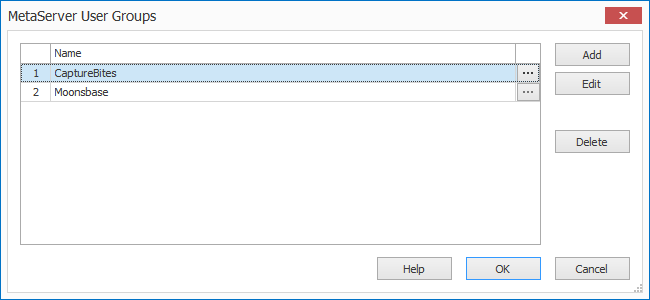
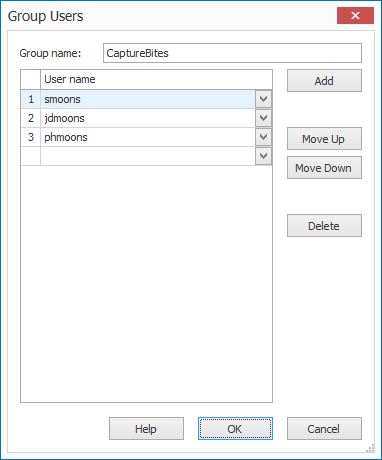
NEW #2400: ADMIN CLIENT - USERS: METASERVER USER GROUPS: To create User Groups without any interaction with Active Directory, we have added an internal MetaServer User Group setup. You can access this via the Users button in the Admin Client.
MetaServer User Groups are useful when a department in a larger company does not have the rights to create Active Directory user groups. By creating an internal MetaServer User Group, we made managing user groups very flexible.
The Reserve rule can now be used to reserve documents for:
- An individual user
- An Active Directory User Group
- A MetaServer User Group
The Operator client does not have access to managing MetaServer User Groups.
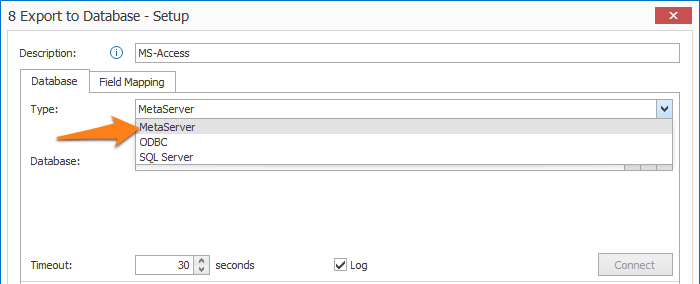
NEW #2356: EXPORT TO DATABASE - METASERVER DB: you can now also update a MetaServer database using the Export to Database action.
This guarantees correct locking of the database across all interactions with MetaServer databases. This can happen during the update of a database through a Task or Validation or when looking up during an Extract action or Validation.
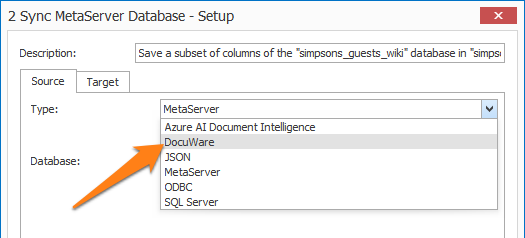
NEW #2410: TASKS - SYNC METASERVER DB WITH DOCUWARE CABINET: “DocuWare” is now also supported as a source in the Sync MetaServer Database Task. It is now possible to also sync your MetaServer Database with a DocuWare cabinet. All the following system entries are supported:
- File type
- Document size
- Document ID
- Disk number
- Stored on
- Stored by
- Modified on
- Modified by
- Content modified on
- Content modified by
- Total pages
NEW #2424: EDIT - REDACT: With the new Redact action, you can redact / black out specific text in two steps:
1) Use Extract rules to locate the target text, which generates a field containing the list of words to be redacted.
2) Apply that field to the Redact action.
The selected text will be covered in solid black, and all underlying text layers will be permanently removed to ensure absolute redaction.
NOTE: The Redact action is included with the "Digital Imprinter" license.
This addition was published in version 3.1.35.81 (2026-05-28).

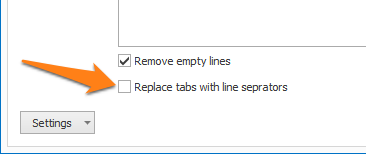
NEW #2425: EXTRACT - REPLACE TEXT: In the Replace Text rule, we have added a new option called "Replace tabs with line separators". This option is disabled by default.
This addition was published in version 3.1.35.81 (2026-05-28).
NEW #2344: CONVERT TO SEARCHABLE PDF - UPDATED TESSERACT ENGINE: We have updated the Tesseract engine in the Convert to Searchable PDF action to the 64-bit version "5.5.0.20241111". Previously, it was the 32-bit version 3.05.01.
IMPORTANT: If you use the Convert to Searchable PDF action and you've completed updating MetaServer to the latest version, please download the newest version of the "Searchable PDF module" separately on our Downloads page.
If you try to install the latest version of the "Searchable PDF module" on a version prior to MetaServer 3.1.35.82, you will get a warning and a link to download the older version.
This new version of the Searchable PDF module is not only far more accurate, but also 2x faster.
With an A4 sample with 6 pages we had following conversion speed
| Tesseract Version | Speed |
| 3.05.01 32 bit | 21 seconds |
| 5.5.0 64 bit | 11 seconds |
Version 5.5 also features scripts which is a bundle of languages if you want to recognize a range of different languages.
For example, the Latin script includes all languages using the alphabet such as:
- English
- French
- Dutch
- German
- Italian
- Spanish
- Portuguese
- Czech
- All the Scandinavian languages
- ...
We also pre-install the following scripts:
- Arabic
- Cyrillic (including Russian, Ukrainian, Bulgarian, Serbian, etc.)
- Greek
- Hebrew
- Latin
We've updated the UI to let you select multiple languages and scripts in order of preference. Moving a language higher up the list gives it priority when recognizing ambiguous text.
This addition was published in version 3.1.35.82 (2026-06-15).
ENHANCEMENT #2405: EXTRACT BARCODE: We have updated the barcode reader version to 9.4.1.9 which features improved reading of high-density barcodes.
FIX #2406: TEST VIEWERS: In all test viewers, the measure tool reported the resolution and pixels of 200 & 150 DPI as 300 DPI. This has been fixed.
FIX #2414: EXTRACT - AZURE AI DOCUMENT INTELLIGENCE: CUSTOM EXTRACTION: The "Custom Extraction" license is now enforced.
FIX #2418: SEPARATE DOCUMENT / PROCESS PAGE: When testing with an Extract Text (Azure AI Document Intelligence) or Extract Text (Azure AI Vision) rule within the Separate Document / Process Page action, it caused a "file-in-use" error under certain conditions.
The error occurred using the action's "Test up to Selected Rule" button when the following combination applied:
1) Separation was used with the "if value of field changes" condition
2) An Extract Text (Azure AI Document Intelligence) or Extract Text (Azure AI Vision) rule was used
3) Either (or both) "Convert pages to searchable PDF" or "Auto rotate"options were enabled
FIX #2413: EXTRACT - DATABASE LOOKUP & FIND WORD WITH ACCEPT WORDS FROM DATABASE: MS-SQL: When using database lookup during extraction through a SQL Server DB, if you mapped a field of type "TEXT", the lookup failed.
This has been fixed.
WARNING: Microsoft recommends against the use of the obsolete "TEXT" field type in a SQL Server DB and recommends using "VARCHAR" or "NVARCHAR" instead.
FIX #2404: VALIDATE - OPEN DOCUMENTS LIST: FILTER: During validation, if you applied a filter in the Open Document list and opened a document, you could not clear the filter anymore.
FIX #2411: VALIDATE CSV: Navigating in the first row of a Validate CSV field's table did not always show the correct highlight. Pressing the Tab key or clicking in the first row of the list showed unexpected results.
FIX #2417: EXPORT / FORWARD EMAIL: The "Connection attempt timed out." error is now auto-retried.
FIX #2409: FORWARD EMAIL: For the Forward Email action, the description in the workflow showed the GUID of the recipient variable instead of the label.
FIX #2412: EXPORT TO SAP: For the Export to SAP action, we have added a missing "p12" file in the programs folder of both the MetaServer Service and Admin client.
FIX #2419: OAUTH2.0 LOGIN: For any action using OAuth2.0 login, when the WebView2 runtime was not installed, a generic "One or more errors occurred" error showed.
We fixed it so the correct "WebView2 Required” error shows.
FIX #2419: EXTRACT TEXT (AZURE ADI) - CUSTOM EXTRACTION: Fixed table columns did not return any data if rows were named using the default row names: ROW1, ROW2, ROW3, ROW4.
Custom named rows like: 1, 2, 3, 4 etc. did work correctly.
We now support both default names and custom row names with simple sequence numbers. Other custom naming methods are not supported. We recommend to keep the default row naming.
FIX #2254: AZURE ADI / AZURE AI VISION: For any action using Azure AI Document Intelligence or AI Vision, exception handlers do not rely on translatable message anymore, but on language-agnostic error codes.
This fix was published in version 3.1.35.81 (2026-05-28).
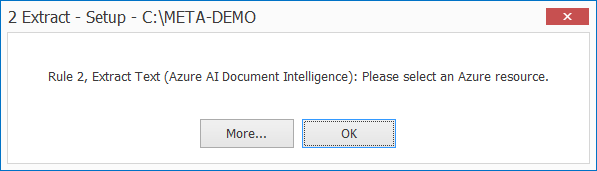
FIX #2421: EXTRACT TEXT (AZURE ADI / AZURE AI VISION): When you forget to select an Azure resource and you test the rule, you now get a meaningful error:
This fix was published in version 3.1.35.81 (2026-05-28).
FIX #1996: EXTRACT TEXT (AZURE AI VISION): For Azure AI Vision related errors, we now also capture the inner error to provide more detail.
This fix was published in version 3.1.35.81 (2026-05-28).
FIX #2432: METASERVER CLIENTS: Admin and Operator clients were not able to launch if the MetaServer service was not started and reachable. This has been fixed.
This fix was published in version 3.1.35.81 (2026-05-28).
FIX #2457: FIND DATABASE LOOKUP: Unexpected result for First and Last Match.
This fix was published in version 3.1.35.83 (2026-06-24).
FIX #2452: CONVERT TO SEARCHABLE PDF: The option "Improve OCR on low resolution image" was not saved.
This fix was published in version 3.1.35.83 (2026-06-24).
Version 3.1(34) | 2026-04-02
NEW #2234: VALIDATE DATABASE - FUZZY SEARCH: in the Validate Database rule, we have added "Fuzzy" as a new search method for MetaServer databases. Fuzzy search allows you to do a lookup, even if the extracted value does not exactly match the value in the database.

Example use-case:
A real estate company who maintains properties, identifies each property with the street and house number which is linked with a unique internal property code.
Invoices come in and only identify the property by address, not by the unique internal property code. However, streets are not always written in the same way.
For example, in the database, there is a street called: "245 Albert Einstein Street". But, on the invoices, the street appears in different formats and none of them are an exact match with the value in the database:
245 A. Einstein Str.
245 Albert Einstein Str.
245, Albert Einstein S.
245, A. Einstein Street
245, Albert Einstein
Using the new Fuzzy Search method, the above values will still match with a high level of confidence with the correct record.
| DB Value | Confidence Level |
| 245 Albert Einstein Street | 100% |
| Extracted Value | Confidence Level |
| 245 A. Einstein Str. | The best match with a confidence of 83.17% |
| 245 Albert Einstein Str. | The best match with a confidence of 97.31% |
| 245, Albert Einstein S. | The best match with a confidence of 93.48% |
| 245, A. Einstein Street | The best match with a confidence of 84.59% |
| 245, Albert Einstei | The best match with a confidence of 92.55% |
In other words, the highest-ranking match is the correct street and you can use this technique to look up records with imperfect data.
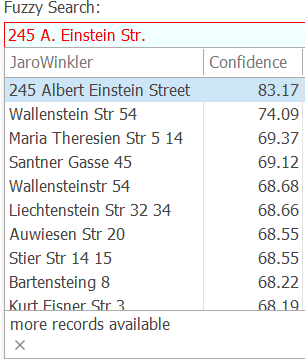
Some new settings are available when the "Fuzzy" search method is selected:
1) Minimum fuzzy confidence: When all hits are lower than the set minimum, the field needs to be validated, or else the match with the highest fuzzy confidence is automatically used to do the lookup. The default is 95%.
If you always want to check the value, regardless of the minimum fuzzy confidence, enable "Always check".
2) Normalize text: This process only preserves letters and numbers and replaces symbols (,.-:_" etc.) with spaces. For optimal results, use this in conjunction with a database lookup column normalized using the same logic. This option is disabled by default.
3) Map the Lookup Fuzzy Confidence Level: in case you want to use the fuzzy confidence value of the specific record for further processing, you can map this value with a MetaServer field.

NEW #2356: FIND DATABASE LOOKUP - FUZZY SEARCH: in the Find Database Lookup rule, we have added "Fuzzy" as a new search method for MetaServer databases. The Fuzzy Search method allows you to find a database match, even with imperfect data.
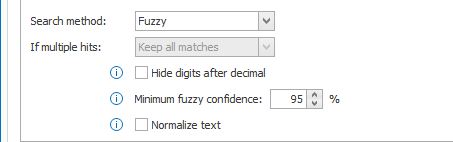
Some new settings are available when the "Fuzzy" search method is selected:
1) Minimum fuzzy confidence: If the fuzzy confidence level is lower than the minimum fuzzy confidence level, lookup is skipped and the value is not mapped. Only when it’s higher than the minimum, will the database lookup be triggered and the value mapped. By default, this is set to 95%.
NOTE: If the fuzzy confidence level is lower than the minimum, you can still map the fuzzy confidence level of the record with the highest confidence level in the Field Mapping tab.
2) Normalize text: This process only preserves letters and numbers and replaces symbols (,.-:_" etc.) with spaces. For optimal results, use this in conjunction with a database lookup column normalized using the same logic. This option is disabled by default.
3) Map the Lookup Fuzzy Confidence Level: in case you want to use the fuzzy confidence value of the specific record for further processing, you can map this value with a MetaServer field.
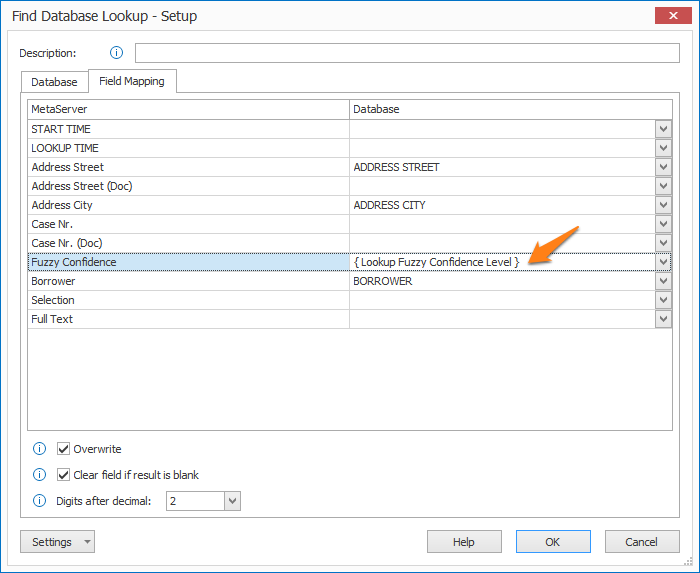
NEW #2348: FIND WORD WITH MASK / WORDS: ACCEPT WORDS FROM METASERVER DB - FUZZY SEARCH: in the Find Word with Mask / Words rule, we have added "Fuzzy" as a new search method for MetaServer databases. The Fuzzy Search method allows you to find data on your document by fuzzy comparing it to data in a MetaServer database column.
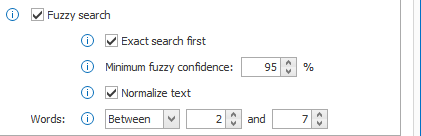
Some new settings are available when the Fuzzy Search method is selected:
1) Exact search first: An exact search takes about 2 seconds with a database with 10000 records, making it considerable faster than fuzzy search. Only if the exact search fails, will fuzzy search be applied.
2) Minimum fuzzy confidence: If the fuzzy confidence level is lower than the minimum fuzzy confidence level, lookup is skipped and the value is not mapped. Only when it’s higher than the minimum, will the database lookup be triggered and the value mapped. By default, this is set to 95%.
NOTE: If the fuzzy confidence level is lower than the minimum, you can still map the fuzzy confidence level of the record with the highest confidence level in the Field Mapping tab.
3) Normalize text: This process only preserves letters and numbers and replaces symbols (,.-:_" etc.) with spaces. For optimal results, use this in conjunction with a database lookup column normalized using the same logic. This option is disabled by default.
4) Between X and Y Words: To optimize the processing speed, you can specify the number of word sequences that need to be fuzzy matched with the database. By default, this option is set to "All".
For example:
In our database, we have the following "Street" record:
"245 Albert Einstein Street"
On our document, a word group contains the following words:
“Street: 245, Albert Einstein”
We first normalize the text and it becomes:
“Street 245 Albert Einstein”
We then try to match word sequences between 2 and 4 words, so we will try to match and rank following sequences:
* 2-word sequences:
Street 245
245 Albert
Albert Einstein
* 3-word sequences:
Street 245 Albert
245 Albert Einstein
* 4-word sequences:
Street 245 Albert Einstein
Of all the sequences in all the word groups on the document, the 4-word sequence, “245 Albert Einstein”, has the highest match with our record in the database at 92,55% and wins.
In a nutshell, the smaller the range, the less possible sequences need to be matched and the faster the searching will work.
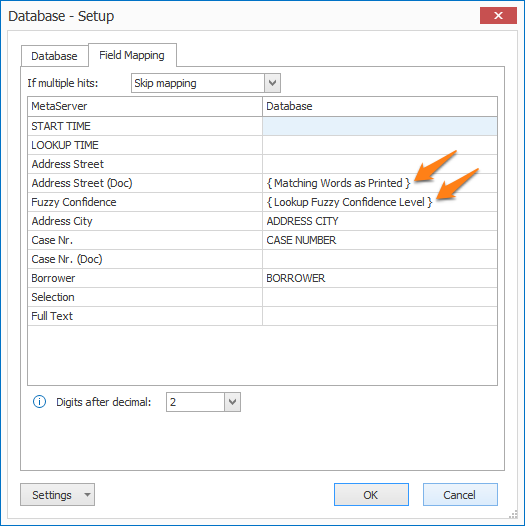
5) Map the Lookup Fuzzy Confidence Level: in case you want to use the fuzzy confidence value of the specific record for further processing, you can map this value with a MetaServer field.
6) Map the Matching words as Printed: when the search finds a match that is higher or equal than the set minimum confidence, it triggers the lookup and the target field takes over the value from the database.
If you want to expose the original value as printed on the document together with the DB value, you can map a separate field with the "Matching Words as Printed" value.
ENHANCEMENT #1963: AZURE AI DOCUMENT INTELLIGENCE - READ MODEL: new options have been added to the Extract Text (Azure AI Document Intelligence) rule when using the Read Model.
For text-based or searchable PDFs, when the respective option is disabled, you can extract their existing text layer instead of always needing to send the document to Azure.
This will reduce your Azure costs and speed up processing time.

By default, we process all PDF types with Azure AI Document Intelligence. If you disable these new options, Text based and / or Searchable PDFs will be processed locally, and the original text layer will be extracted. Of course, additional data that is not part of the original text layer like barcodes and dominant language will not be extracted.
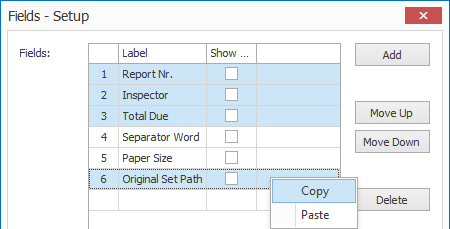
ENHANCEMENT #2322 #2327: WORKFLOWS - FIELDS: You can now multiselect rules in the Extract and Separate actions and multiselect fields in your workflow's Fields setup in combination with all functions.
You can refer to issue #2318 and #2307 in the previous release, which introduced a first implementation of Copy / Paste of a selection of rules and fields.


ENHANCEMENT #2330: WORKFLOWS - FIELDS: The right-click menu with Copy / Paste commands is now also available for the Fields list.
ENHANCEMENT #2396: EXPORT TO ALFRESCO: We now auto-retry in case of "error 500 internal server" errors for the Export to Alfresco action.
FIX #2329: WORKFLOWS - ALL SETUP VIEWERS: In any setup screen, if you used the page up / down buttons with a multipage TIFF file, you got an "Unhandled Exception" error.
FIX #2328: WORKFLOWS - TEST FOLDER: when a folder in recently used document test folders was not available anymore, an error occurred. We now handle this gracefully and ignore any inaccessible test folders.
FIX #2345: IMPORT EMAIL: the IMAP server of the email provider "Seznam CZ" does not support the "NAMESPACE" function and caused an "Unable to Connect" error at login. We now automatically skip the "NAMESPACE" function if it is not supported by the IMAP service.
FIX #2346: IMPORT EMAIL: emails without a date and time of reception caused an error: "Unable to load file...". We now can import these exotic emails by setting the missing date & time to the date & time of import.
FIX #2338: FORMAT - AZURE AI SUMMARIZE: this rule started failing with an error:
"Preview version 2023-11-15-preview has been deprecated. Please select the General Available model."
We now use the GA version 2024-11-01.
FIX #2335: WORKFLOWS - TEST VIEWERS: In setup dialogs, when selecting a password protected pdf, an exception was thrown. We now show a meaningful error:
Unable to open password protected file: C:\META-DEMO\Cargo.Dues.Invoice.950337002.pdf
To use this PDF, enter its password in the Import Action(s) of this workflow.
When you put the password in the password list of any of the import actions of your workflow, the PDF will open correctly.
Version 3.1(33) | 2026-01-28
NEW #2238: EXTRACT TEXT - TEST PREVIEW: We now show the extracted result of an extracted word group as a tooltip when you hover over an extracted pink rectangle in the viewer.

The tooltip shows the following information:
- Extracted value
- Data type: Printed, Handwritten, Barcode
- Confidence level in %
- Font size in pt
When the tooltip pops up, you can right-click and copy the value in the clipboard by selecting "Copy Tooltip to Clipboard".

NEW #2230: CONVERT TO SEARCHABLE PDF - AZURE AI DOCUMENT INTELLIGENCE: You can now also select an "Azure AI Document Intelligence" resource in the Convert to Searchable PDF action. Previously there were only two choices: "Tesseract" and "Azure AI Vision".
NOTE: The "Azure AI Vision" engine will be retired on 25 September 2028. The "Azure AI Document Intelligence" engine will be replacing it.
NEW #2268: EXTRACT: EDIT: CALCULATE COLUMN TOTAL: The Extract Text (Azure AI Document Intelligence) rule can return list of amounts and we had multiple requests to make the total of all the amounts in a column. With the new Calculate Column Total rule, you just select a field containing a list of amounts (= "Column" field) and it returns the total in the "Target" field.
All amounts in the "Column" field must have the same decimal point.
This addition was published in version 3.1.33.75 (2025-12-12).

NEW #2251: IMPORT EMAIL - REPAIR PDF FILES: This new option in the Import Email action, converts problematic PDF attachments into single-layer image PDFs for full MetaServer compatibility and creates a "CBMSWarning" log file. It saves the corresponding file in:
C:\CaptureBites\MsData\Log
The option is disabled by default.
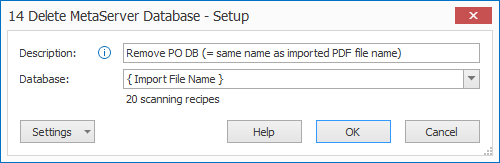
NEW #2315: DELETE METASERVER DATABASE: The new Delete MetaServer Database action deletes a MetaServer database from the system.
An example use-case where this action is used, is when you’d want to cross-check the amounts on an invoice with that of its corresponding PO that was already processed.
To do this, when you import an invoice, a matching CSV with the same name as the invoice is copied in the following folder:
C:\CaptureBites\MsData\DB
You can do this using MetaServer’s Run Programs action’s COPY command. This makes all the PO data available of the invoice as a MetaServer database and allows it to verify if the amounts on the invoice match that of its PO.
Once the invoice is processed, the CSV has served its purpose and can be deleted using the Delete MetaServer Database action.
This new action was added in version 3.1.33.78 (2026-01-28).
ENHANCEMENT #2092: OFFICE 365 EMAIL: Increased security by using app registration instead of a secret-based connection. MetaServer will be registered as “CaptureBites MetaServer” in Microsoft Entra ID Enterprise Applications.
The Office 365 Email connections must be renewed and the installer will show the following warning:
"The Office 365 connections must be renewed. Do this by launching the Admin client."
When starting the Admin client after installation of this version, you will get a list of email accounts that need to be renewed.

ENHANCEMENT #2226: VALIDATE - DATABASE: Previously, for the Validate Database rule, we only sorted on the first column of the lookup list. We now sort the lookup list on column 1 and column 2, to make it easier to select the correct record.

ENHANCEMENT #2247: SERVER - CORES: CONVERT TO SEARCHABLE PDF: We have added the “Convert [ X ] pages in parallel'“ option (speeds up the conversion of PDFs with many pages) to the Cores manager in the Server tab and removed it from the Convert to Searchable PDF action. This centralizes the allocation of cores to all actions in a single screen.
ENHANCEMENT #2261: SERVER: DOCUMENT DATA STRUCTURE: We now only keep the original document set once for each separated document. With large sets separated in many documents, the disk usage was very high previously. This is now considerably reduced.
ENHANCEMENT #2262: ADMIN CLIENT: SETUP SCREENS: We have disabled the scroll wheel on selection lists and spin boxes. Especially in the Mark Detection rule's setup, where not all controls are visible, people sometimes scrolled down and when their cursor was over a selection list or spin box, they changed the value of the selection field or spin box accidentally.
ENHANCEMENT #2263: ADMIN CLIENT - WORKFLOWS: FIELDS: In the Workflow tab's Fields setup window, we have added an "Add" button to insert a field anywhere in the list of fields. Previously, you could only add a field at the end of the list and then move it up.

ENHANCEMENT #2284: EXPORT TO SHAREPOINT: You can now switch between "Modern Authentication" for SharePoint 365 or "Basic Authentication" for SharePoint on Premise.
This enhancement was published in version 3.1.33.75 (2025-12-12).
ENHANCEMENT #2318: COPY / PASTE SELECTED RULES: It's now possible to copy / paste a selected range of Extract or Separate Document / Process Page(s) action's rules. Previously, you could only copy / paste all rules of these actions.
Also, if you were copying rules to another workflow's action, and that workflow was missing certain fields that are required for those rules, the copied rules didn't work.
You can now:
- Select and copy one or more rules in an Extract or Separate Document / Process Page(s) action by using shortcuts like:
| Shortcut | Action |
| Ctrl + A and copy | Copy all rules |
| Ctrl + select specific rules and copy | Copy those selected rules |
| Ctrl + Shift and copy | Copy that range of rules |
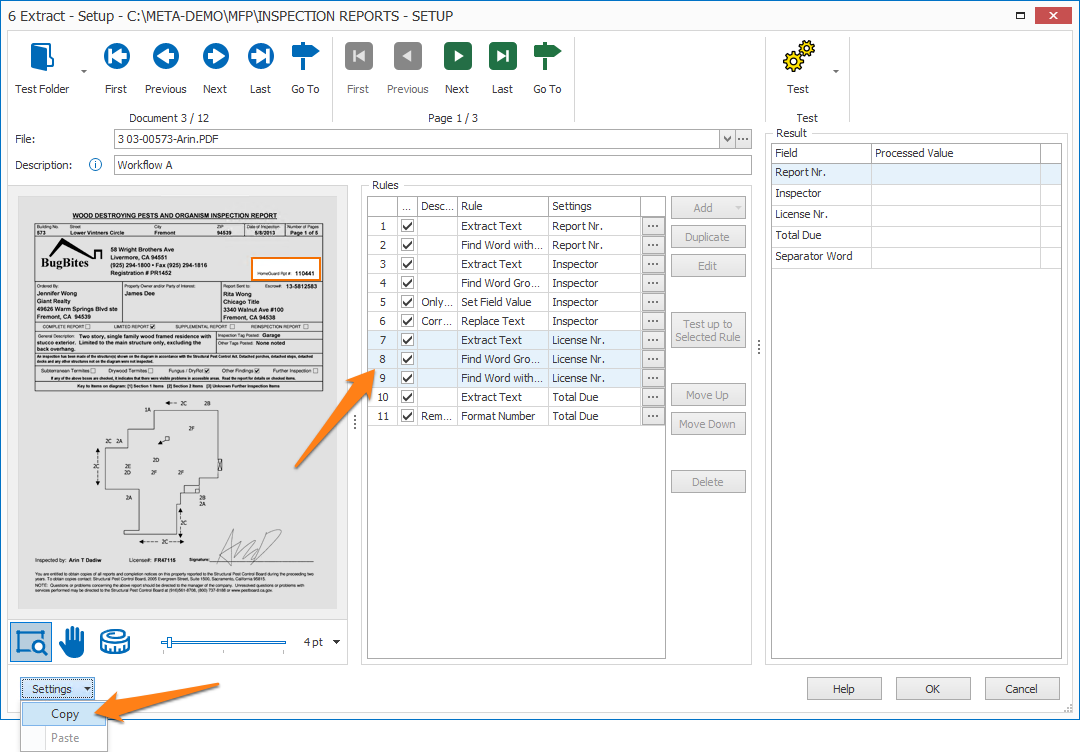
- Open another Extract or Separate Document / Process Page(s) action in the same or another workflow and paste the rule(s) after the selected rule.
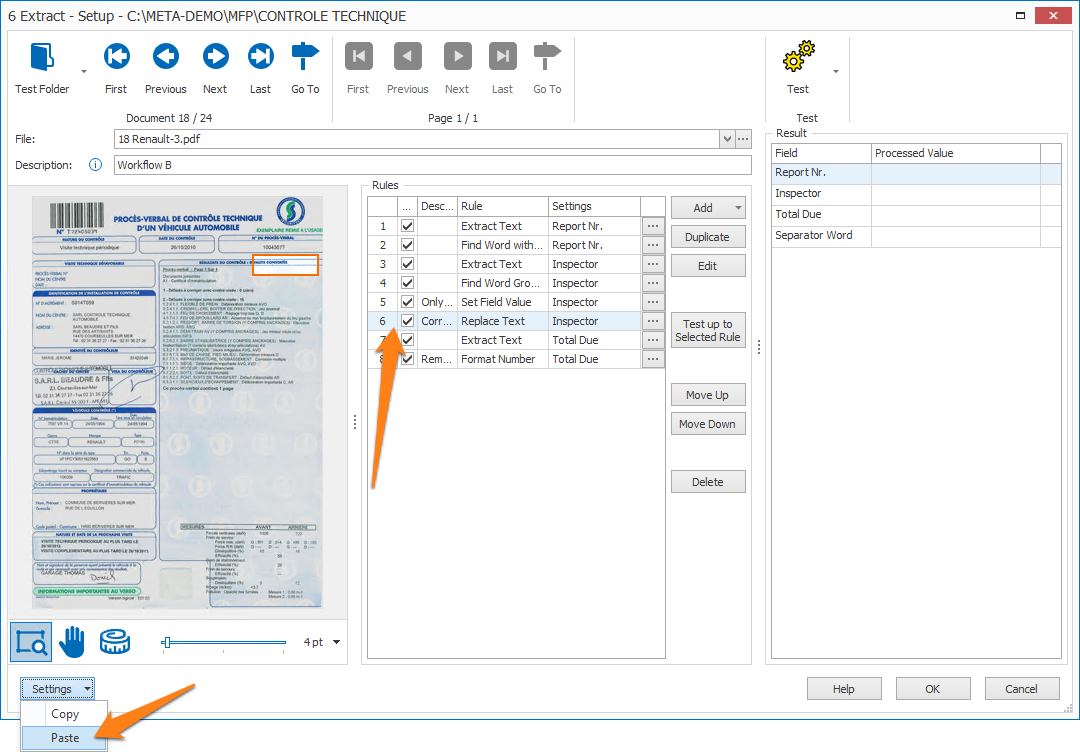
- In case there are any missing fields in the target workflow, the missing fields will be automatically created. Before any changes are applied, a pop-up will show those changes.
The 3 possible type of field changes are:
- New
- New, Duplicate of...
- Renamed ([previous_name_of_field])
This enhancement was published in version 3.1.33.78 (2026-01-28).
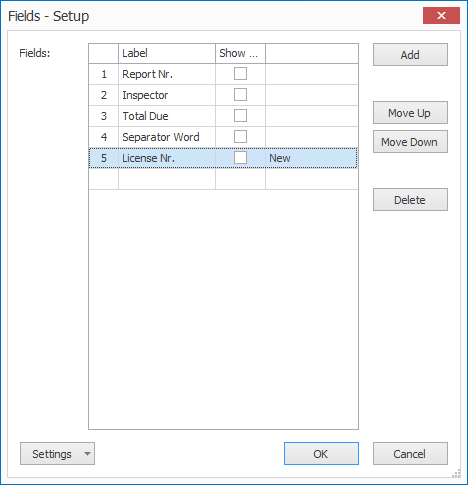
ENHANCEMENT #2307: COPY / PASTE FIELDS: Copy / pasting fields from one workflow to another has been improved. Previously, you could only copy / paste all fields from workflow A to workflow B. Also all GUIDs of the pasted fields were changed in workflow B, which broke field associations in copied rules.
The list of enhancements:
1) When copying your fields from workflow A, a pop-up appears where you can select which fields to copy. You can then paste those to workflow B.
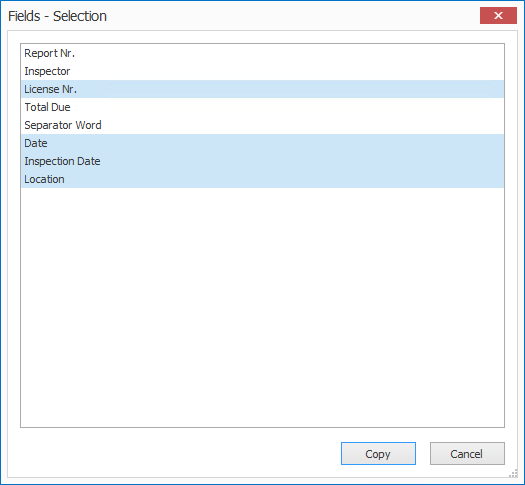
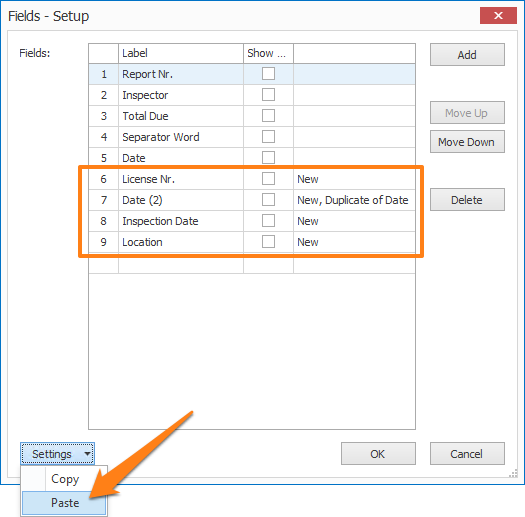
2) When pasting the fields in workflow B, the fields will be appended to the end of the field list. The original GUID is also preserved, which will keep any associations in copied rules intact.
3) When a field name already exists in workflow B, a sequence number (e.g. (2)) is automatically appended to the new field.
4) When a GUID already exists (very rare case) in both workflows, the copied field is renamed after workflow A's field name, IF it's different from workflow B's field with the same GUID.
The 3 possible type of comments when copying fields from workflows A to B are:
- New
- New, Duplicate of...
- Renamed ([previous_name_of_field])
This enhancement was published in version 3.1.33.78 (2026-01-28).
FIX #2225: WINDOWS DISPLAY SCALING WAS IGNORED: With very large and high-resolution screens becoming more popular, users often set the display scaling to 125% or 150%. This sometimes caused the Operator and Admin client to stay in the original scale and consequently appeared very small with hard to read fonts. We now fully support Windows display scaling, and the Operator and Admin client will increase size accordingly.
FIX #2233: SERVER - AZURE RESOURCE MANAGER: When you copied a workflow directly in the data folder using an Azure Resource that did not exist on the system, the following error occurred when trying to adjust settings within an action or rule that used this Azure AI resource:
"The given key was not present in the dictionary."
You could not open the setup, so it was impossible to change the Azure AI resource to one that exists on the new system. Now, the setup opens and you can switch to an existing resource.
FIX #2255: SERVER - AZURE RESOURCE MANAGER: Copying Azure Resource Settings to another system failed and returned the following error:
"The given key was not present in the dictionary."
FIX #2229: SEPARATE DOCUMENT / PROCESS PAGE(S): During the Separate Document / Process Page(s) action, if you used the Extract Text (Azure AI Vision) or Extract Text (Azure AI Document Intelligence) rule, an error showed during runtime:
"The Azure resource manager is not yet instantiated".
FIX #2275: ORGANIZER - CLASSIFICATION MODE: The "Always check" option always added the first document to the training set, even if it was valid (= green) and the document type was not changed.
FIX #1848: EXTRACT - MARK DETECTION: The Mark Detection rule caused errors when switching on the Deskew, Rotate and/or Convert to Seachable PDF option in any Extract Text rule (TOCR, Azure AI Vision or Azure AI Document Intelligence) while setting up scaling and registration.
FIX #1130: EXTRACT - MARK DETECTION: If none of the anchor words were detected in the Mark Detection rule, the Auto-rotate and Deskew options, as set in your Extract Text rule, were not applied.
FIX #1107: EXTRACT - MARK DETECTION: If none of the registration points were found, the rule did not return the default value. Now, it returns the default value at 0% confidence instead of nothing.
FIX #2257: EXTRACT - MARK DETECTION: The Admin client showed an Out of Memory error after pressing TEST Scaling Points or TEST Registration Points many times.
FIX #2258: EXTRACT - MARK DETECTION: There was a display issue in the test viewer when a scaling point fell outside of the image frame.
FIX #2255: EXTRACT - MARK DETECTION: There was a display issue in the test viewer when a scaling point fell outside of the image frame.
FIX #2236: EXTRACT - ELECTRONIC PDF: On very rare occasions (we only encountered this case with 2 documents in the last 10 years), when extracting text from the electronic PDF text layer, some text was returned double. We now detect this anomaly and correct the text automatically.
FIX #2243: EXTRACT - FORMAT CSV: Merging columns with "highest row count" deleted columns when they did not match the highest row count. This caused problems with the number of columns in the final CSV. Columns that do not match the highest row count are now preserved with blank values instead.
FIX #2224: EXTRACT - REPLACE TEXT: Replacing the "₽" character (= Rouble) or ₶ - (= Livre Tournois) replaced every character in the field.
FIX #2241: VALIDATE DATE: The { Date, MM }/{ Date, YYYY } mask did not accept some months like:
11/2024
02/2025
04/2025
06/2025
09/2025
But it did accept:
10/2024
12/2024
01/2025
03/2025
05/2025
07/2025
08/2025
FIX #2234: VALIDATE CSV: The validation client showed an error when you deleted more than one value in the table.
FIX #2247: VALIDATE CSV - DB LOOKUP IN A COLUMN WITH FILTER:
1) The filter did not work when using a column value.
2) Filters did not work with regular field values, only other columns could be selected.
FIX #2260: VALIDATE - OUT OF MEMORY ERROR: Validating many documents where a lot of "Select Text (OCR Tool)" activity was applied, eventually showed an "Out of Memory" error.
FIX #2235: CONVERT TO MULTIPAGE TIF: An error occurred when processing a large document of 4693 pages:
"An attempt was made to move the file pointer before the beginning of the file."
This happened when the file reached the max file size of our TIF writer, a signed 32-bit value of 2 GB. We changed it to an unsigned 32-bit value of 4 GB. This should make it possible to process TIFs around 9000 pages.
If a TIF file reaches 4 GB, the conversion fails, and we report a meaningful error:
"TIF file size exceeds 4 GB."
FIX #2205: CONVERT TO PDF MRC: The Convert to PDF MRC action can compress pages with both sides of the images being less than 28 inch (71,12 cm). When a page size exceeds this limit (Error 56), we skip conversion of that page but still convert all other pages that do not exceed the 28 inch limit.
FIX #2277: EXPORT TO SHAREPOINT: We have enabled chunking to be able to upload very large files (> 30MB).
FIX #2240: TASKS - SYNC METASERVER DATABASE: In some cases, the MetaServer database was not re-opened after sync and caused an error when a rule tried to access the database:
"Object reference not set to an instance of an object."
We now force a reopen of the database and log to a "CBMSWarning" file:
"Database has been reopened: {DatabaseFileName}".
You can find this log in:
[ Data Drive ]\CaptureBites\MsData\Log\[ Year ]\[ Month ]
FIX #2256: TASKS: The trigger "When MetaServer is running for [ X ] minutes" ran the task every 15 seconds instead of only once.
FIX #2239: VALIDATE CSV - HELP: In the Validate CSV setup's Database column setup window, the "Help" button now refers to the correct URL:
https://www.capturebites.com/metaserver/help/validate/040-020/
FIX #2282: WINDOWS DISPLAY SCALING: For display scaling > 100%, some icons did not scale and remained at 100%
This fix was published in version 3.1.33.75 (2025-12-12).
FIX #2279: VIEWERS: Viewing very large images (for example, a 200 million pixel image or 200 Mpixels), a blank image was rendered and the client caused an OOM error.
We now use a 64 bit PDF viewer that can render very large images without any issues.
This fix was published in version 3.1.33.75 (2025-12-12).
FIX #2290 & #2292: EXTRACT TEXT (AZURE AI VISION): The following options are working now:
- Only return handwritten or printed text
- Only return words, word groups or lines with a certain font size
This fix was published in version 3.1.33.75 (2025-12-12).
FIX #2244: EXTRACT TEXT (AI DOCUMENT INTELLIGENCE) - INVOICE MODEL: In the Extract Text (Azure AI Document Intelligence) rule, invoice model, if a column had a trailing blank line, it was removed, preventing correct merging with other columns using the Format CSV rule.
This fix was published in version 3.1.33.75 (2025-12-12).
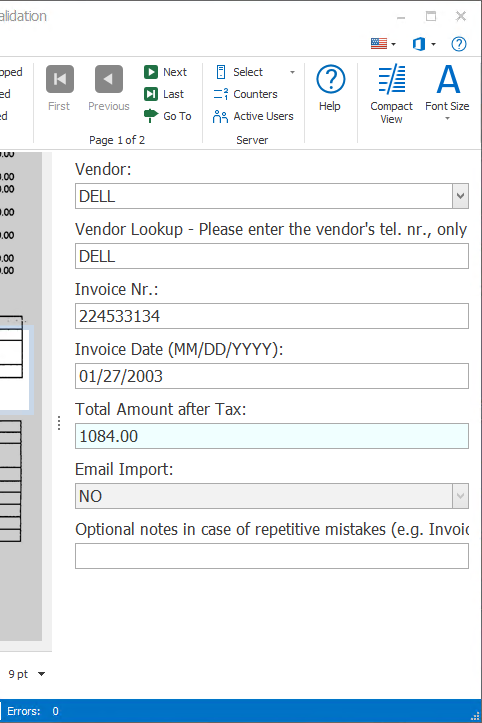
FIX #2293: EXTRACT: RESULT - TABLE VIEW: The last empty line of a field was not displayed in table view.
This fix was published in version 3.1.33.75 (2025-12-12).
FIX #2288: EXPORT TO BOX: The Export to Box action used to only have a retry at "http" request level. It now also handles retry at action level, i.e. it retries the complete document export in case of one of the following errors:
"The underlying connection was closed:"
"Connection was closed by the remote connection end"
"An existing connection was forcibly closed by the remote host"
This fix was published in version 3.1.33.75 (2025-12-12).
FIX #2296: VALIDATE DATABASE: An enhancement (#2226) in the previous release caused an issue with DB Lookups in Ms SQL. The DB lookup failed when two or more columns were displayed in the dropdown.
This fix was published in version 3.1.33.75 (2025-12-12).
FIX #2291: HELP BUTTON URLS: For the Validate Number and Validate Date and Time rules, in the setup of the "Calculated" option, the URL for the Help button was wrong. It now correctly points to:
https://www.capturebites.com/metaserver/help/validate/040-060/#03-14
https://www.capturebites.com/metaserver/help/validate/040-040/#03-14
This fix was published in version 3.1.33.75 (2025-12-12).
FIX #1801 & #2303: EXPORT TO DATABASE: We have added support for tables defined with non-standard schemas. For example, in Ms SQL, if you have tables called "dbo.test-table" and "guest.test-table", we exposed both as "test-table" in the Export to Database action's setup. This made it impossible to select the correct one.
We now expose them as "dbo.test-table" and "guest.test-table" so you can select the correct table unambiguously.
This fix was published in version 3.1.33.76 (2025-12-23).
FIX #2305: IMPORT FROM FOLDER: The "Create a documen per subfolder" option did not work correctly anymore. This was a side effect of enhancement #2261 which was released on 28-NOV-2025 as part of version 3.1.33.74.
Instead of merging all files, the same file was repeated in the merged file as many times as there are files in the subfolder.
This fix was published in version 3.1.33.77 (2026-01-06).
FIX #2320: SEPARATE DOCUMENT / PROCESS PAGE(S): The preview function failed with TIF files.
This fix was published in version 3.1.33.78 (2026-01-28).
FIX #2314: METASERVER DATABASE: When you copied a CSV file in the C:\CaptureBites\MsData\DB folder and used it in a rule using DB lookup by means of a field value, a 0 byte sqlite file was generated causing the following error:
Index was outside the bounds of the array.
This fix was published in version 3.1.33.78 (2026-01-28).
FIX #2310: IMPORT EMAIL: In the Import Email action, the Repair PDF files option only worked with a specific PDF error. It now works with any PDF error and will attempt to repair any failing PDFs.
As a reminder, this option converts problematic PDF attachments into single-layer image PDFs for full MetaServer compatibility and creates a "CBMSWarning" log. The corresponding file is saved in:
C:\CaptureBites\MsData\Log
This option is switched OFF by default.
This fix was published in version 3.1.33.78 (2026-01-28).
FIX #2314: EXPORT TO DATABASE: The Export to Database action has a feature to update existing records based on a lookup field. By default, this feature is disabled. But when enabled, the lookup mechanism was broken.
Records were not added when the lookup value did not exist in the table. This feature started failing since version 3.1.32.73. We recommend updating to this or the most recent MetaServer version if you are running a version between 3.1.32.73 and 3.1.33.77.
This fix was published in version 3.1.33.78 (2026-01-28).
FIX #2316: EXPORT TO DOCUWARE: We added some DocuWare errors that can be retried:
"500 Internal Server Error (Server shutdown in progress)"
"NetworkCredential 503 Service Unavailable"
"NetworkCredential: 500 Internal Server Error"
"The underlying connection was closed: An unexpected error occurred on a receive."
We now retry every 15 minutes for 1 hour before we sent the document to the Errors tab.
This fix was published in version 3.1.33.78 (2026-01-28).
FIX #2325: MISSING VRS FILES: If there were missing VRS files in the programs folder, actions using VRS caused a cryptic error:
"VrsEngine: missing process one PDF page with VRS job result file"
We now return more meaningful errors:
VRS not installed, please re-install the MetaServer Server.
VRS not installed, please re-install the MetaServer Admin client.
This fix was published in version 3.1.33.78 (2026-01-28).
Version 3.1(32) | 2025-09-30
NEW #2018: SEPARATE & CLASSIFY: The Separate & Classify action makes use of an Azure AI Document Intelligence Custom Classification model to separate a document set in multiple documents and also to allocate a document type and confidence level to each separated document. This new action goes hand in hand with the new "Classify" mode in the Organize action (see #1999).

NEW #2021: PRE-ORGANIZE: Since we have implemented the Azure AI Classification feature (see previous note), we have introduced a "Pre-organize" action to generate classification separators. They are marked in different colors:
Very confident (green)
Less confident (orange)
Low confidence (red)
The "Pre-organize" action also pre-renders the document thumbnails which accelerates opening a document in the Organizer considerably.
NEW #1999: ORGANIZE: CLASSIFY MODE: With the Organizer’s new Classify mode (as opposed to the default Organize mode), you can show each set’s document type separators to easily check if each document was correctly classified.
The Classify mode is typically combined with the new Separate & Classify action (see #2018).
The document type separators show the document type and the confidence level.
The separators are colored differently depending on the confidence level of the detected document type. The confidence thresholds can be set in the Organize action:
ORANGE: Separators below a set confidence level (e.g. 50%) are orange.
RED: Separators below a set confidence level (e.g. 15%) are red.
GREEN: Separators above the orange threshold are green. Also, if the operator manually confirms or corrects separators, it becomes green. Only when all separators are green, the user can OK the documents.
The available document types are listed in a drop-down list in an indexing panel. You can use it to change the document type or confirm the detected one.
The document types can be directly retrieved from the classification model or you can store them in a MetaServer database (CSV).
IMPORTANT: If you use a MetaServer database to store your document types, the first column of that database is automatically considered as the column containing the document types.
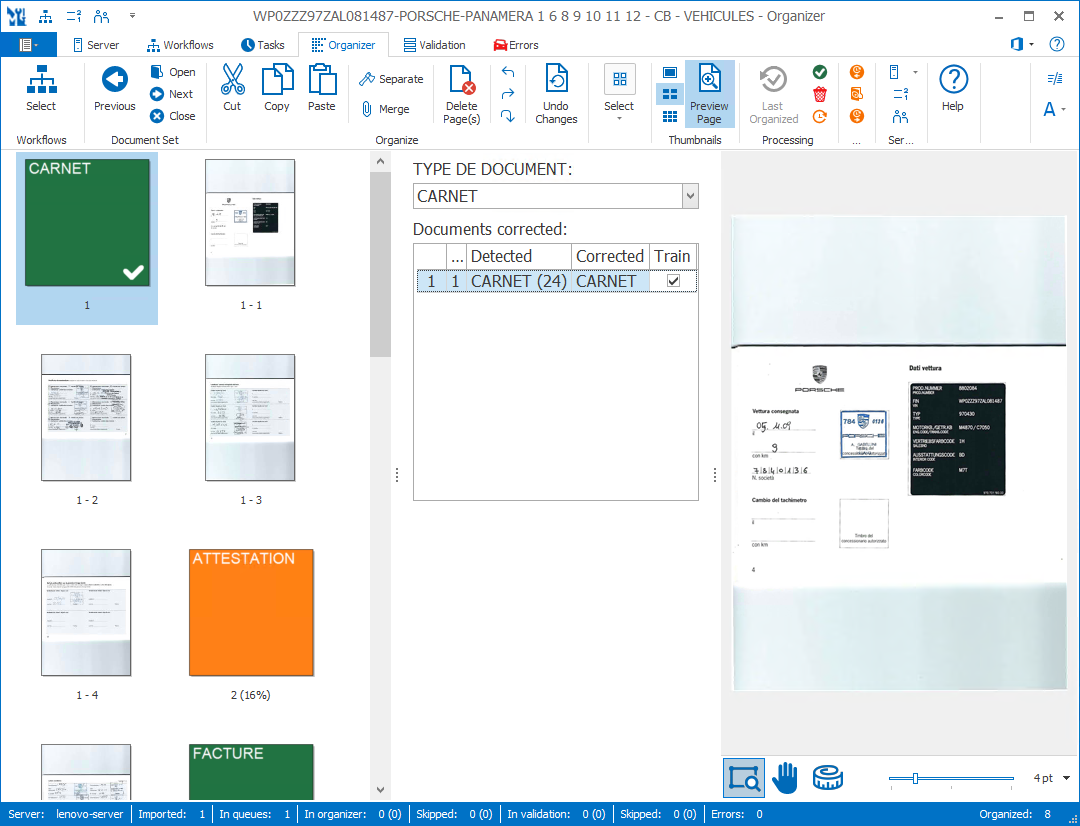
NEW #2124: ORGANIZE: CLASSIFY MODE: In the Organizer's Classify Mode, if a document is misclassified (= red / orange), or if it is correctly classified but questionable (= orange), and you correct or confirm the document type, that document is added to the “Corrected documents” list. This list also has a check mark to signify the corrected documents to be added to an incremental training set and update the custom classification model.
The incremental document set is stored in:
C:\CaptureBites\MsData\Training\Classification\[WORKFLOW_NAME]
The file is named:
[CORRECTED DOC TYPE]_[OPERATOR NAME]_[DATE AND TIME]_(detected_[DOC TYPE BEFORE CORRECTION]_confidence_[CONFIDENCE PERCENTAGE]).PDF
For example:
FACTURE_johndoe_2025-09-08_12.30.00_(detected_ATTESTATION_confidence_15%).PDF
NEW #1982: EXTRACT TEXT (AZURE AI DOCUMENT INTELLIGENCE) - CUSTOM EXTRACTION: With the new Custom Extraction option for the Extract Text (Azure AI Document Intelligence) modules, you can build your own custom extraction models.
If you have documents for which there is no prebuilt model, like shipping documents, litigation documents, HR documents, contracts, etc. you can now create your own custom extraction model.
The concept is straightforward:
1) You collect at least 5 representative samples of the document. These samples will be used to train the Custom Extraction model. You also need several other samples, different from the training samples to test the model.
2) You build your custom extraction model using the Azure Document Intelligence Studio (DI Studio).
In the DI Studio, you create a new "Custom Extraction" project. For example, "Car Lease Agreements". Next, you define the custom fields you want to extract, like "Lessor", "Lessee", "Effective Date", "End Date", "Leasing Price", "Car Make", "Car Model", "VIN", etc.
3) Next, you upload a minimum of 5 different training samples of your documents and, just by selecting and clicking, you link each field with the correct data on the samples.
4) Once you have finished this process, you train the custom model. After training is complete, your custom model becomes available in MetaServer, and you can select it from the "Model" drop-down list of the Extract Text (Azure AI Document Intelligence) rule.
5) Finally, you map MetaServer fields with the custom fields of your custom model and it's done. You can then test the model with fresh samples that weren't used in your training set. If necessary, you can add additional samples to your training set to improve recognition quality. A model trained with most, if not all, variations of your custom document will result in a highly reliable and impressive extraction model and produce excellent data output.
To make use of Custom Extraction, you need to license the following 2 MetaServer modules:
1) CB-META-AZDI: Extract Text (Azure AI Document Intelligence)
2) CB-META-AZCE: Extract Text (Azure Custom Extraction)
You'll also need to sign up for an "Azure AI Document Intelligence" resource through the Azure Portal, if you haven't already done so.
Microsoft's pricing for the Azure AI Document Intelligence engine and options can be found here:
https://azure.microsoft.com/en-us/pricing/details/ai-document-intelligence

NEW #2019: TASKS - SYNC METASERVER DB - CUSTOM CLASSIFICATION MODEL: You can now synchronize a MetaServer database with the document types of an Azure AI Document Intelligence Classification model with the Sync MetaServer Database Task. It is typically used in combination with the new Organizer's "Classify" Mode (see #1999).
NEW #2186: EXPORT TO SHAREPOINT - OAUTH2: On August 19, 2025, Microsoft stopped support for basic authentication. Our Export to SharePoint module used basic authentication and stopped working. This version fixes the problem and changes to OAuth2 authentication, also known as "modern authentication".
The connector needs to be re-logged in using the new method.
The first login will always fail because the Azure Entra ID admin needs to give permission to give the connector access to SharePoint, triggering the following warning:

If you cannot log in like this, you will need to go to the Entra Admin Center en set the permissions there.
You can find a detailed guide on how to grant "Application Access Rights" to the Export to SharePoint module here:
https://www.capturebites.com/metaserver/help/Oauth2-sharepoint/#01
NEW #2211: IMPORT EMAIL - WHITELIST: In the Import Email action, we now support whitelisting sender emails. Emails from non-whitelisted email addresses will not be imported and will remain unread in the watched inbox.

The whitelist is maintained in a MetaServer database (= CSV). Just select a MetaServer database where the first column contains the whitelisted senders. The column header can be anything we just consider the first column as the whitelist.
To disable this option, don’t select any whitelist.
In your database, you can also make use of wildcards like “*” and “?”.
Asterisk (*): Matches zero or more characters.
as in: *[email protected]
=> accepts all capturebites.com emails with the last name “moons”
like: [email protected] or [email protected]
It will not accept an email address like:
[email protected]
Question Mark (?): Matches a single character.
as in: [email protected]
=> accepts all capturebites.com emails starting with “ap_”, followed by any 2 characters and ending with “_region”
like: [email protected] or [email protected]
It will not accept an email address like:
[email protected]
[email protected]
If you regularly need to update your MetaServer database containing whitelisted emails or import it from another location, you can set up a Task to automate this.
You can find more detailed information on the following online help pages:
Import a MetaServer DB
Sync a MetaServer DB
NEW #2133: IMPORT FROM FOLDER - IMPORT LIMIT: The "import limit" in the Import from Folder action applies to documents placed in the root of the watched folder and each subfolder of the watched folder individually.
For example, you are importing from a folder that contains 10 subfolders. If you set an import limit of 25, you can have 25 documents in the root folder and 25 documents in each subfolder (= total of 250 documents). All 275 documents will be imported.
If a subfolder receives a 26th document, a slot needs to be freed up first from another subfolder to get it imported.
In comparison, the “import limit” in the Server tab is an absolute limit, meaning that all importing will be paused when that limit is reached. It will resume importing as soon as a slot becomes available again.
The use-case for this option is to divide the imported documents over several departments, each one scanning into a different subfolder. By setting the limit at subfolder level, we make sure that a single department does not take the full import limit hostage.

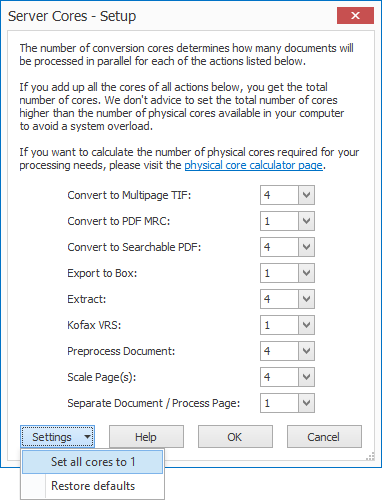
NEW#2079: SERVER: NUMBER OF CORES: We have switched to a centralized core management function in the Admin Client's Server tab. This replaces the "Number of cores" used in in the setup of the following actions:
- Convert To PDF MRC
- Convert to Searchable PDF
- Kofax VRS
- Export to Box
- Extract
- Separate Document / Process Page
The new centralized cores setup features a drop-down menu to reset the cores configuration to the default setting or to set all core settings to 1 to process documents in the sequence as they were imported.
Your originally configured number of cores from each individual action will automatically be converted to the centralized Server Core settings.
You can now also adjust the number of cores for the following actions:
- Convert to Multipage TIF (default: 4)
- Preprocess Document (default: 4)
- Scale Pages (default: 4)
IMPORTANT: The number of conversion cores determines how many documents will be processed in parallel for each action. If you add up all the cores of all actions, you get the total number of cores. We don't advice to set the total number of cores higher than the number of physical cores available in your computer since it can lead to a system overload.
If you want to calculate the number of physical cores required for your processing needs, please refer to our online physical core calculator.
NEW #2132: SERVER: CENTRALIZED AZURE RESOURCE MANAGEMENT: You now only need to define an Azure Resource once by using the Azure Resources setup in the Server tab.
You can then use that resource from any Azure-related action or rule by selecting it from a drop-down list. If the resource's key changes, you only need to change it once and all rules using that resource will use the new key.
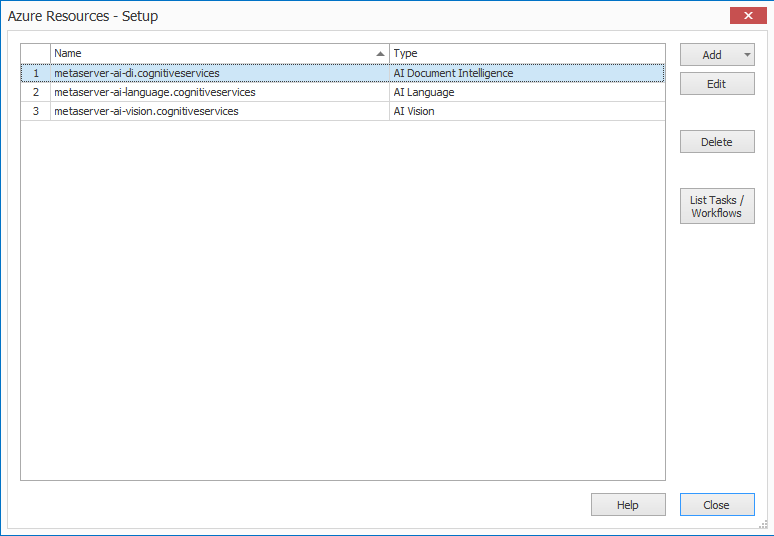
There are 3 types of Azure resources you can create:
1) Azure AI Vision (reads printed and handwritten text)
2) Azure AI Document Intelligence (reads printed and handwritten text, barcodes and uses pre-built and custom models)
3) Azure AI Language (summarizes text)
This change affects the following:
Actions:
- Convert to Searchable PDF
- Separate & Classify
- Organize
Rules:
- Extract Text (Azure AI Vision)
- Extract Text (Azure AI Document Intelligence)
- Format (Azure AI Summarize)
Tasks:
- Sync MetaServer Database
When you update to this new version of MetaServer, your existing workflows will be automatically converted to use the centralized Azure Resource setup.
- Any Azure resources used in your workflows and tasks will be automatically created.
- When you still have documents in the queue, embedded workflows will use the central Azure resource(s).
- Azure Resources are saved as *.CBMSResource files in the following location:
C:\CaptureBites\MsData\Resources
The resource's key is encrypted.
- Before an Azure Resource gets deleted in the centralized setup, we will first check if it is still in use by 1 or more workflows or tasks. Only Azure Resources that are not linked to an existing workflows or task can be deleted.
- When you select an Azure Resource, you can see a list of all the associated workflows and tasks.
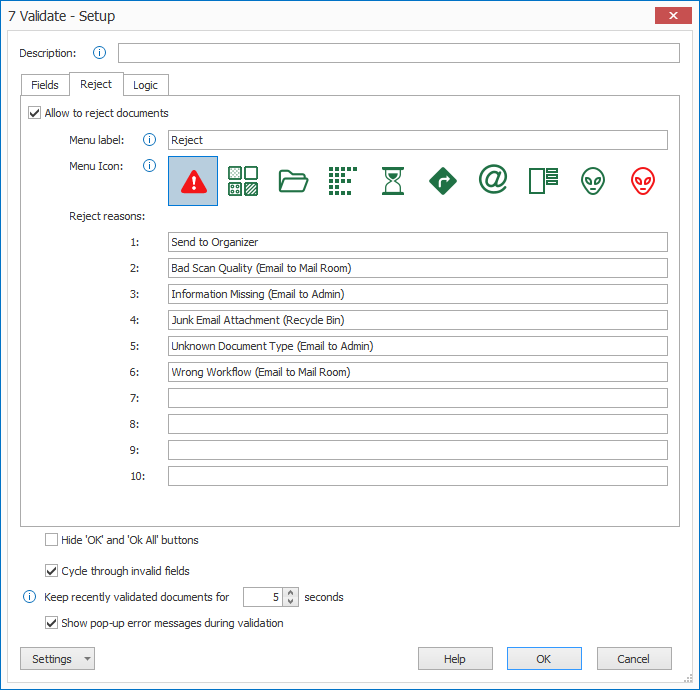
NEW #2132: VALIDATE - REJECT: We have implemented an option where, when a Validate action's reject purpose is positive (= green), you can force the operator to check the validity of the fields.
This is useful when you need to use the Reject function as a positive action like, for example, setting aside documents for updating a Custom Classification model.
In that case, documents are processed like regular documents and set aside in a special "training set" folder. The fields of the document should still be correct.
To apply this method, you just need to select a green icon for the Reject function (e.g. the "Save to Folder" icon, "Loading" icon, "Green alien" icon, etc.).
NEW #2068: EXTRACT TEXT (AZURE AI DOCUMENT INTELLIGENCE) - CHECK (US) MODEL: For the Extract Text (Azure AI Document Intelligence) rule, we now support the prebuilt "Check (US)" model. It can also be used with non-US checks but, with non-US checks, the MICR line is not detected and needs to be found within the full text using conventional MetaServer rules.

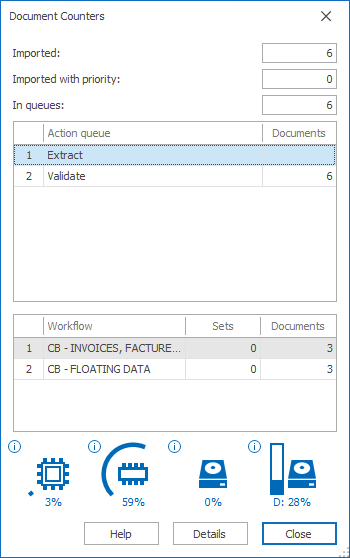
ENHANCEMENT#2081: DOCUMENT COUNTERS: We have added additional info about the number of sets and documents in workflows, CPU, memory, disk usage and disk capacity.
The usage % appear in orange or red when reaching the following levels:
| Processor | Memory | Disk Access | Disk Space | |
| Orange | 90 | 80 | 80 | 70 |
| Red | 99 | 90 | 90 | 85 |
ENHANCEMENT #2082: LOG - CPU USAGE: The CPU usage is now monitored. As soon as your system is 100% busy for more than 5 minutes, the monitor waits until the CPU usage drops below 100%. It then writes a warning log in the log folder located in:
C:\CaptureBites\MsData\Log
For example:
If the CPU is 100% in use for 5 minutes since 13:00, and then only drops down below 100% after another 10 minutes, the warning log with detailed information is written to disk on 13:15.
In case of a CPU overload, your computer becomes slow and unstable. We recommend monitoring the CPU usage in the "Performance" tab in Windows' Task Manager when MetaServer is processing documents.
If the CPU is regularly hitting 100%, we recommend decreasing the number of cores. This is configured in the Server tab of the MetaServer Admin client by pressing the "Cores" icon. Decrease the number of cores until the CPU usage stays below 100%.
As a reference, the most processor-hungry actions are:
- Extract
- Separate Document / Process Page
- Kofax VRS
- Convert to Searchable PDF
ENHANCEMENT #2180: EXTRACT BARCODE: UPGRADE TO LATEST SDK 9.4.1: The main benefit of this new Extract Barcode engine version is an increase in speed of up to 20% compared to the previous 9.3.1 version using identical settings.
There is also significant improvement to the recognition of barcodes at multiple angles on the same page.
ENHANCEMENT #2212: VALIDATE: USER-LEVEL SETTINGS: Previously, settings like font size, filters, layout etc. were saved at device level and were the same for all users. This gave unexpected results when some users preferred other settings than their colleagues. We now save the client settings at user-level.
ENHANCEMENT #2134: ORGANIZE / VALIDATE: OPEN DOCUMENT LIST: The filter of the Document List was not applied during Organize or Validate. Now, you can apply a filter and the Organizer or Validation will only present the filtered documents.
If you run out of filtered documents, you can go back to the "Document List" to adjust the filter to continue organizing / validating the remaining documents.
The column header of a filtered column is also now marked in green.

ENHANCEMENT #2152: ORGANIZE / VALIDATE - OPEN DOCUMENT LIST: We have optimized list-loading for reserved documents and filtered lists.
We have changed the method to list the available documents for the logged in user. The server will now only return unreserved documents and documents reserved for the current user and won't even load unavailable documents anymore. This speeds up document list creation and it also avoids the problem that the list-limit potentially returns nothing even if some documents are reserved for the logged in user.
We do a similar thing with the filter (see #2134). We will only retrieve documents matching the selected filter. This speeds up filtered document list creation considerably.
ENHANCEMENT #2107: RESERVE DOCUMENTS FOR A USER GROUP: If the selected user group contains sub-user groups, then the users of the sub-user groups can also access the reserved documents.
For example, if the user group "MetaServer Operators" contains 3 users, John, Joe and Jim and the" Administrators" user group reserves a document for the "MetaServer Operators" user group, it can also be accessed by any member of the "Administrators" user group.
WARNING: If you make changes to Active Directory user groups, you need to log out your windows session and log in again to apply the changes.
WARNING: The logged in user will only see groups where they are a member of. If you want to browse user groups from the Reserve rule, you need to make sure that, whoever is setting up the Reserve rule, is member of the same user group. Alternatively, they can enter the group's name manually.
ENHANCEMENT #2030: MONITORING: We have added entries for reserved documents per user / group in the JSON monitor file.
This can be used in combination with monitoring software to send an email alert to a group with a certain number of documents in their validation queue.
For example, assume there would be 5 documents reserved for jdmoons, 10 for the "MetaServer Operators" active directory group and 12 in Organize for the "MetaServer Organizers" group. The JSON entries would look like this:
Organize (MetaServer Organizers): 12
Validate (jdmoons): 5
Validate (MetaServer Operators): 10
ENHANCEMENT #2135: IMPORT FROM WEB SERVICE: We added an Enable / Disable toggle to the Import from Web Service action's setup. Disabling the import will delist the workflow from the web client's Upload screen
ENHANCEMENT #2052: VALIDATE / ORGANIZE - SHOW GRAPH: The selected icon for the Validate or Organize action's Reject function now sets the color in the workflow for the "rejected" flows.
For example, when you use a green folder icon, the graph will show the connected action as green.
ENHANCEMENT #2141 #2174: EXTRACT TEXT (AZURE AI DOCUMENT INTELLIGENCE): We now expose custom models' expiration date, field type and field description in the setup.
ENHANCEMENT #2147: EXTRACT TEXT (AZURE AI DOCUMENT INTELLIGENCE - PREBUILT MODELS: We now retrieve all fields from the prebuilt models with a GET MODEL call, assuring that we give access to all the fields of the prebuilt models.
As a consequence, the "Invoice" model now also returns the tax details for all VAT rates similar to the receipt model:
- Tax Details Amount
- Tax Details Currency Code
- Tax Details Currency Symbol
- Tax Details Rate

ENHANCEMENT #2140: CONVERT TO PDF MRC: To convert large plans to PDF MRC, they were reduced in pixels to the largest rendering DPI. This made the image smaller than 17.5 megapixels and preserved dimensions. The DPI was limited to fixed steps of 100, 150, 240, 300,... DPI. So, if 150 DPI was just above 17.5 megapixels, the image became 100 DPI. This method made it lose a lot of pixels.
Two changes have been made:
1) We scale to more pixels: Large plans are now reduced in pixels to the largest rendering DPI. This maskes the image smaller than 35 megapixels.
2) The DPI is set at the unit level: If, for example, 150 DPI does not match 35 megapixels, it will apply whatever DPI brings the image just below 35 megapixels (e.g. 143 DPI).
ENHANCEMENT #2182: OAUTH2 LOGIN FOR OFFICE 365 + BOX: When the WebView2 runtime was not installed and you tried to log in with OAuth2, you got a cryptic error. We now show a meaningful error including a link to the WebView2 runtime installer.

ENHANCEMENT #1869: EXPORT TO SAP: We have changed from "KGS Activator Lite" to "Arcana X-Connect". The connector does not require a transport anymore but registers with SAP through a certificate. This means it can update the content management system directly.
FIX #2183: IMPORT FROM FOLDER - CONVERT XFA TO IMAGE PDF: The Convert to XFA to Image PDF option correctly converted PDF XFA to Image PDF, but the check before processing the PDF through actions that don't support XFA still failed and considered the PDF as XFA. This is now fixed.
The below actions, divided in groups 1, 2 and 3, were failing to process XFA files.
Group 1: Actions that failed if PDF is XFA/Text, process if XFA/Image
Group 2: Actions that always processed documents:
Group 3: Action skipped if PDF is XFA/Text, processed if XFA/Image:
FIX #2087: IMPORT EMAIL: We have fixed the preprocessing error "Could not find a part of the path". We now do an automatic retry in case this error appears.
FIX #2204: IMPORT ACTIONS - FIT TO PAGE SIZE OPTION: When the "Fit to page size" option was enabled, it changed the document's pixel count. Now, it only changes the dimensions by setting the DPI correctly.
NOTE: The purpose of this option is to set the page size of smartphone images to A4 or letter size. These often feature the wrong 96 DPI or no DPI, turning them in gigantic dimensions.
We now force these images to become A4 or Letter size.
FIX #2213: IMPORT EMAIL: Embedded images in the email body with very long file names, exceeding the Windows file name length limit, caused the email to block the email import queue. We now handle this issue correctly.
The specific case was related to an email with a logo file named:
"OutlookEmoji-Ein Bild, das Schrift, Grafiken, Logo, rot enthält. KI-generierte Inhalte können fehlerhaft sein.b474f5c6-46c8-47a2-a8dd-a2f9e9530e8e.png"
FIX #2083: CONVERT TO PDF/A: Converting a 2564-page document caused an OOM. It now works after moving the action in an external .EXE.
FIX #2099: EXTRACT TEXT (AZURE AI DOCUMENT INTELLIGENCE) - OTHER DOCUMENT MODEL: Line item fields did not return confidence levels.
FIX #2104: EXTRACT TEXT (AZURE AI DOCUMENT INTELLIGENCE): The "Read" and "Other Form" model did not return the dominant language.
FIX #2118: EXTRACT TEXT (AZURE AI DOCUMENT INTELLIGENCE): For the "ID Document" model, the Machine Readable Zone (MRZ) subfields now have a pink rectangle equal to the MRZ zone.
FIX #2137: EXTRACT TEXT (AZURE AI DOCUMENT INTELLIGENCE): Vertical text objects were highlighted incorrectly with the wrong pink rectangle. Pink rectangles are used for highlighting the extracted data during validation.
FIX #2216: EXTRACT TEXT (AZURE AI DOCUMENT INTELLIGENCE) - CUSTOM EXTRACTION: We only supported dynamic tables. Dynamic tables have a variable number of rows with tables potentially spilling over several pages. We now also support fixed tables. Fixed tables have a fixed number of rows. If any rows are empty, they will also be returned.
FIX #2218: EXTRACT TEXT (AZURE AI DOCUMENT INTELLIGENCE): We now sort custom models alphabetically in the model selection list.
FIX #2184: EXTRACT TEXT (AZURE AI VISION): Erratic Error fixed with Azure AI Vision:
Value cannot be null. Parameter name: requestUriString
This is now treated as an internet outage. The relevant Extract or Convert to Searchable PDF action turns orange and an automatic retry is performed until the error does not occur anymore and the action will revert to green.
FIX #2080: EXTRACT - FORMAT CSV: The Table View of ";" delimited CSVs did not work. Only "," delimited CSVs were correctly displayed in the table view.
FIX #2185: EXPORT PROCESSED SET: When a set of multiple separated documents was processed, the Export Processed Set action did not always email all separated documents.
This was related with the way we detect when a set is completely processed. If the Apply Separation & Page Processing action was still working on a set while some separated documents of the same set were already processed, the issue occurred.
We now stop all documents of a set for further processing until the Apply Separation & Page Processing action has completely finished, and all document of the set are available for processing.
FIX #2098: SERVER - DATA DRIVE: After moving all files to another drive, the following error appeared:
Failed to Start Server when moving the server data folder.
The server had to be stopped and restarted using the external shortcuts, and, although all files had been moved to the new drive, the MetaServer still used the previous drive. This has been fixed.
FIX #2184: EXPORT TO DATABASE: An erratic error has been fixed. "ExecuteNonQuery" requires an open and available connection. The connection's current state is closed. This error is now automatically retried to avoid documents ending up in the Errors tab.
FIX #2197: EXPORT TO DOCUWARE: We now auto-retry the error: "The underlying connection was closed,..."
FIX #2189: HELP BUTTON URLS: The following actions' Help button URLs have been corrected:
Version 3.1(31) | 2025-03-27
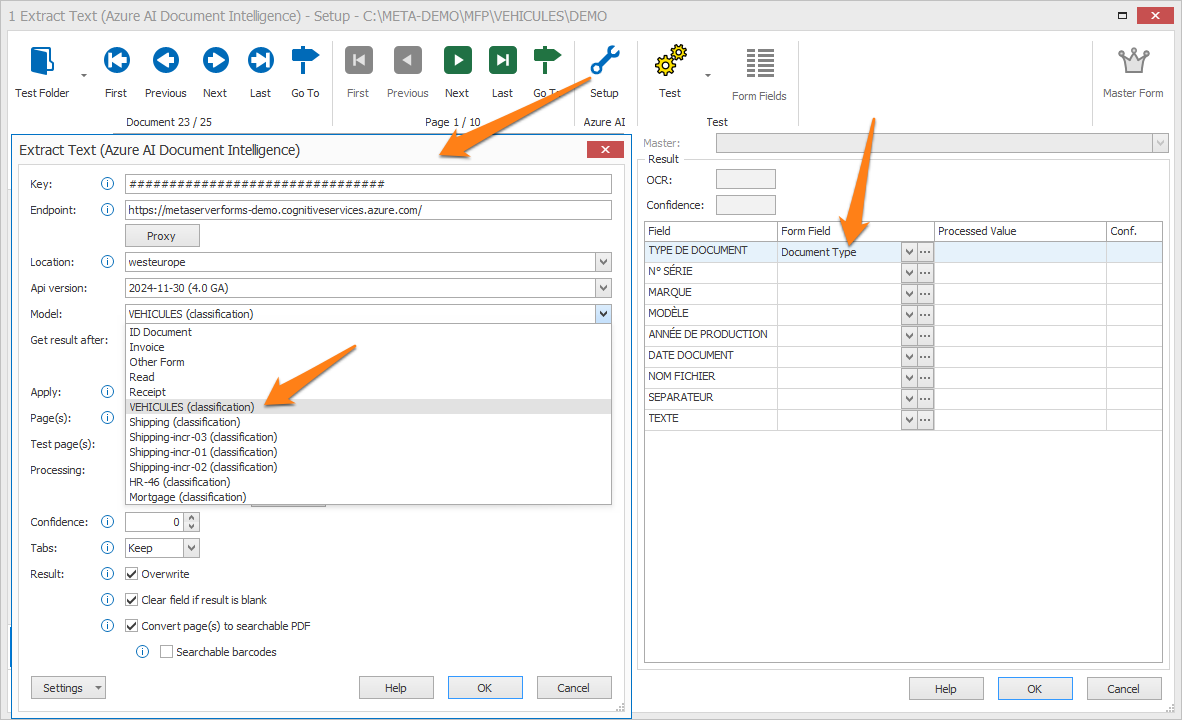
NEW #1971: EXTRACT (AZURE AI DOCUMENT INTELLIGENCE) - CUSTOM CLASSIFICATION MODEL: We implemented Azure AI Document Intelligence's Custom Classification model. You build your classification model using the Azure Document Intelligence Studio (DI Studio).
You can find a detailed guide on the Extract Text (Azure AI Document Intelligence) help page.
In a nutshell, it works like this:
1) In the DI Studio, you create all your document types and feed 5 or more representative samples for each document type.
2) You train the classification model. After it has completed building the model, it becomes available in the "Model" drop-down of the MetaServer Extract (Azure AI Document Intelligence) rule.
3) You select the classification model you want to use and you can then map the "Document Type" field with a MetaServer field.
The model also returns a confidence level, which you can use in Validation to check and, if necessary, correct low-confidence classifications.
To enable Custom Classification models in MetaServer, you require a new module with product code "CB-META-AZCC" (= Azure Custom Classification) on top of "CB-META-AZDI" (= Azure AI Document Intelligence).
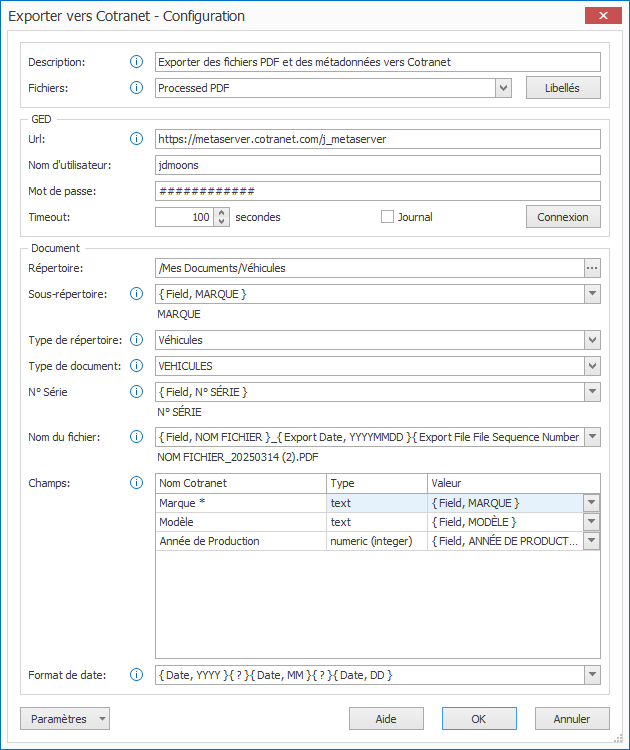
NEW #2006: EXPORT TO COTRANET: With the Export to Cotranet action, you can export documents to Cotranet Cloud or On-Premise.
You can select and dynamically create the folders and subfolders where you want to store your documents. You then map MetaServer data with the selected Document Type’s index fields and name the documents and files independently using fixed values and/or MetaServer fields.
For more info regarding the Cotranet platform, please visit www.cotranet.com.
NEW #2014: VALIDATE - CREATE FAST DISPLAY DOCUMENT: We have added a new option called "Create fast display document". A fast display document contains reduced resolution versions of very large pages (> 17.5 Megapixels). The file is temporary and for display purposes only. It will not affect the output.
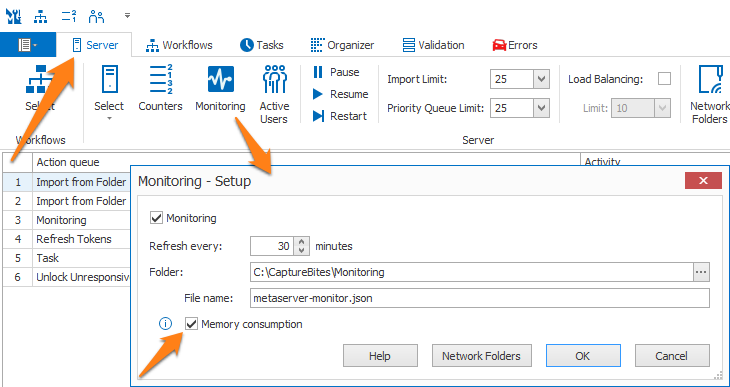
NEW #2029: SERVER MONITORING - MEMORY CONSUMPTION: In the Admin Client's Server tab, we have added a new option called "Memory Consumption".
When enabled, the file name of the memory consumption is pre-defined as:
YYYY-MM-{Server Computer Name}-Memory.CSV
This will create a new memory log every month.
It registers all important memory information, which will help with diagnosing systems that show memory issues and unexpectedly unload the MetaServer Service.
FIX #2012: ERRATIC RETRY ERRORS: The following errors were not retried correctly;
"Unable to delete file..."
"Impossible to create an existing file."
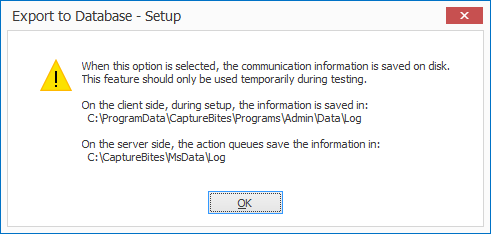
FIX #2042: LOG FILES: Many actions have the possibility to generate a log to diagnose issues. Most of them did not indicate where the log was written. We now have added a pop-up with the location of the log as soon as you enable it.
On the client side, during setup, the information is saved in:
C:\ProgramData\CaptureBites\Programs\Admin\Data\Log
On the server side, the action queues save the information in:
C:\CaptureBites\MsData\Log
Affected actions / rules:
- Convert to PDF/A
- Convert to Searchable PDF
- Export to Alfresco
- Export to Box
- Export to Cotranet
- Export to DocuWare
- Export to Enadoc
- Export to SAP
- Export to SharePoint
- Export to WebServer:
- APE
- Gouw7
- InProces
- ZaakSysteem
- Extract Text (Azure AI Document Intelligence)
- Database Lookup
- WebHook
FIX #2026: EXPORT TO FOLDER: When the "Export files" option was disabled, you still received errors regarding mistakes in the definition of the files. We don't show these irrelevant errors anymore, if the option is disabled.
FIX #2038: TASKS: When you create a task with a trigger at a fixed hour, it also executed the task instantly after publishing.
Now, when you publish a new task, it only runs when the trigger occurs.
FIX #2011: FORMAT CSV: Merging a CSV with repeating single line fields did not work correctly anymore. The internal code of the Format CSV rule is refactored and easier to maintain.
This enhancement was published in version 3.1.31.68 (2025-03-27).
FIX #2069: FORMAT CSV: In the Format CSV rule, we added a tooltip to the "Delete row if..." option and updated our online help page:
"With this option you can choose if you’d like to delete rows from your CSV in certain conditions. Leave the condition blank if you don’t want to delete any rows."
For example, you can delete rows when a complete row is empty. Or you can delete rows if a specific field, like "Total Amount", is empty.
Special cases:
When a CSV is added to the columns in your setup:
- You can only delete rows when a complete row is empty. The other conditions, "if a specific field is blank", won't be applied.
- If the CSV is combined with repeating single line fields and the "Delete row if complete row is blank" is enabled, then first the blank rows are deleted from the CSV, next the repeating single line fields are added.
This enhancement was published in version 3.1.31.68 (2025-03-27).
FIX #2070: EXTRACT (AZURE AI DOCUMENT INTELLIGENCE): In the Extract Text (Azure AI Document Intelligence) action, some models crashed on blank PDFs. The "Invoice", "ID Document", and "Receipt" models failed on a totally bank PDF. The "Read" and "Other Form" models did not fail.
This enhancement was published in version 3.1.31.68 (2025-03-27).
FIX #2078: CONVERT TO MULTIPAGE TIF / CONVERT TO IMAGE PDF /CONVERT TO JPG: These convert actions occasionally reduced the resolution of some pages converted from text-based PDFs
This enhancement was published in version 3.1.31.68 (2025-03-27).
ENHANCEMENT #2061: REMOVED INTERNET EXPLORER DEPENDENCY: We have removed the obsolete IE dependency used for OAuth2 login boxes such as for Import, Forward and Export Email, Export to Box etc. and we have replaced it with WebView2 (Edge).
This enhancement was published in version 3.1.31.67 (2025-03-18).
ENHANCEMENT #2054: VALIDATE - DB LOOKUP: The "Confirm Lookup" option now only asks for confirmation if the user changes the value.
Before, the "Confirm lookup" option forced the use to hit ENTER twice even if the user did not change the value.
The double ENTER is now only required if the user changes the value. With the idea that the first time the user hits ENTER the lookup is triggered and all fields are mapped. Then the user checks and confirms the lookup with the second enter.
This enhancement was published in version 3.1.31.67 (2025-03-18).
ENHANCEMENT #2062: SERVER - MONITORING: We also added CPU utilization to the memory consumption monitoring file.
This enhancement was published in version 3.1.31.67 (2025-03-18).
ENHANCEMENT #2072: LOGGING: We now log when MetaServer is started. The log is, as usual, located in:
C:\CaptureBites\MsData\Log
This enhancement was published in version 3.1.31.68 (2025-03-27).
Version 3.1(30) | 2025-02-11
NEW #1969: EXPORT TO SHAREPOINT - DYNAMIC SUBSITE SWITCHING: In the Export to SharePoint action, it is now possible to use variables to set the SharePoint address. Each SharePoint subsite should use identical credentials, libraries and content types.
NEW #1989 #1998: EXPORT TO WEB SERVER - ZAAKSYSTEEM.NL: We can now export to zaaksysteem.nl. Related to this we also added a check in Validation to check the validity of a "zaaknummer" through a web call.
We also don't stop queue if the document upload error is one of the following:
"Zaaknummer bestaat niet"
"Ongeldig zaaknummer"
"Upload missing."
Such documents are moved to the Errors tab. Other (correct) documents continue to be exported.
NEW #2001 #2007: EXTRACT - SET FIELD VALUE: We added new variables:
- In the Import / File section, we added { Import File SHA256 }. It returns the SHA256 string of the imported document.
- In the Document section, we added { Processed PDF SHA256 }. It returns the SHA256 string of the PDF(s) after manipulation in the Separate Document / Page Processing action and / or Organizer.
NEW #1995: EXTRACT (AZURE AI DOCUMENT INTELLIGENCE): We added the latest GA version 2024-11-30 (4.0 GA) which is available in all regions.
We recommend to switch your existing Extract (Azure AI Document Intelligence) rules to this GA version. Any newly added rules automatically set the new GA version.
There are extraction improvements in all models and new fields are available in the prebuilt Receipt model:
- Balance
- Balance Currency Code
- Balance Currency Symbol
- Country Region
- Payment Item Amount
- Payment Item Amount Currency Code
- Payment Item Amount Currency Symbol
- Payment Item Method
- Receipt Type
- Tax Detail Item Description
- Tax Detail Item Net Amount
- Tax Detail Item Net Amount Currency Code
- Tax Detail Item Net Amount Currency Symbol
- Tax Detail Item Rate
ENHANCEMENT #1899: VALIDATE - DB LOOKUP: Selecting the first value in the lookup list on a non-required lookup field with the cursor required going up and down with the cursor. Also, selecting a blank value was unintuitive.
The new improved behaviour shows a blank first line when opening the list, selecting the blank line, keeps the field blank. If you start typing, the lookup shows all matching values and no blank line. If you want to select the first selected line, you just have to hit ENTER once.
FIX #1942: EMAIL FUNCTIONS - OFFICE 365: We now retrieve proxy settings from the registry:
HKEY_CURRENT_USER\SOFTWARE\Microsoft\Windows\CurrentVersion\Internet Settings to set the proxy settings correctly for all email communication.
FIX #1973A: PREPROCESSING LARGE LZW FILES: Preprocessing failed on very large TIF LZW files. We fixed this by handling this part of the processing with a 64bit executable.
FIX #1973B: CONVERT TO TIF: When converting electronic PDFs with very large logo bitmaps (we had a case with 2187 dpi logo bitmaps), they were rendered to TIF with the same resolution as the embedded image causing memory issues. We now limit the resolution to 400 DPI. We applied the same fix to the following actions:
FIX #1966: ERROR REPORTING - ALL AZURE INTEGRATIONS: We now display the inner error giving more meaningful information about what causes the error.
FIX #1967: EXTRACT BARCODE: The folllowing error was caused by a defect in the retry logic:
"Unable to deserialize MS.Common.Exceptions.ExternalExeException"
FIX #1975: EXTRACT - FORMAT CSV: The "Minimum number of rows" spin box was not correctly anchored when resizing the window.
FIX #1957: ERRATIC ERRORS: Unable to delete file... errors started to appear since version 3.1.28 related to following actions:
- Check Validity
- Delayed Apply
We changed the polling delay from 50ms to 5000ms for these actions to check if this may fix the issue.
FIX #2002: EXTRACT - AZURE AI DOCUMENT INTELLIGENCE: Models returning the dominant language and document type always returned a confidence level of 0% for these values.
FIX #1965: VALIDATE - DB LOOKUP (METASERVER DB): When you disabled the "Check if multiple hits option" and the DB contained equal lookup values in both upper and lower case. then the document appeared unexpectedly in Validation and also returned the wrong lookup result.
FIX #1977: EXTRACT / VALIDATE - DB LOOKUP (METASERVER DB): When you added a field or removed a field from the CSV, then accessed the field list via a DB Lookup setup, the change was not reflected. It required to restart MetaServer to see the changes.
NOTE: If you are already in the DB Lookup setup and you make a change to the CSV, press "Connect" in the setup to load the new version of the database.
FIX #1970 #1981: EXTRACT / VALIDATE - DB LOOKUP (ODBC ORACLE): We experienced 2 erratic errors related to lookup with Oracle ODBC:
"Unable to identify the syntax required by this database"
"La connexion a été désactivée."
We now retry for the following errors (both SQL and ODBC); 4 retries, after 0.5 sec, 1 sec, 2 sec...:
"Unable to identify the syntax required by this database."
"Unable to identify the case syntax required by this database."
In case of "La connexion a été désactivée.", when an action connects to an odbc and an existing connection is used, a call to GetFields is made to check the connection. If this call fails, a new connection is made.
FIX #1951: AZURE AI SUMMARIZE: We have made adjustments to the settings for abstractive and extractive summary.
Extractive summary features the option: "Sentences in extractive summary", a value between 1 and 20 (default = 4)
Abstractive summary features another option with 4 possible levels (default = short):
- One sentence of around 80 tokens
- Short of mostly 2-3 sentences, with around 120 tokens
- Medium of mostly 4-6 sentences, with around 170 tokens
- Long of mostly over 7 sentences, with around 210 tokens
FIX #1962: AZURE AI SUMMARIZE: The info tips were not correct. They are now:
"Apply" info tip:
"Only summarize if the condition applies."
"Summary type" info tip:
"An abstractive summary produces a summary with novel sentences. An extractive summary produces a summary using key sentences from the source text."
FIX #1912: SEPARATE DOCUMENT / PROCESS PAGE: Separating every n pages without any extraction rules caused an error when previewing. Run time worked fine.
FIX #1997: SEPARATE DOCUMENT / PROCESS PAGE(S): Setting a field equal to { Document Page Number } or { Document Page Count } during Separation if multiple documents in a folder are merged during import caused an error.
Another related thing was that if you used the { Document Page Number } variable directly in the condition of the "Extract Barcode" or an "Extract Text" rule, it did not resolve.
FIX #1945: ORGANIZER - CLIPPING TOOL: A2 PDF files generated correct thumbnails, but the wrong clips.
Also, generating several clips from the A2 caused an OOM. The images were buffered to avoid rasterizing the page again when previewing a page a second, third... time. We removed this buffering to avoid the OOM issue. We also moved the rasterization in an external exe.
FIX #1976: VALIDATE - DB LOOKUP: In the DB Lookup's setup, on small screens with a lot of fields in the mapping tab, you could not get to the bottom fields to map them because the vertical scroll bar was missing.
FIX #1960: VALIDATE CSV: The "Height" expressed in number of lines in the setup did not correspond with the exact number of lines shown in the CSV table. For example, when you entered 10 lines, only 9 were shown.
FIX #2008: EXPORT TO FOLDER - XML FILE INDEX: Any MetaServer fields included in the XML header are now only updated by the first imported document. Consecutive documents leave the MetaServer field values in the XML header untouched.
FIX #1992: SERVER TAB - ACTIVE QUEUES ONLY VIEW: An automatic or manual refresh unselected the selected action.
FIX #1968: LICENSING - AZURE AI SUMMARIZE: Licensing now works correctly. You can always test your Azure AI Summarize rule during setup. However, during runtime, if the module is not licensed, documents passing through an unlicensed Azure AI Summarize rule will return the following error:
"Module 'AzureSummarize' is not licensed."
FIX #1968: LICENSING - AZURE AI SUMMARIZE: Licensing now works correctly. You can always test your Azure AI Summarize rule during setup, but, during runtime, if it is not licensed, documents passing through an unlicensed Azure AI Summarize rule will return the following error:
"Module 'AzureSummarize' is not licensed."
FIX #1980: LICENSE TAB: We have removed the "VRS QC Client" module. This module was never released and is not on the roadmap anymore.